70
Basic Workow
Select printer mode Select a job
Check and manage
jobs
The screens displayed vary depending on what optional equipment has been connected and how you have completed settings.
Make sure the machine is in printer mode.
Some items may not be displayed, depending on how the administrator has congured the settings. For details, ask your
administrator.
•
•
•
You can perform operations for jobs that you saved to the
folder, or you can print a job that you sent after assigning
it with a PIN code. You can also change the settings of a
job that you sent or delete it.
Job Operations
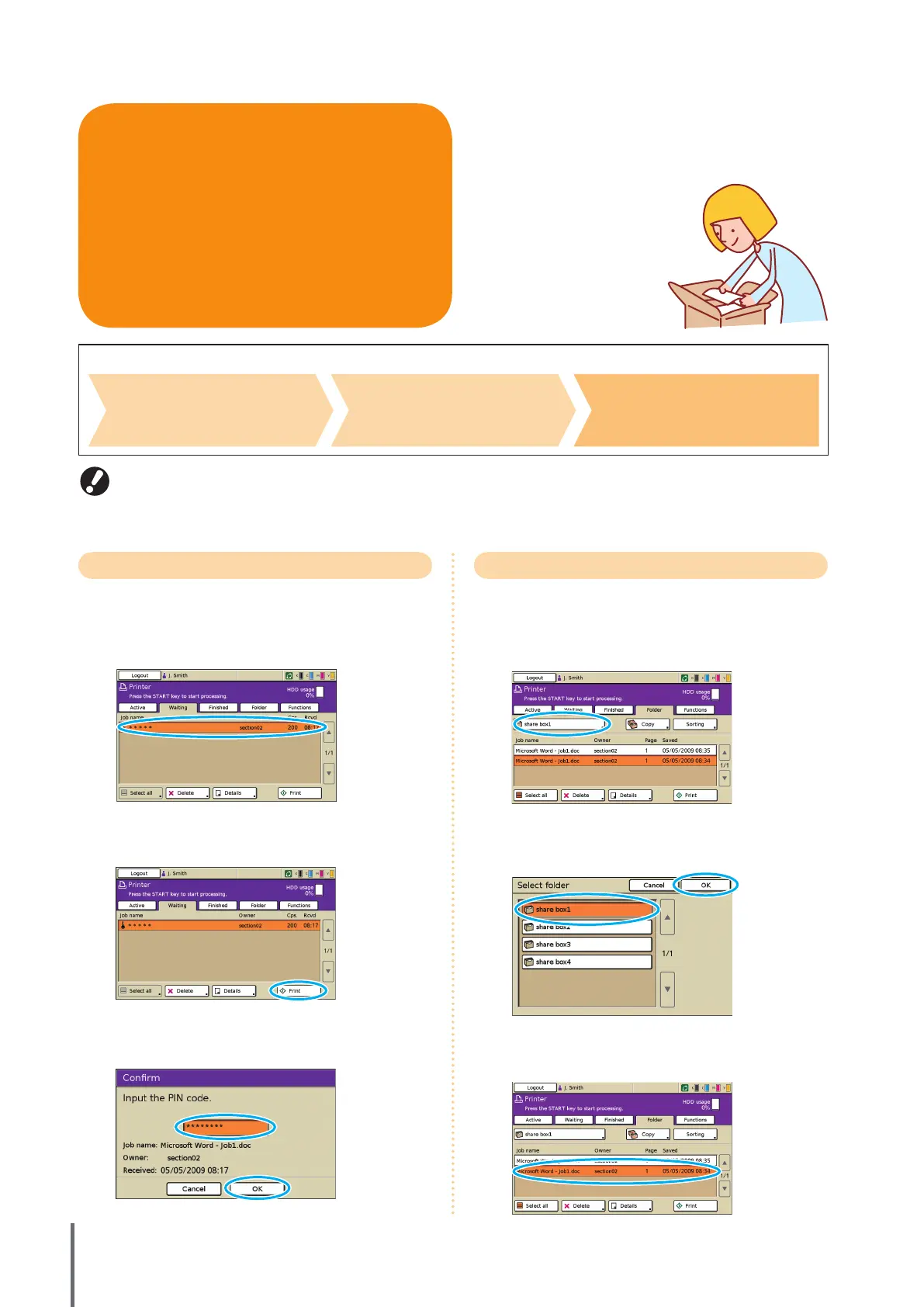
Printing PIN Code Jobs
Print jobs with PIN codes sent from a computer as follows.
1
On the [Waiting] screen, select the job to print.
2
Press [Print].
Otherwise, press the [START] key.
3
On the conrmation screen, enter the PIN code and
press [OK].
Printing Jobs Stored in a Job Folder
Print the jobs stored in a job Folder as follows.
1
On the [Folder] screen, press the select folder
button.
2
On the [Select folder] screen, select the folder where
the job is stored and press [OK].
3
Select the job to print.
ComColor Series Basic Guide 02










 To Next Page