31
Printing >> Printing Operations
2
5
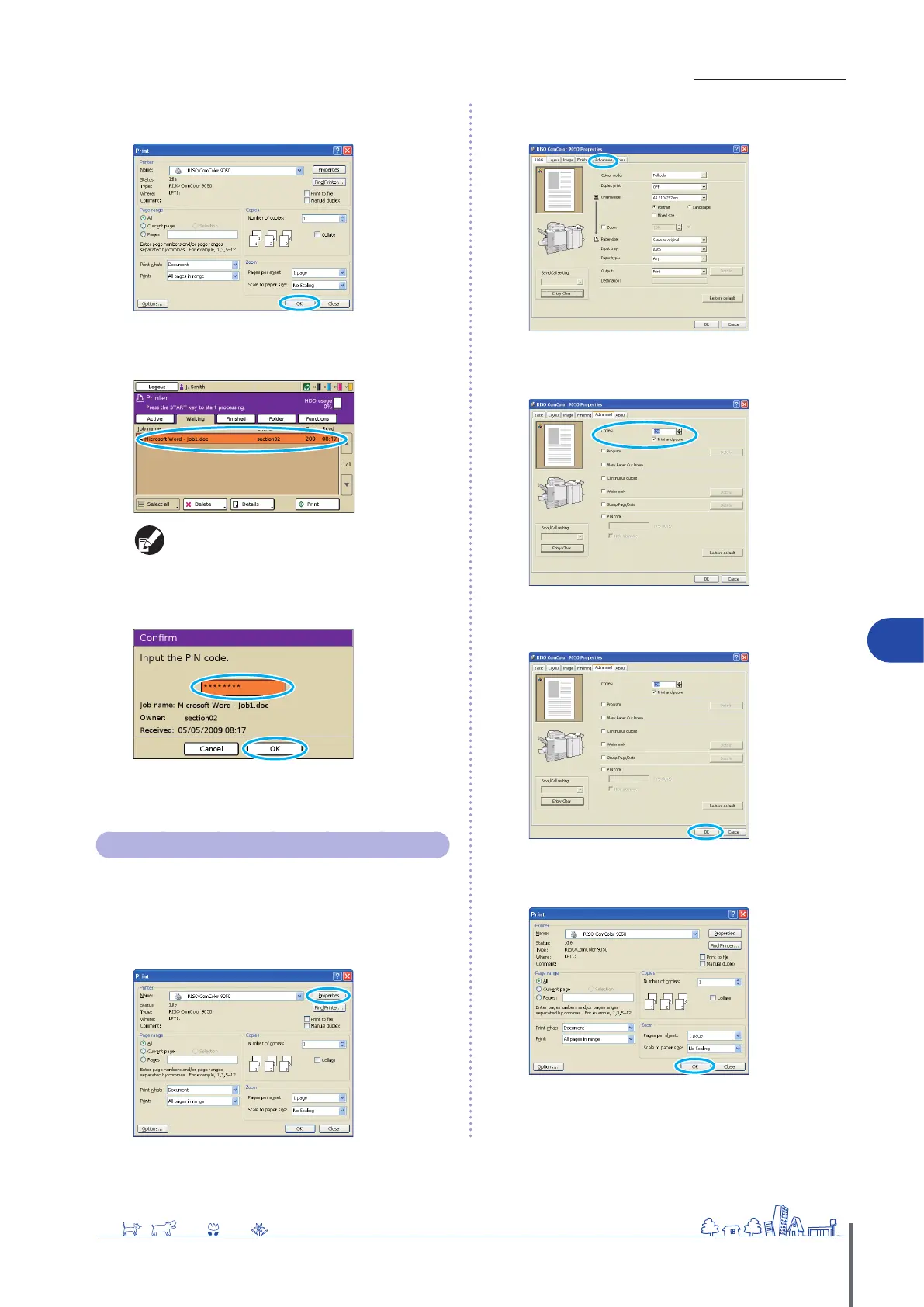
In the printing dialog box, click [OK] (or [Print]).
6
On the touch panel of the machine, select the job
you sent and press the [START] key.
Jobs sent from the computer are displayed in the
[Waiting] screen list in printer mode.
7
Enter the PIN code and press [OK].
The job is moved from the [Waiting] screen to the [Active]
screen, and then it is printed.
Printing with Print and Pause
Before high-volume printing, you can print just one copy
of a job to conrm that the nish and settings are correct.
1
Click [Properties] (or [Preferences]) in the printing
dialog box of the source application.
2
Click the [Advanced] tab.
3
Select [Print and pause] and enter the number of
copies.
4
After input is nished, click [OK].
Complete other settings as needed.
5
In the printing dialog box, click [OK] (or [Print]).
After data is received by the machine and one copy is
printed, the machine will stop printing.
ComColor Series Basic Guide 02
ComColor Series Basic Guide 02










 To Next Page