35
Printing >> Printing Operations
2
2
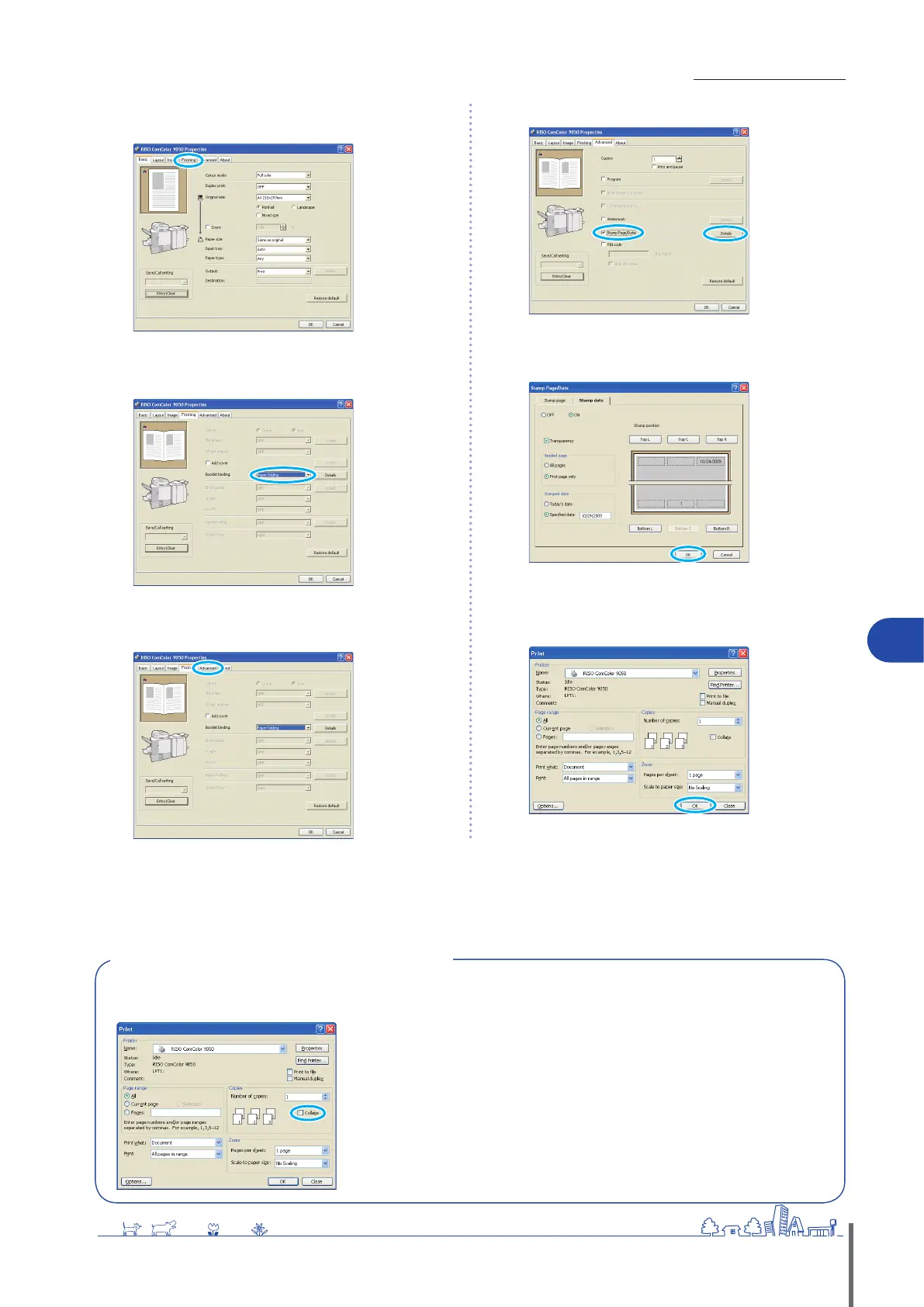
Click the [Finishing] tab.
3
Select [Paper folding] in the [Booklet binding] pull-
down menu.
4
Click the [Advanced] tab.
5
Select [Stamp Page/Date] and click [Details].
6
Specify [Stamp position] for the page number and
date, and then click [OK].
Complete other settings as needed.
7
In the printing dialog box, click [OK] (or [Print]).
[Collate] Check Box in Printing Dialog Boxes
If there is a [Collate] check box in the printing dialog box of the source application, clear the check box. Instead, specify
[Sort] in [Collate] on the [Finishing] tab for collated printing.
ComColor Series Basic Guide 02
ComColor Series Basic Guide 02










 To Next Page