43
Copying >> Copy Mode Screens
3
[ADF scan & pause]
Use when copying a quantity of originals that cannot be
loaded at one time in the ADF. After the rst set of originals
has been scanned, a conrmation message regarding
additional scanning is displayed. (Up to 1,000 sheets can be
scanned.)
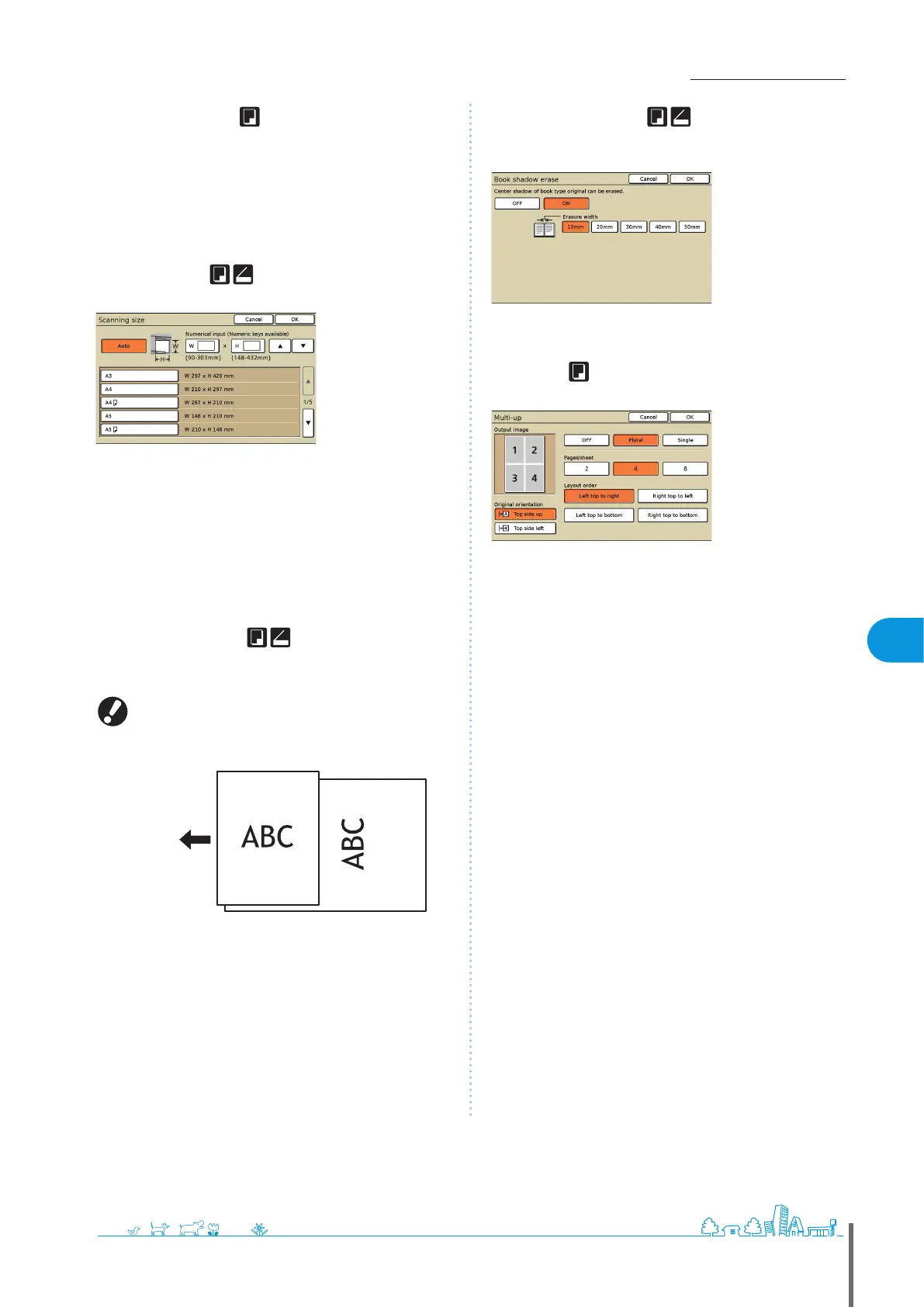
[Scanning size]
Specify the scanning size for originals.
[Auto]
The scanning size is automatically calculated and set, based on the
original size and reproduction size.
[Numerical input]
Use [▲] and [▼] or the numeric keys to enter the desired value.
Page size list
Select sizes from the list displayed.
[Mixed size original]
Specify when scanning originals of various sizes on dierent
pages in the ADF.
Only originals with one side of equivalent length can be
scanned together.
Example: A4 and A3 sheets, B5 and B4 sheets, or STMT and
LTR sheets
Original loading
orientation
in the ADF
[Book shadow erase]
When scanning originals in book format, erase the center
shadow.
[Multi-up]
Copy multiple originals onto a single sheet.
[OFF], [Plural], and [Single]
Specify the type of layout—specically, how originals are
arranged for copying.
[OFF]
Copy without combining originals, with one original per page.
[Plural]
Copy multiple pages of originals, arranged in the specied order,
onto a single sheet.
[Single]
Copy multiple images of the same original onto a single sheet.
[Pages/sheet]
Specify how many originals to copy onto a single sheet.
[Layout order]
Specify the order in which originals are arranged on a single
sheet when [Multi-up (Plural)] is selected. Options will vary
depending on your selected number of pages in [Pages/
sheet].
[Output image]
Shows a preview of the image with current settings applied.
[Original orientation]
Specify the orientation for loading originals.
[Top side up]
Select when loading originals in an orientation from which they can
be read normally.
[Top side left]
Select when loading originals so that the top of the original image is
along the left edge.
●
●
●
●
●
ComColor Series Basic Guide 02 ComColor Series Basic Guide 02










 To Next Page