Utility Software Guides
RISO-ADMIN features
21
FTP printing
You can print out RISORINC-format document files, i.e. those created through the RISO printer driver or the
RISORINC printer driver, on a RISO printer on the network, using the FTP printing feature of RISO-ADMIN.
Follow the procedure below to print out RISORINC-format document files.
Important!:
• When using the FTP printing feature, it is necessary for the RISO printer to be assigned its own IP address. You
can use RISO-ADMIN to set up a suitable IP address.
Note:
• For the procedure of creating RISORINC-format document files on your computer, read the corresponding section
of the user's guide for the printer driver.
1
Open the [Upload FTP Data] dialog
box.
Open the [Option] menu in the RISO-ADMIN
main window and click on [FTP Option].
The [Upload FTP Data] dialog box then appears.
2
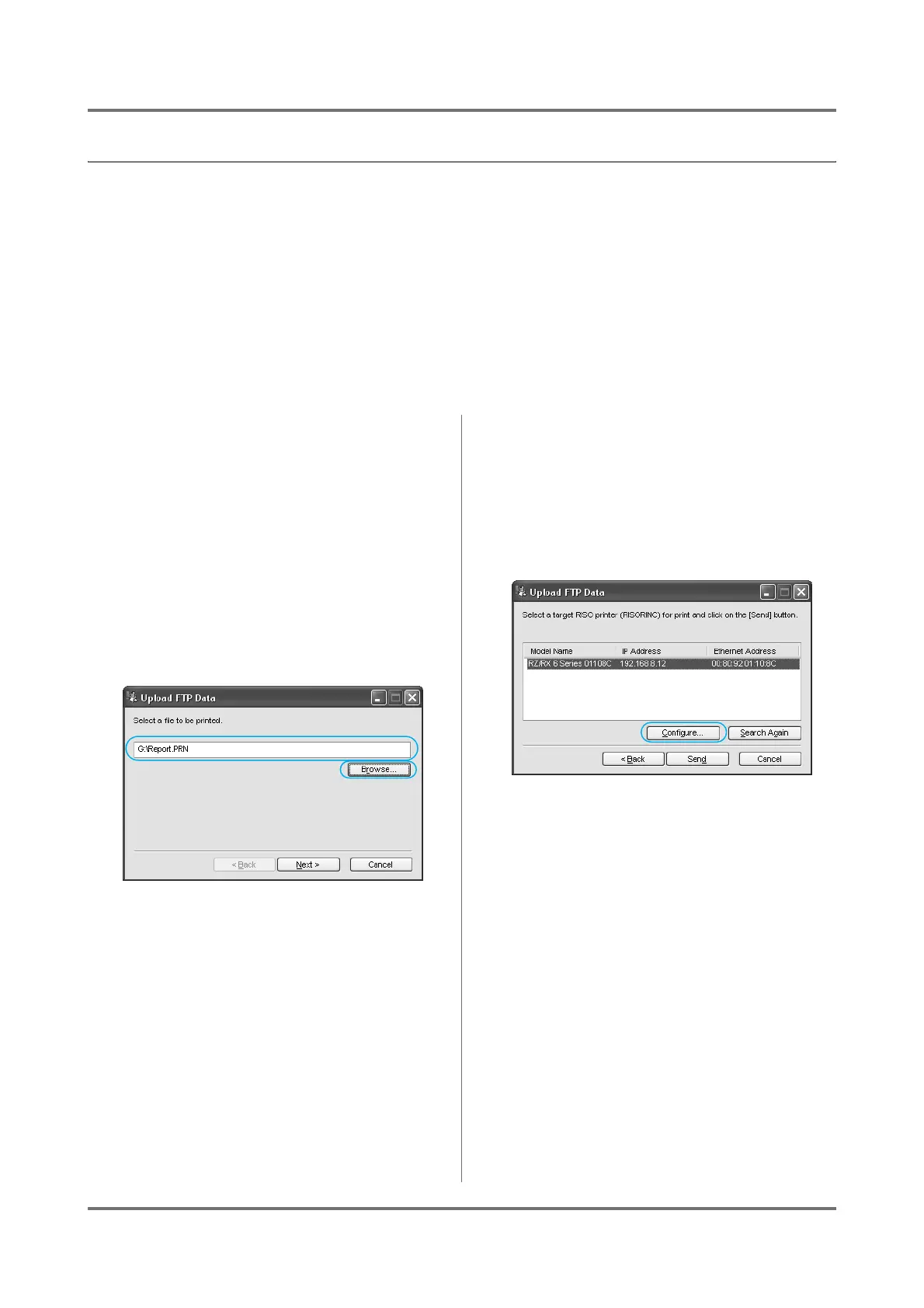
Select a desired RISORINC-format
document file.
Type the path and the file name directly in the
entry box or select it in the [Open] dialog box,
which can be opened by clicking on the [Browse]
button.
3
Select a RISO printer on which a
RISORINC-format document file is to
be printed.
Clicking on the [Configure] button will allow you
to specify Broadcast IP addresses.
Click on the [Next] button and highlight a desired
RISO printer in the displayed list box.
4
Start printing.
Click on the [Send] button. The selected
RISORINC-format document file is sent to the
selected RISO printer to be printed out.
Important!:
• An FTP print job cannot be canceled after click-
ing on the [Send] button.



 To Next Page