25
Headphone socket
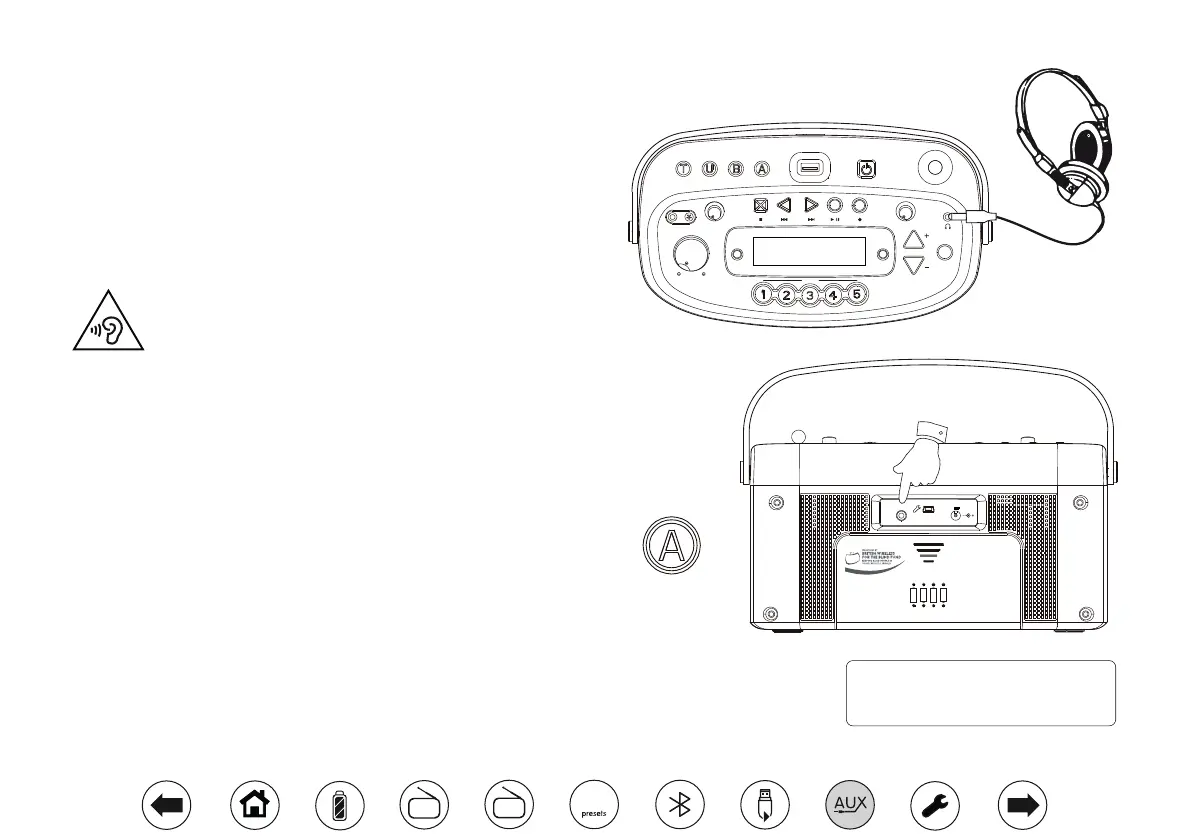
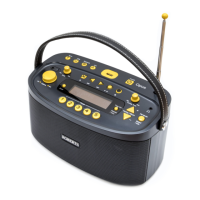
A 3.5mm Headphone Socket located on the top of your radio just above
the Select/Info button is provided for use with either headphones or an
earpiece. Inserting a plug automatically mutes the internal loudspeakers.
Please be aware that the sensitivity of headphones can vary widely. We
therefore recommend setting the volume to a low level before connecting
headphones to the radio.
IMPORTANT: Excessive sound pressure from earphones and headphones
can cause hearing loss.
To prevent possible hearing damage, do not listen at high
volume levels for long periods.
Zoom
Volume
MIC
Tone
Preset
Time Set
Repeat
& Intro
Tuning / Album
On/Off
Info.
Tuning Tone
Tuner Aux
Min. Max.
Min. Max.
Min. Max.
BluetoothUSB
Opus
Select
Auxiliary input socket
1. Ensure that nothing is plugged in to the microphone socket.
2. Connect a stereo or mono audio source (e.g. CD player, MP3 player,
etc.) to the Auxiliary input socket located on the back of the radio.
3. Press the On/Off button to switch on your radio. The radio will beep to
conrm that it is now switched on.
4. Press the Auxiliary button. The display will show 'Aux in'.
5. Adjust the Volume control on your player and on the radio for comfortable
listening.
6. Remove the cable from the Auxiliary input socket and change mode
to cancel the Auxiliary Input.
Note: If the radio is in Auxiliary input mode with no input signal being applied
for more than 15 minutes then it will automatically switch to the standby
mode. If powered from batteries the radio will then switch off completely. To
use the radio again, simply press the On/Off button to switch it on.
Aux
4 x 1.5V LR14 / C Size or Equivalent
Aux In
DC In
7.5V
2A
Email: info@blind.org.uk
Telephone: 01622 754 757
2
Aux in
DAB
FM
10


 To Next Page