W W W.ROCCAT.ORG / SUPPORT
AdVANCEd SETTiNGS
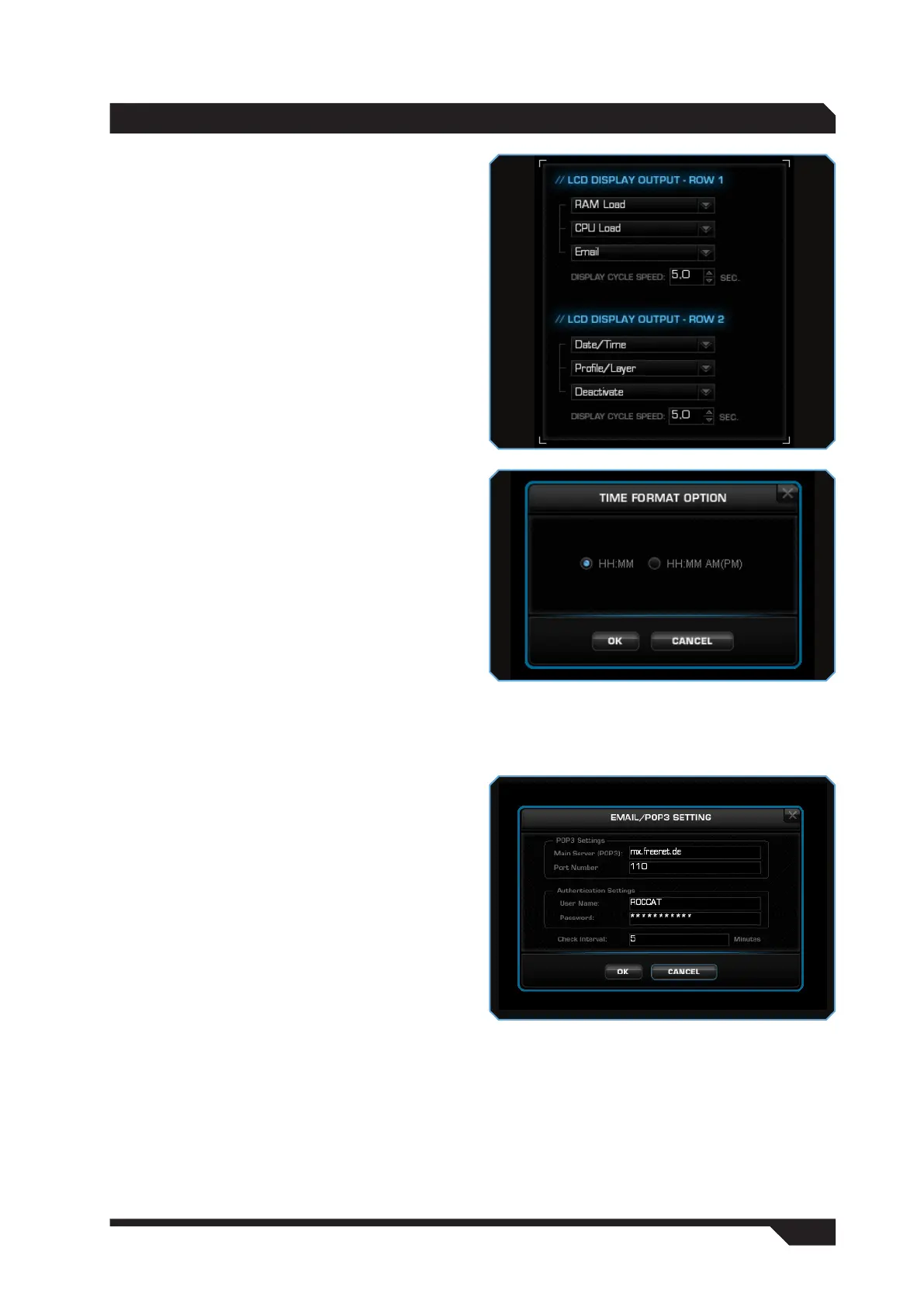
LCD Display Output – Row 1/Row 2
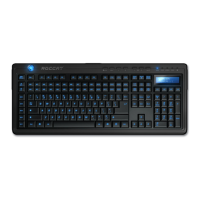
Here you can select what should be displayed
on the Valo’s LCD. 6 items of information are
available for each row. You can select 3 of these
for each row and specify down to the second
under ‘Display Cycle Speed’ how long an item
of information should be displayed for until the
display switches to the next item.
The following information can be displayed on the
LCD:
Date/ Time
Under ‘Date Format Settings’, you can decide what
format the date is displayed in. Select whether
you want it displayed as Year/Month/Day or Day/
Month/Year, with or without hyphens.
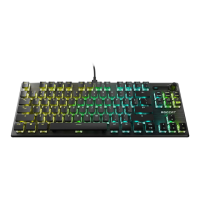
You can also set the following under ‘Time Format
Setting’:
HH:MM
HH:MM (AM/PM) (12 hour clock)
CPU/RAM Load
Furthermore, you can also choose to have the
LCD display the ‘CPU Load’ as well as the ‘RAM
Load’.
Profile/Layer
So that you never lose your overview, select
‘Profile/Layer’ as one of the items to be displayed.
This shows you what profile and which layer you’re
currently in.
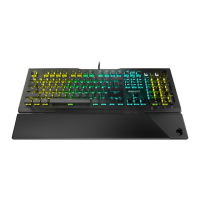
Email
You can display the number of emails you have in
your inbox under the ‘Email’ option. For this, you
need to enter your email account’s POP3 settings.
If you don’t know them, ask your email provider
for the relevant POP3 settings and your customer
number/user name.
‘Check Interval’ allows you to define how often the
Valo checks and updates the LCD if new emails
have been received.
Skype
®
Select this option if you want to see if someone
has sent you a Skype
®
message. When you first
select this option, you will be notified that the
Valo is attempting to access your Skype
®
account.
Allow access if you want to display Skype
®
information on your LCD.
Deactivate
Select ‘Deactivate’ when you don’t want to receive
any notifications; the rows will then remain blank
for the defined period.


 To Next Page