W W W.ROCCAT.ORG / SUPPORT
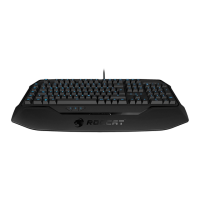
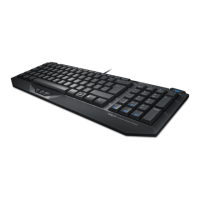
SWAPPiNG KEyS
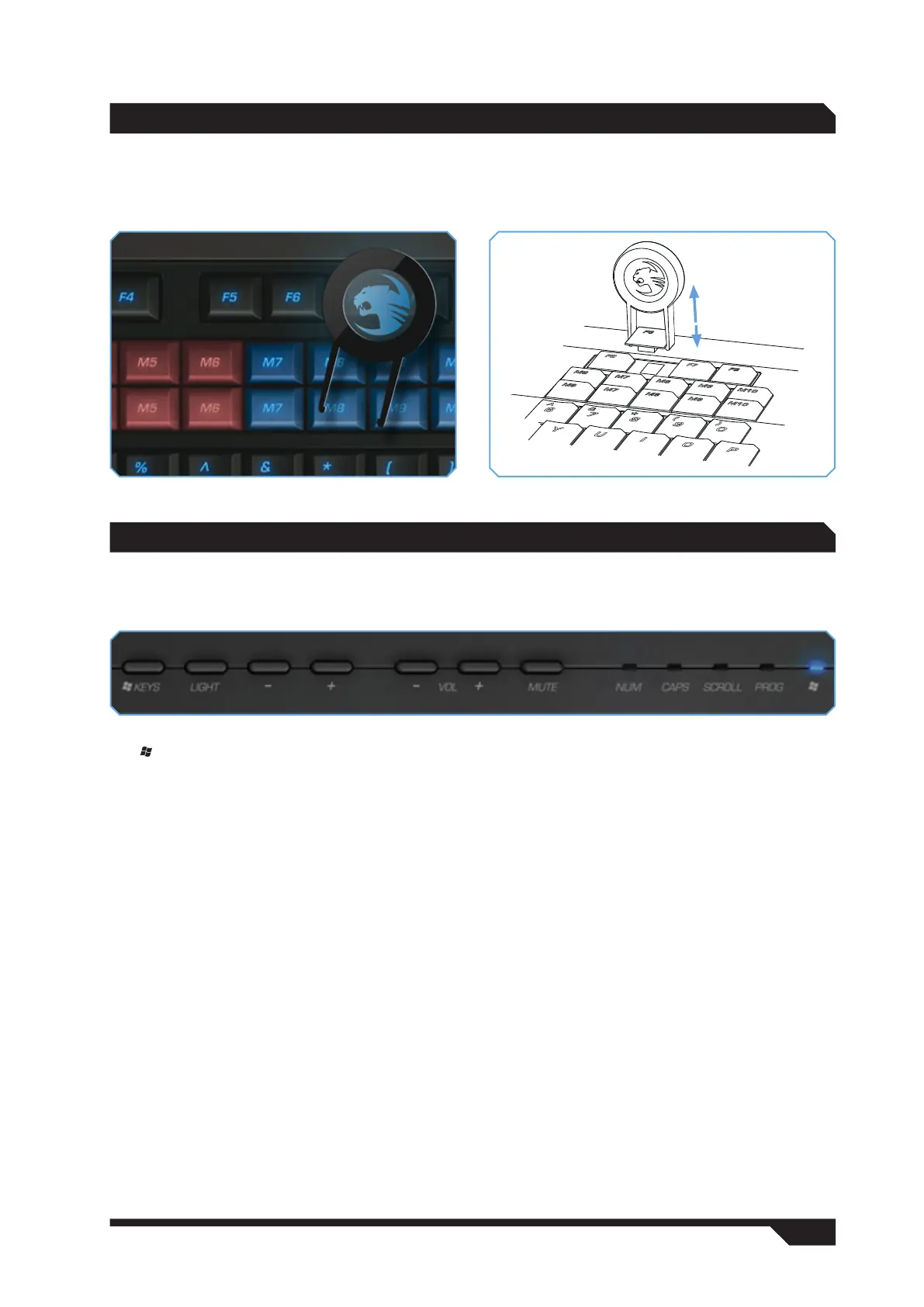
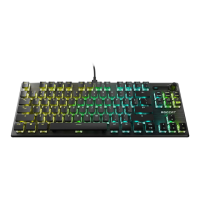
Place the Key Releaser vertically above the key you want to swap and press down until it clicks onto both
sides. Pull the key out in a vertical movement. You can simply place the new key in the hole and press it
down into place.
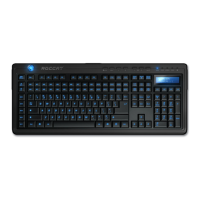
You can adjust various settings directly on the keyboard without needing to call up the configuration
menu.
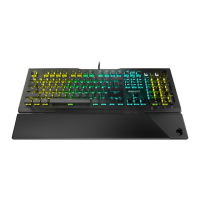
The KEYS button allows you to deactivate/activate the Windows keys. For instance, you can avoid
accidentally calling up the Windows Start menu when gaming. When deactivated, the LED on the far right
above the Windows flag will go out.
The LIGHT button is used to adjust the keyboard illumination settings. By pressing the button, you cycle
between the ROCCAT logo, to LCD brightness to LCD contrast through to key illumination. If you’d like to
change these brightness/contrast settings, use the ‘-’ button to reduce the brightness/contrast level or
the ‘+’ to increase it.
You can only adjust the brightness of the ROCCAT logo, the LCD and the keys via the configuration menu.
You can adjust the master volume of your computer using VOL - and +. Press the MUTE button when you
want to completely mute the sound.
mANUAL CONfiGURATiON


 To Next Page