W W W.ROCCAT.ORG / SUPPORT
mAiN CONTROL
Macro Manager
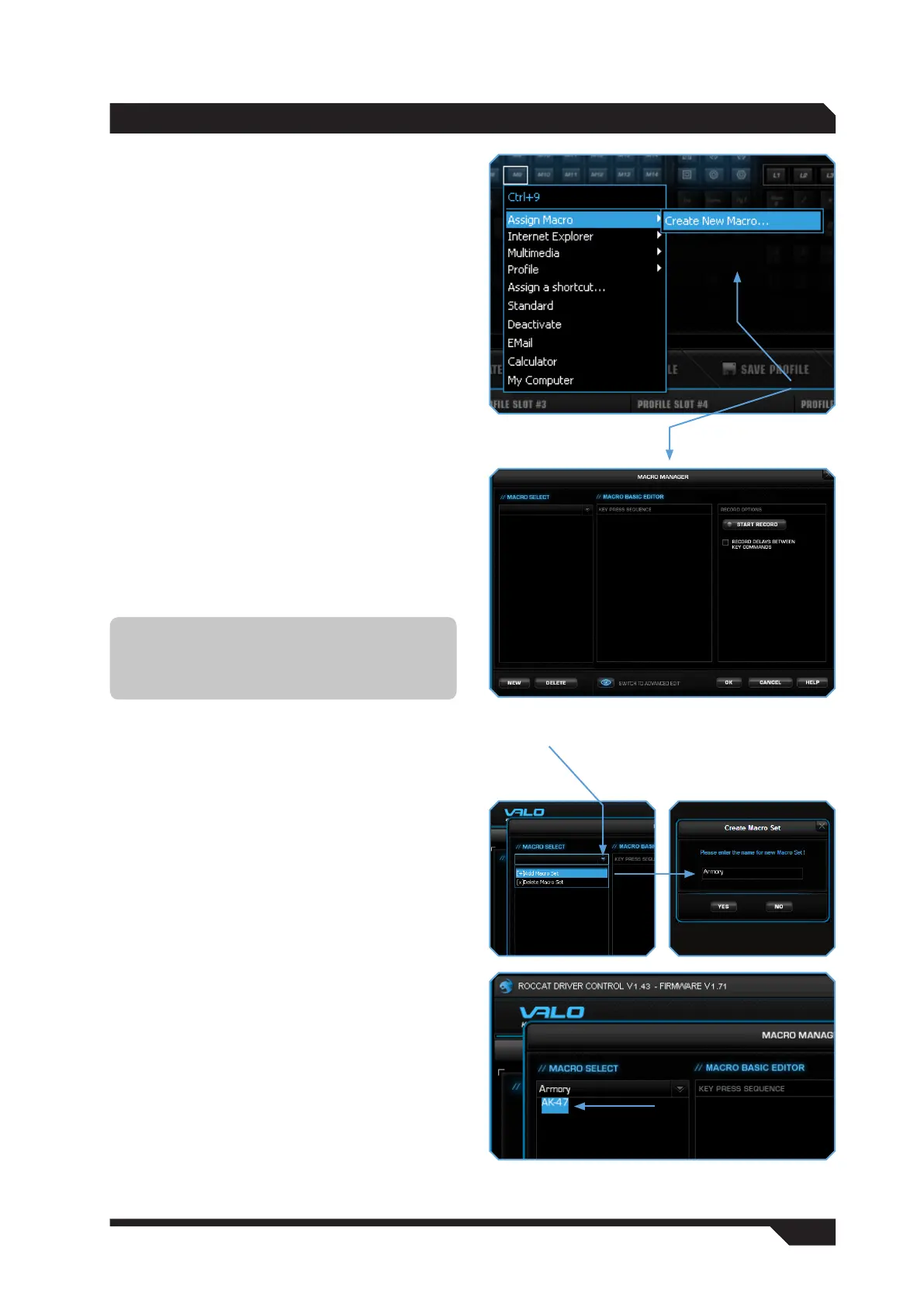
To access the Macro Manager, select the ‘Main
Control’ tab. Then click on the key you want to
assign a macro to and select the ‘Assign Macro’
option. The ‘Create New Macro’ option in the
dropdown menu that appears will take you
straight to the Macro Manager.
The Macro Manager consists of three areas: on
the far left you can select, add or delete a macro
set or an individual macro (Macro Select); in the
middle area the ‘Macro Basic Editor’ displays the
key combination; and finally, the start and stop
buttons (Start Record) are located in the right-
hand area.
To record a macro, you first need to create
a macro set. A macro set is a group which
comprises multiple individual macros. The macro
set only serves to give a better overview of the
individual macros. You can only assign a single
macro to a key, not an entire set.
As soon as macros have been saved using Game
Profiles, it doesn’t matter which computer the
keyboard is connected to; the macros can be
called up at any time.
Creating a macro (Basic Editor)
Step 1:
Click the upper line in the left-hand window. In the
following dropdown menu you can add a macro set
(Add Macro Set) or delete one (Delete Macro Set).
Click ‘Add Macro Set’.
Step 2:
Name your macro set. To make things clearer,
use a general name for the actions in the game
you’re playing. For example, you can name the set
‘Magic buffs’ or ‘Weapons arsenal’.
Step 3:
When you click ‘New’, which is located beneath
the left-hand window, you can assign a name to
the individual macro, such as ‘Arcane rotation’ or
‘Sniper rifle’. Confirm the name by pressing the
return key.
Note: Two actions are performed when
pressing a key: pressing and releasing. For
example, the key combination Alt+Ctrl+t
comprises 6 actions.


 To Next Page