W W W.ROCCAT.ORG / SUPPORT
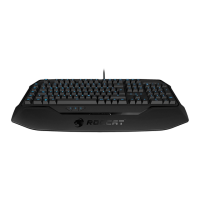
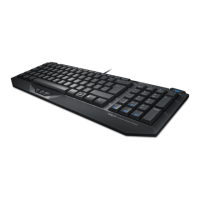
Fold out the keyboard feet and place the keyboard on a level surface.
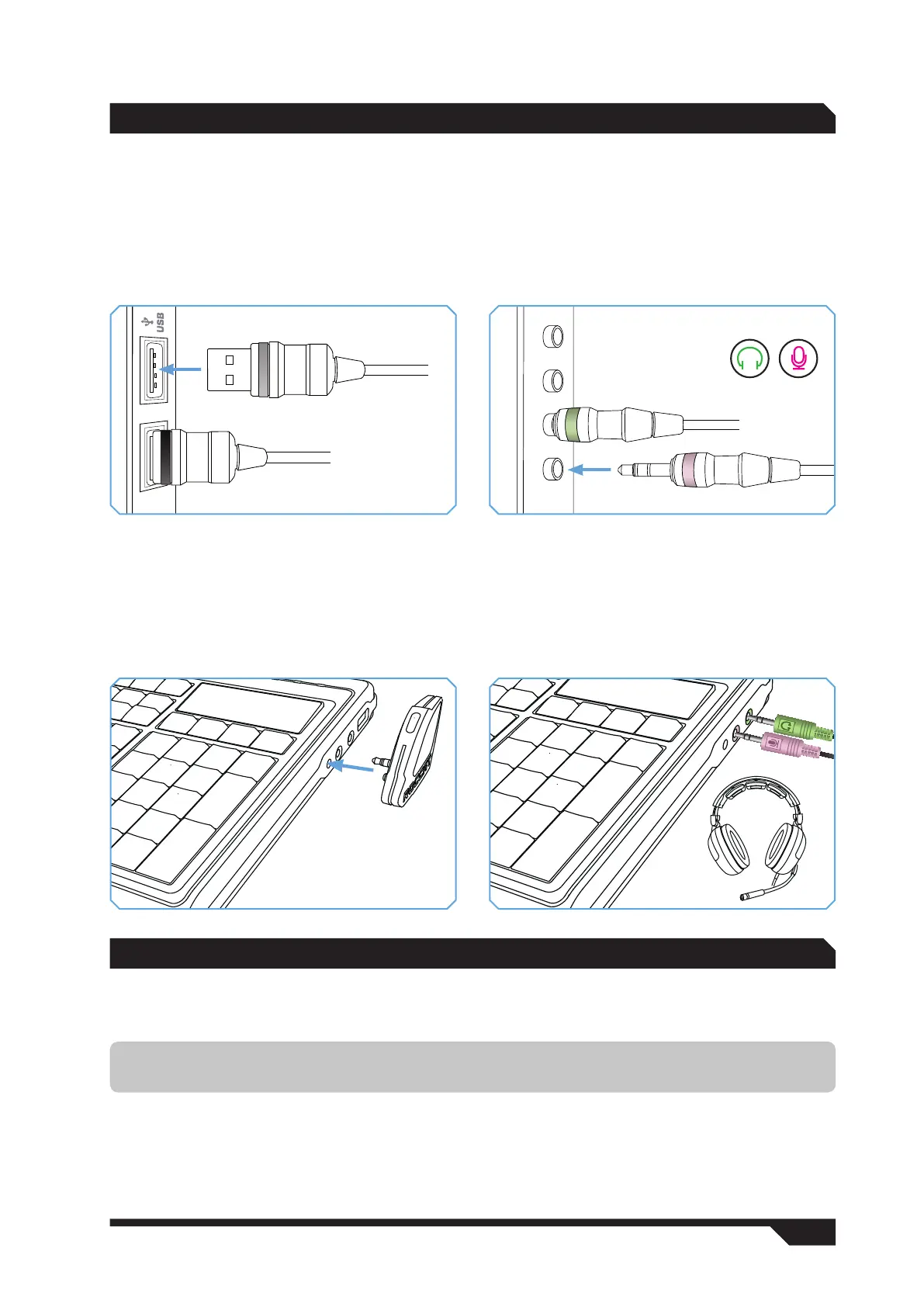
Connect the keyboard to two free USB ports on your computer. The black connector supplies the
keyboard with power; the gray connector is used for transferring data between the keyboard and the
computer.
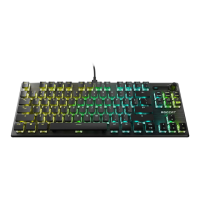
Plug the green headphone connector into your soundcard’s headphone output, and the pink microphone
connector into your soundcard’s microphone input.
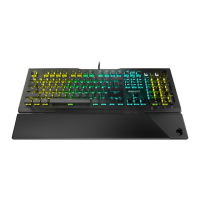
To use the Gaming Microphone, plug it into the microphone jack (pink) on the right-hand side of the
keyboard. To avoid any loose connections, be sure to push the microphone connector and guide pin fully
into the intended sockets.
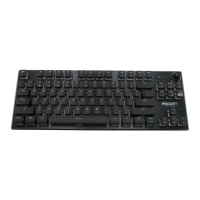
Alternatively you can plug a headset into the keyboard. To do that, plug the green headphone connector
into the headphone output socket, and the pink microphone connector into the pink microphone input
socket on the keyboard.
CONNECTiNG
iNSTALL ATiON UNdER WiNdOWS
®
XP/ WiNdOWS ViSTA
®
Insert the supplied CD into your CD-ROM drive and double click the file ‘setup.exe’. Follow the on-screen
instructions. Click ‘Continue Anyway’ if Windows logo testing is not passed.
Once the installation process is completed, restart your computer.
The ROCCAT symbol will now appear on the right-hand side in the taskbar. You can access the ROCCAT™
Valo configuration menu by right clicking it.
Note: The driver will automatically uninstall older ROCCAT driver versions. It may take a while until the
driver is installed and ready for use.


 To Next Page