W W W.ROCCAT.ORG / SUPPORT
mAiN CONTROL
Step 4:
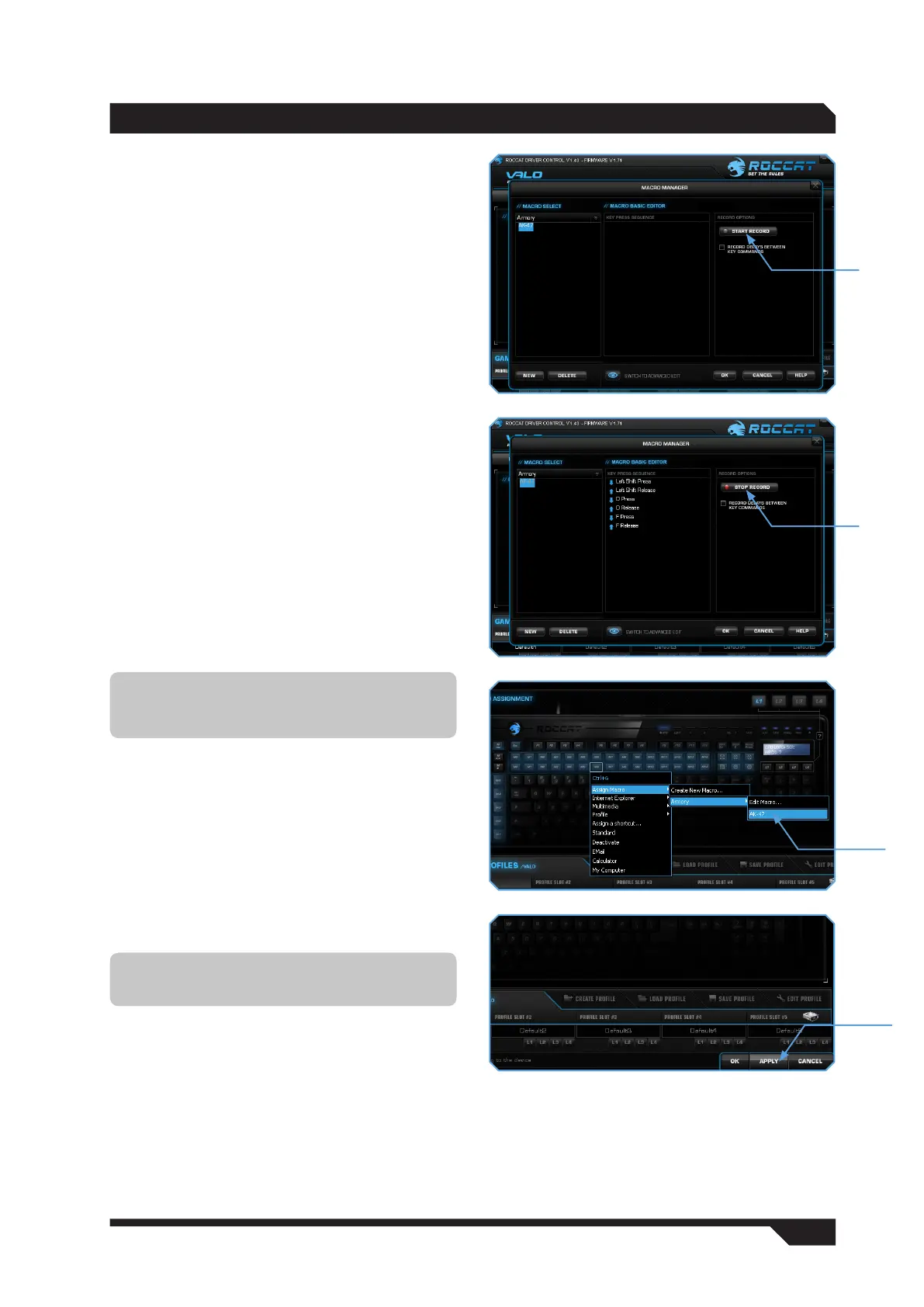
Now you can enter a macro. To do that, click the
‘Start Record’ button in the right-hand window.
Enter the key combination which you need for a
special action in the game.
The ‘Record delays between key commands’ option
is located under the record button. This option
allows you to specify how long a certain key should
be pressed for. For instance, this allows you to
create a macro which makes a character in the
game perform a specific action only after a pre-
determined time.
Step 5:
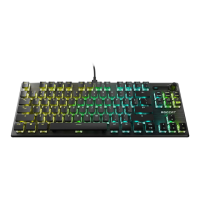
Click ‘Stop Record’ when you’ve finished entering
your key combination via the keyboard. You can
now either record an additional macro in the
macro set you’ve created or create a new macro
set.
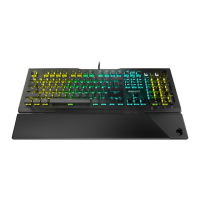
Click ‘OK’ when you’re done. The macro will now
be available for each of the 41 keys. You can
assign the macro to a key by going to the ‘Button
Assignment’ window, clicking next to the key you
want to execute the macro with and selecting the
‘Assign Macro’ option from the dropdown menu.
All the macro sets you have created will now
be displayed from which you can search for the
individual macro you want to use.
Step 6:
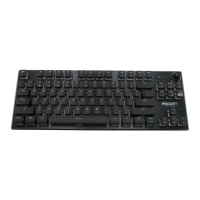
You can assign the function to the keyboard by
pressing the ‘Apply’ button without having to exit
the ROCCAT menu. It may take a few seconds until
the information is transferred to the keyboard.
You can now store and save these settings under
one of the five profiles that can be stored on the
keyboard. Profiles will be easier to manage if you
name them after the game, gamer or program.
Note: If you’ve edited a macro that’s already
been assigned, you have to reassign it to the
desired key.
Note: A macro that is currently running can be
stopped at any time by pressing the key again.


 To Next Page