EasyManua.ls Logo

Roland SUPER JX - Page 7

Roland SUPER JX
88 pages
Print Icon
To Next Page IconTo Next Page
To Previous Page IconTo Previous Page
Loading...
1.
Total
Mix
Output
Jack
@
Connect
this
to
the
amplifier.
To
make
the
best
use
of
the
JX-10,
use
the
amplifier
and
speaker
of
wide
frequency
response
and
dynamic
range
such
as
keyboard
amplifier.
2.
Parallel
Output
Jacks
@
These
are
also
for
connecting
amplifiers.
Different
ways
of
connections
will
make
various
sound
effects.
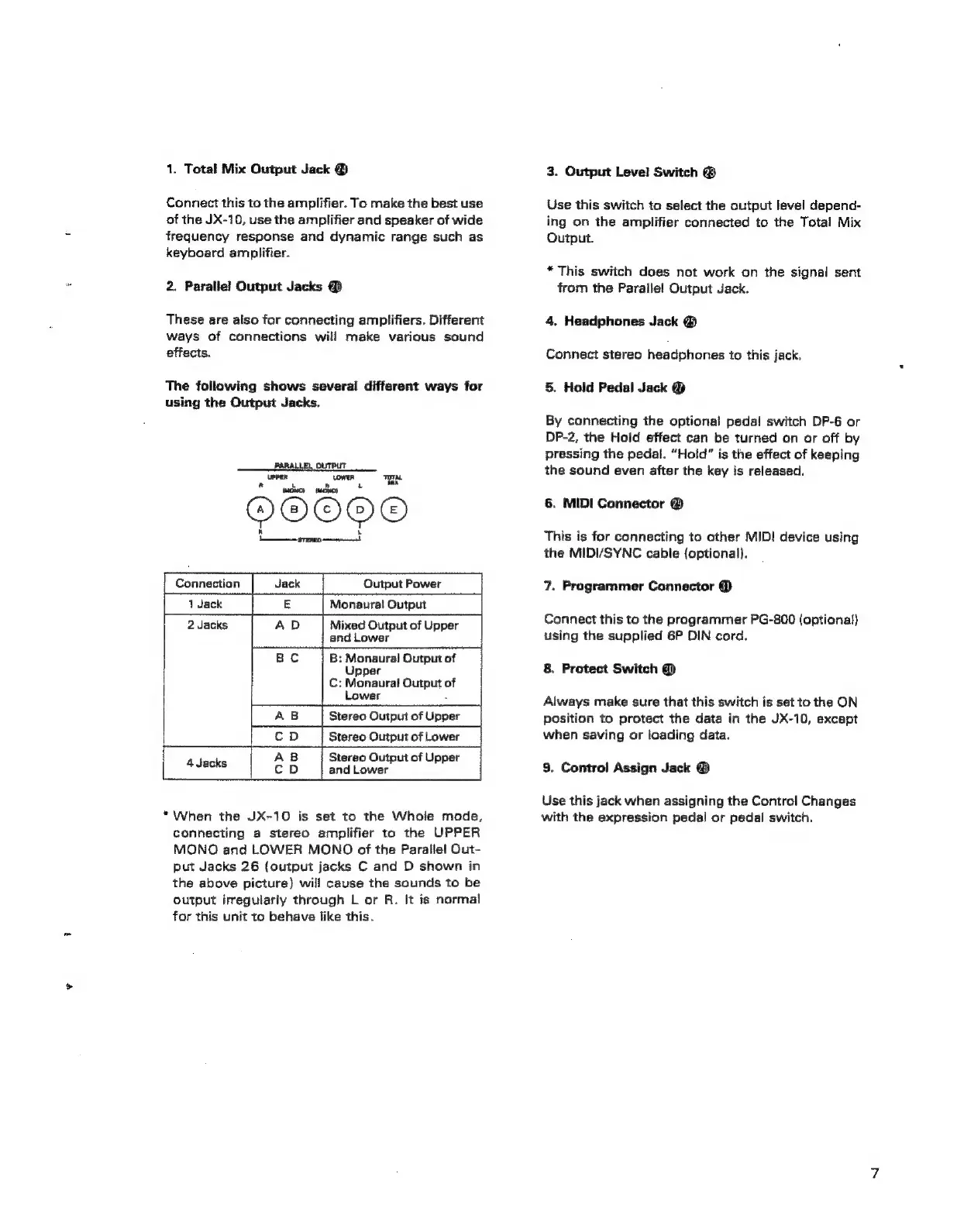
The
following
shows
several
different
ways
for
using
the
Output
Jacks.
PARALLEL
OUTPUT
upper
Lowen
TOTAL
R
L
rs
Lad
®
L
—e
aceon
STEREO
nt
Connection
Jack
Output
Power
Monaural
Output
2
Jacks
AD
Mixed
Output
of
Upper
and
Lower
Bc
B:
Monaural
Output
of
Upper
C:
Monaural
Output
of
Lower
a
AB
Stereo
Output
of
Upper
cD
Stereo
Output
of
Lower
AB
Stereo
Output
of
Upper
biases
cD
and
Lower
*When
the
JX-10
is
set
to
the
Whole
mode,
connecting
a
stereo
amplifier
to
the
UPPER
MONO
and
LOWER
MONDO
of
the
Parallel
Out-
put
Jacks
26
(output
jacks
C
and
D
shown
in
the
above
picture)
will
cause
the
sounds
to
be
output
irregularly
through
L
or
R.
It
is
normal
for
this
unit
to
behave
like
this.
3.
Output
Level
Switch
@
Use
this
switch
to
select
the
output
level
depend-
ing
on
the
amplifier
connected
to
the
Total
Mix
Output.
*
This
switch
does
not
work
on
the
signal
sent
from
the
Paraile!
Output
Jack.
4.
Headphones
Jack
@
Connect
stereo
headphones
to
this
jack.
5.
Hold
Pedal
Jack
@
By
connecting
the
optional
pedal
switch
DP-6
or
DP-2,
the
Hold
effect
can
be
turned
on
or
off
by
pressing
the
pedal.
“Hold”
is
the
effect
of
keeping
the
sound
even
after
the
key
is
released.
6.
MIDI
Connector
®
This
is
for
connecting
to
other
MIDI!
device
using
the
MIDI/SYNC
cable
(optional).
7.
Programmer
Connector
@
Connect
this
to
the
programmer
PG-800
(optional)
using
the
supplied
6P
DIN
cord.
8.
Protect
Switch
@)
Always
make
sure
that
this
switch
is
set
to
the
ON
position
to
protect
the
data
in
the
JX-10,
except
when
saving
or
loading
data.
9.
Control
Assign
Jack
@
Use
this
jack
when
assigning
the
Control
Changes
with
the
expression
pedal
or
pedal
switch.

Related product manuals