16
Driver Installation
Windows 8/Windows 7/Windows Vista
9. When “Installation has been completed.” appears, click [Close].
If the “System Settings Change” dialog box appears, click [Yes] to restart Windows.
10. Open the “Control Panel,” click [Hardware and Sound], and then click [Sound].
If you have selected Icon view or Classic view, double-click [Sound].
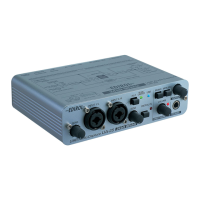
11. Click the [Playback] tab, select the TRI-CAPTURE’s [OUT], and then click [Set
Default].
12. Click [OK].
Proceed to p. 19
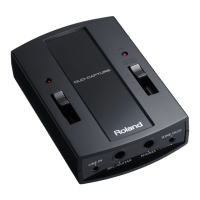
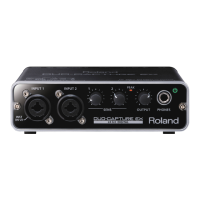
If you cannot select the TRI-CAPTURE, refer to “Problems When Using the TRI-CAPTURE” (p. 31).
If the TRI-CAPTURE is selected as the output device, the computer’s audio alerts will be played
using the TRI-CAPTURE; they will not be heard from the computer’s speakers.
To open the Control Panel
Windows 8
1. On the Start screen, click the Desktop.
2. Move the mouse pointer to the upper right or lower right corner of the screen
to display the charms.
* On touch-enabled PCs, swipe from the right side of the screen to display the charms.
3. Click [Settings] and display the “Settings charms.”
4. In “Settings charms,” click [Control Panel] to open the “Control Panel.”


 To Next Page