23
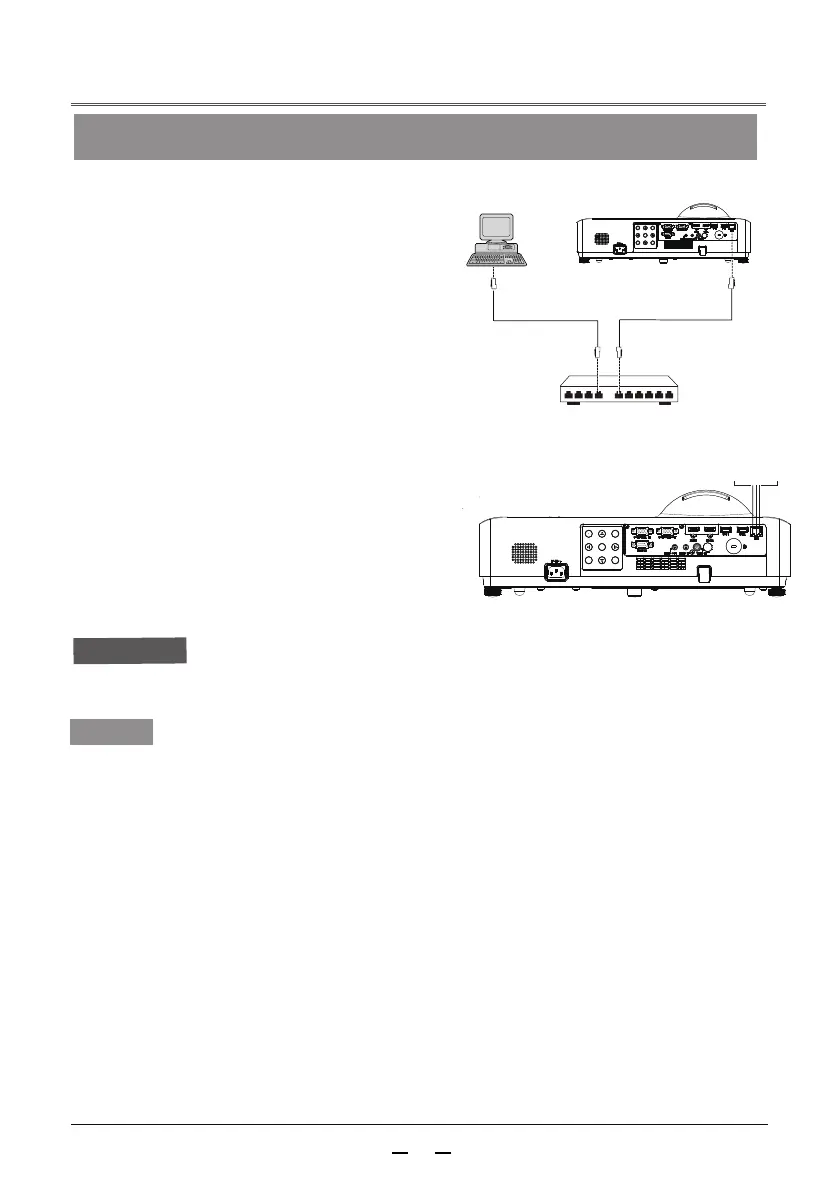
1) Equipment: Computer, projector, cable
for connection
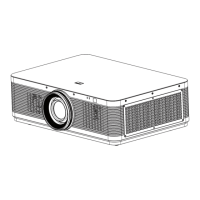
Names and functions of various parts of the network function
(1) LAN LINK/ACT indicator (yellow)
Caution
A LAN cable is required for the network function.
Tips
Computer
Projector
LAN cable
(straight-through type)
Network connection
2) Connection steps: Connect the projector
to a LAN router or switch with a
straight-through or crossover LAN cable.
If the projector and computer are connected
directly, use the straight-through LAN cable.
If they cannot be connected, it is
recommended to use a crossover LAN cable.
3) The indicator of the LAN interface an d
computer interface will flash continuously
after restarting the computer and the
projector is plugged in.
Light up when connected.
Flash when sending and receiving data.
(2) <LAN> interface (10 BASE-T/100 BASE-TX)
Connect the LAN cable.
(3) LAN 10 /100 indicator (green)
Light up when connected to 100 BASE-TX
When connecting the projector, use a standard network cable. It is recommended to use
a Category V cable or a cable with an RJ-45 connector.
Some network connection issues during setup can be resolved by resetting the router or
modem. After connecting the projector to your home network, quickly cut off the power
or disconnect the router and modem and then restart.
A 10 BASE-T or 100 BASE-TX port is required to connect the projector, and if your network
service does not support it, you will not be able to connect to the projector.
When connecting the projector to a wireless router, make sure your router has the wireless
function and it has been turned on.
To connect the projector to a wireless router, verify the router's SSID and security settings.
For the corresponding wireless router's SSID and security settings, refer to the user manual.
When using Ad-Hoc (point-to-point) mode, it may not be able to connect to the appropriate
device (such as a laptop).
The connection methods between different wireless routers are different.
LAN cable
(straight-through type)
(3)
(2)
(1)


 To Next Page