11
Sage Digital ENDEC Quick Start Rev 2.0
10. Hardware Connectors and Indicators
This section describes the front and back panels.
10.1 Front Panel
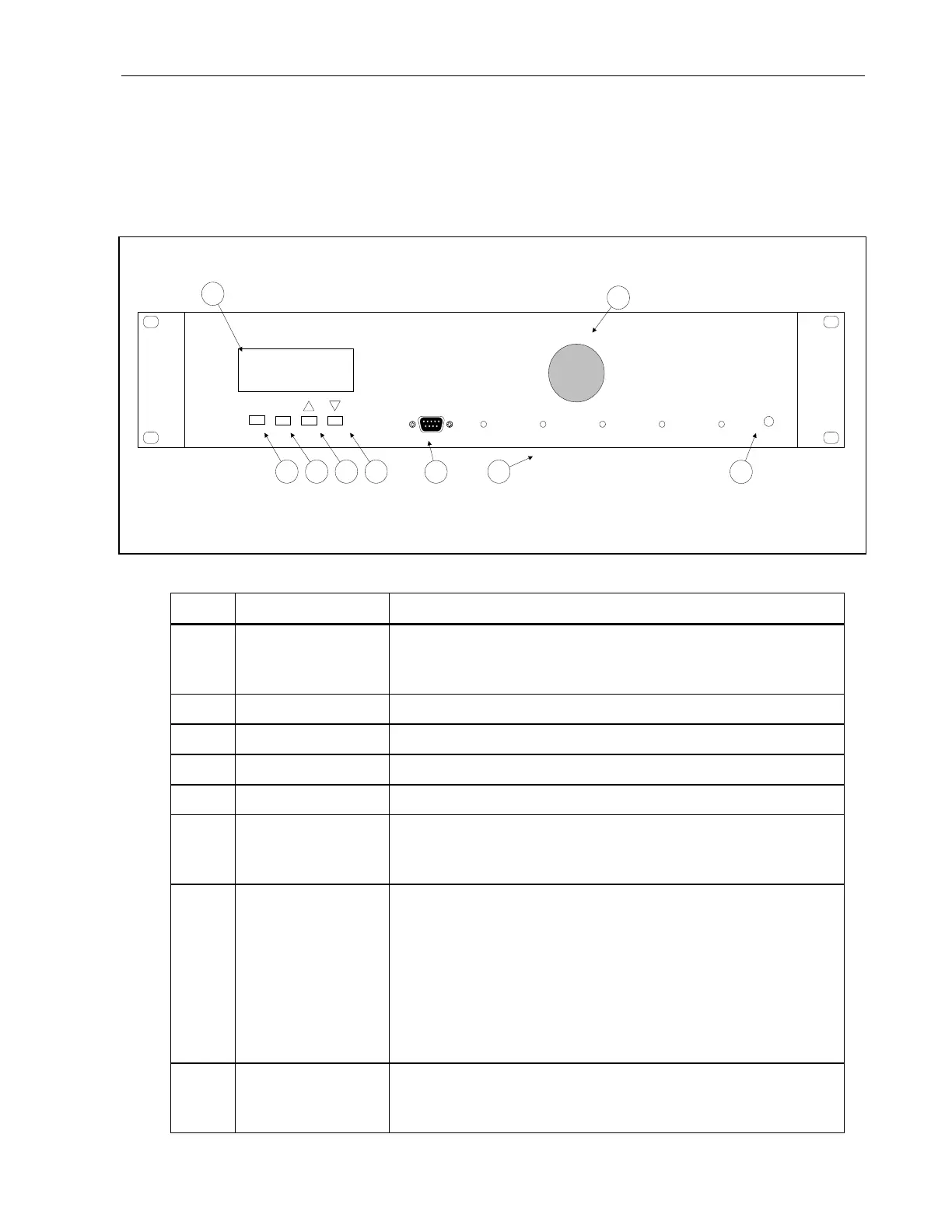
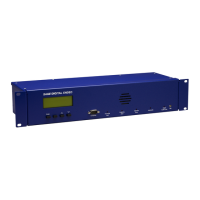
This section describes the front panel of the ENDEC.
Item Name Description
1 Mic Jack For public safety applications, a connector for a microphone.
For low level input (15mv - 150mv). See Public Safety:
Connecting a Microphone on page 22
2 Enter Button Selects a menu item or a soft key.
3 Soft Key Soft key button. It goes up one level in the menu.
4 Up Button Soft key. Scrolls up in a menu.
5 Down Button Soft key. Scrolls down in a menu.
6 4 line by 20
character back lit
LCD display
Allows you to program the ENDEC and to read the contents of
alert messages. The contrast can be adjusted using
MENU.LCD
CONTRAST.
7 LEDs
• Incoming Alert. On when an incoming alert is detected.
Stays on if that alert is selected for relay until the alert is
relayed or deleted.
• Outgoing Alert. On when an alert is being sent.
• Attention Tone. On when an Attention signal is received.
• Automatic. On when the ENDEC is in automatic mode.
• Digital Audio Lock. On when the ENDEC is receiving
digital bit clock from the AES/EBU digital input.
8 Serial Port The Computer port, which you can assign to any device. See
14.1 Serial Port Pin Out on page 21. This port is on the front for
convenient access if the ENDEC is rack mounted.
01/28/08 10:53:23
MENU WEEK PEND MSG
Sage Digital ENDEC
Computer
Enter
Incoming
Alert
Outgoing
Alert
Attention
Tone
Automatic
Digital
Audio Lock
Mic
Figure 10-1. ENDEC Front Panel.


 To Next Page