24
Sage Digital ENDEC Manual Rev 2.0
The display looks something like this:
04/28/19 15:32:14
MENU WEEK MSG
1. Under MENU, press the button. The arrow points at the current item.
04/28/19 15:32:14
** go back **
-->*Alert
Printer Feed
2 To move down through the menu, press the key with the downward pointing arrow on the
enclosure:
Press it until “*network” is the current item.
3 Press the ENTER key on the enclosure.
4 Press ENTER again to select “Show IP Add”. You now see the IP address that has been assigned
to the ENDEC, if any. If so, write it down. If not, check your connection to the LAN and power
cycle the ENDEC using the back panel power switch.
5 Press the ENTER key to select “done”.
Once you know the address, you can use a PC with access to that address to show the configuration web
pages. For example, assume the ENDEC’s IP address is 192.168.1.30. Enter this URL in your browser:
https://192.168.1.30
16.2 Customizing by Using an ENDECSETD Serial Connection
You can download files from and upload files to the digital ENDEC by its web page (recommended), or by
the "direct" menu and the serial port. There are very few cases where this interface would be used. To use
ENDECSetD and a direct serial connection:
1. Set one of the ENDEC com ports to ENDECSET.
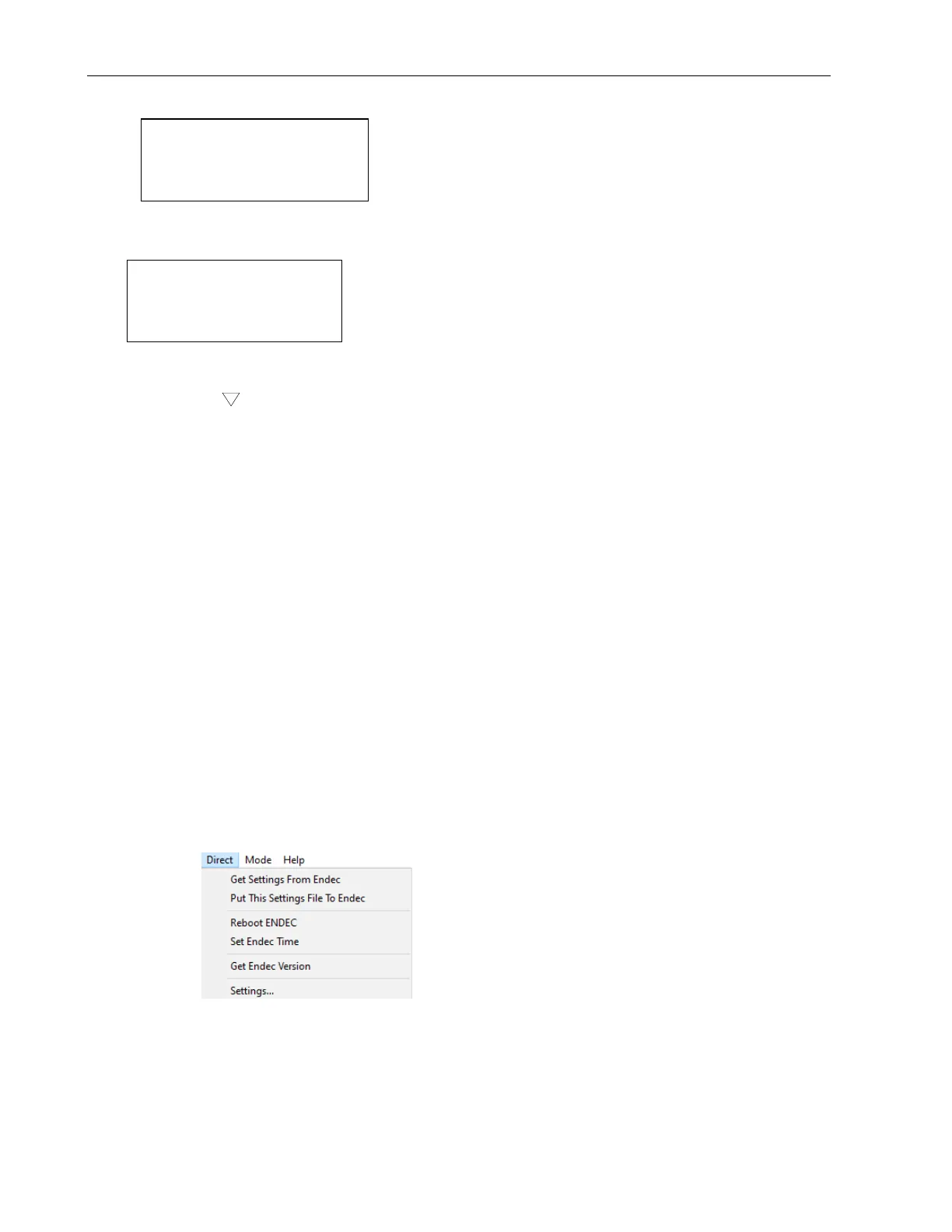
2. In ENDECSET, click the Direct menu.
3. To download the settings, click Get Settings from ENDEC. This downloads the settings to
a file on your PC.
4. To move the settings file from the PC to the ENDEC, go to the File menu.
Click Put this settings file to ENDEC.
5. For your settings to take effect, you must click Reboot ENDEC. The ENDEC will restart with the
new settings in effect.


 To Next Page