23
Sage Digital ENDEC Quick Start Rev 2.0
15. Supported Web Browsers
You must use a recent operating system and browser to use the ENDEC’s web pages.
Windows 7 or 10
• IE 11 (2013)
• Edge 16 (2015)
• Firefox 57 (2017)
• Chrome 66 (7/2018)
• Safari 12 (10/2018)
Windows XP
• Firefox ESR 52.9.0 (IE 8 is not supported)
Mac
• Safari 12 – If you can’t connect via HTTP, try using HTTPS.
• Firefox 57
16. Post-installation Customizing the ENDEC
Important. Use a firewall to protect the ENDEC from unauthorized access.
Three methods of customizing the ENDEC for your use are:
• The ENDECSetD program. This GUI-based Windows program allows you to adjust all parameters
off line and upload them to the ENDEC.
• The Web browser interface. This allows you to use a web browser to connect to the ENDEC’s
internal web server and add/edit/delete user accounts. This interface is also used for day to day
operation on the ENDEC, such as sending or forward alerts, reviews logs, and uploading settings
files and firmware updates.
• Front panel. You can set many, but not all, of the ENDEC parameters from the front panel. You
can use the Sage Digital ENDEC front panel to enter any command that was supported by the Sage
EAS ENDEC. This includes generating weekly tests, forwarding messages, etc. The intent is that
any training your staff has received on the use of the original ENDEC remains valid. New, and in
many cases simpler, methods can be introduced at your leisure.
Using a serial cable to upload/download settings files is still supported, but should only be used in
cases when a LAN connection is temporarily unavailable.
16.1 Customizing by Web Browser
Updating your settings after you have configured your ENDEC the first time uses the same methods that
are described in “Preparing to configure your ENDEC’s settings” and following sections, starting on page
5.
16.1.1 Finding the IP Address
You need to know the IP address of your ENDEC. When you receive the ENDEC, it gets an IP address via
DHCP, that is, it asks your network what address to use.
To see the assigned IP address, use this menu:
MENU.NETWORK.SHOW IP ADDR menu. You can also use
the
MENU.NETWORK menu to set a static IP address.
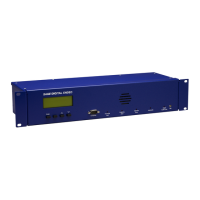
To access these menu items, use the four buttons on the ENDEC front panel. Use the buttons discussed
below.


 To Next Page