4
Sage Digital ENDEC Manual Rev 2.0
prompts you for the admin password, use the default value of 1111 - simply push the far-left button four
times.
Step 1. Determine whether you will use a dynamic address (DHCP) or a static address. The correct
answer depends on how your network is configured, and can be had by asking your IT person. Note
also that DHCP provides netmask, gateway and DNS details automatically. If you choose to use a
static address, you will need to enter these details manually. Netmask, gateway and DNS values are
also network-dependent.
Important! By default, the ENDEC will attempt to obtain an address using DHCP. If you need to
change from a static address to DHCP, proceed to step 2a. If you will be using a static address,
proceed to step 2b. Step 2a and Step 2b are EXCLUSIVE of each other.
Step 2a. Configure the ENDEC to use a dynamic IP address.
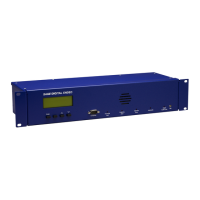
1. At the ENDEC's front panel, push the Enter button (the first button on the left).
2. Push the down arrow button to move down the list until the arrow on the screen is pointing at
the Network option, then push the Enter button.
3. Push the down arrow button until the arrow on the screen is pointing at Network Addr Type,
then push the Enter button.
4. Push the Enter button again to select DHCP. The display will return to the Network menu.
5. Push the up arrow button to move up the list until Show IP Addr is selected.
6. Push the Enter button, and then write down the IP address shown on the display.
Step 2b. Or, configure the ENDEC to use a static IP address. Configure gateway and DNS settings.
1. At the ENDEC's front panel, push the Enter button (the first button on the left).
2. Push the down arrow button to move down the list until the arrow on the screen is pointing at
the Network option.
3. Push the Enter button, then push the down arrow button until the arrow on the screen is
pointing at Network Addr Type.
4. Push the Enter button, and then push the up arrow button to select STATIC. The display will
return to the Network menu.
5. Push the down arrow button to move up the list until IP Address is selected, then push the
Enter button.
6. Set the ENDEC's IP address. Push the up arrow to increment the value above the cursor, the
down arrow to decrement, and the unlabeled button (second from the left) to move the cursor
to the next position. When you have finished, push the Enter button.
7. Do not be alarmed if the ENDEC displays a warning that the gateway is not on the current
network.
8. The display will return to the Network menu. Push the Down button until the Netmask option
is selected.
9. Using the buttons in the same fashion as when setting the IP address, set the Netmask value,
and then push the Enter button.
10. The display will return to the Network menu. Push the Down button until the Gateway option
is selected.
11. Using the buttons in the same fashion as when setting the IP address, set the Gateway address,
and then push the Enter button.
12. The display will return to the Network menu. Push the Down button until DNS1 is selected.
13. Set the addresses for DNS1 and DNS2, using the buttons in the same way as when setting the
ENDEC's IP address.
Step 3. Turn on the ENDEC's built-in web server.
From the Network menu, use the Up and Down buttons to select the Web Server option, then
push the Enter button. The display will ask whether Web Server should be Yes or No. Push the
Enter button to choose Yes.


 To Next Page