EasyManua.ls Logo

Samsung BD-E5700 - Settings: Initial Setup and Navigation; Initial Settings Procedure Overview; Home Screen and Navigation; Accessing and Using the Settings Menu

Samsung BD-E5700
89 pages
Print Icon
To Next Page IconTo Next Page
To Previous Page IconTo Previous Page
Loading...
Settings
The Initial Settings Procedure
The
Home
menu
will
not
appear
if
you
do
not
configure
the
initial
settings.
The
OSD
(On
Screen
Display}
may
change
in
this
player
after
you
upgrade
the
software
version.
The
access
steps
may
differ
depending
on
the
menu
you
selected.
The
Initial
Settings
Procedure
lets
you
set
the
OSD
and
menu
languages,
configure
the
connection
to
your
home
network,
choose
the
aspect
ratio
output
(screen
size
and
format}
that
is
correct
for
your
TV.
For
complete
Initial
Settings
instructions,
see
the
Quick
Start
Guide.
I
NOTE
I
If
you
skip
Network
Setup
during
the
Initial
Settings
procedure,
you
can
configure
your
network
settings
later.
See
"Configuring
Your
Network
Connection"
on
pages
17
-18
for
instructions.
If
you
want
to
display
the
Initial
Settings
screen
again
and
make
changes,
select
Settings
>
System
>
Initial
Settings
in
the
Home
screen
or
select
the
Reset
option.
(See
page
15)
If
you
use
an
HDMI
cable
to
connect
the
player
to
an
Anynet+(HDMI-CEC)-compliant
Samsung
TV
and
1.)
You
have
set
the
Anynet+(HDMI-CEC)
feature
to
On
in
both
the
TV
and
the
player
and
2.)
You
have
set
the
TV
to
a
language
supported
by
the
player,
the
player
will
select
that
language
as
the
preferred
language
automatically.
The Home Screen
0
My
Contents
My
Devices
:
Lets
you
select
a
connected
device
to
play
or
access.
The
device
can
be
the
player
itself,
a
device
directly
connected
to
the
player,
such
as
a
USB
thumb
drive,
or
a
device
connected
via
your
network,
such
as
a
shared
drive
on
your
PC.
Settings
:
Set
various
functions
to
suit
your
personal
preferences.
My
Contents
:
Lets
you
select
contents
located
on
connected
devices
by
type
to
view
or
play:
You
can
select
videos,
photos,
or
music.
Smart
Hub
:
Starts
Smart
Hub
.
From
Smart
Hub,
you
can
access
You
Tube,
games,
and
other
apps.
Disc
to
Digital
:
Upload
DVD
movies
to
your
personal
Internet
D
isc
to
Digital
repository
.
Once
movies
are
uploaded,
they
can
be
streamed
to
other
devices
connected
to
the
Internet.
Displays
the
colored
buttons
on
your
remote
that
you
can
press
to
access
or
perform
functions.
Selecting
an
Option
on
the Home
Screen
1.
To
select
an
option
on
the
Home
screen,
move
the
cursor
using
the
.,..
~
buttons
until
it
highlights
the
option
of your
choice,
and
then
press
the
lEI
button.
I
NOTE
I
If
you
leave
the
player
in
the
stop
mode
for
more
than
5
minutes
without
using
it,
a
screen
saver
will
appear
on
your
TV.
If
the
player
is
left
in
the
screen
saver
mode
for
more
than
20
minutes,
the
power
will
automatically
turn
off.
. Accessing the Settings Screen
1.
Select
Settings
on
the
Home
screen,
and
then
press
the
l5l button.
The
Settings
screen
appears.
2.
To
access
the
Settings
menus,
sub-
menus,
and
options,
please
refer
to
the
remote
control
illustration
and
the
table
to
the
right.
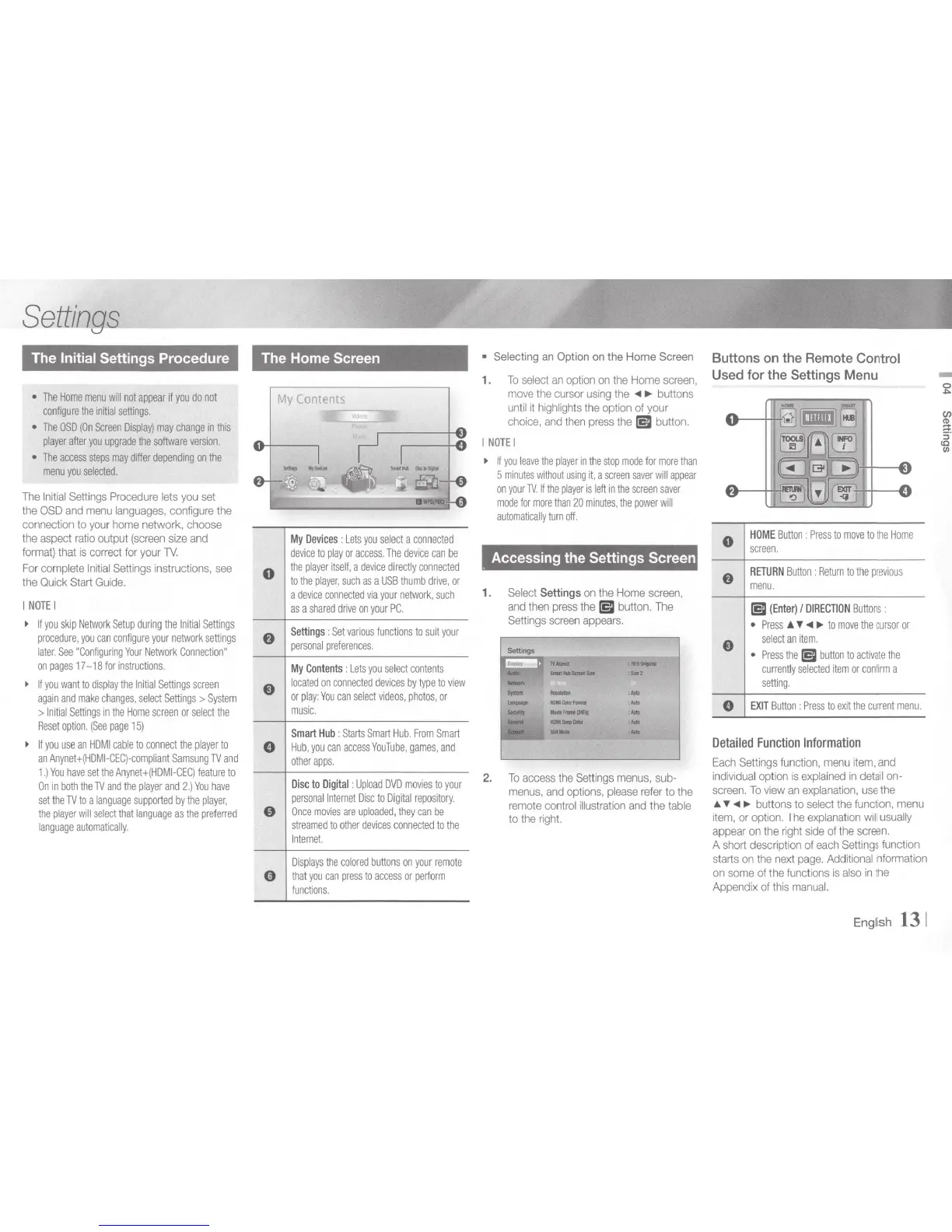
Buttons on the Remote Control
Used
for
the Settings Menu
0
HOME
Button
:
Press
to
move
to
the
Home
screen
.
RETURN
Button
:
Return
to
the
previous
menu.
l5l
(Enter)
I
DIRECTION
Buttons
:
Press
.&
T
.,..
~
to
move
the
cursor
or
select
an
item.
Press
the
l5l
button
to
activate
the
currently
selected
item
or
confirm
a
setting.
EXIT
Button
:
Press
to
exit
the
current
menu.
Detailed
Function
Information
Each
Settings
function,
menu
item,
and
individual
option
is
explained
in
detail
on-
screen.
To
view
an
explanation,
use
the
.&
T
.,..
~
buttons to
select
the
func
tion,
menu
item,
or
option.
The
explanation
will
usually
appear
on
the
right
side
of
the
screen.
A
short
description
of
each
Settings
function
starts
on
the
next
page.
Additional
nformation
on
some
of
the
functions
is
also
in
the
Appendix
of
this
manual.
Engli
sh
131
-
0
~

Other manuals for Samsung BD-E5700

Related product manuals