EasyManua.ls Logo

Samsung BD-E5700 - Settings: Detailed Network Configuration; Configuring Your Network Connection Steps; Wired Network Setup Procedures; Wireless Network Setup Procedures

Samsung BD-E5700
89 pages
Print Icon
To Next Page IconTo Next Page
To Previous Page IconTo Previous Page
Loading...
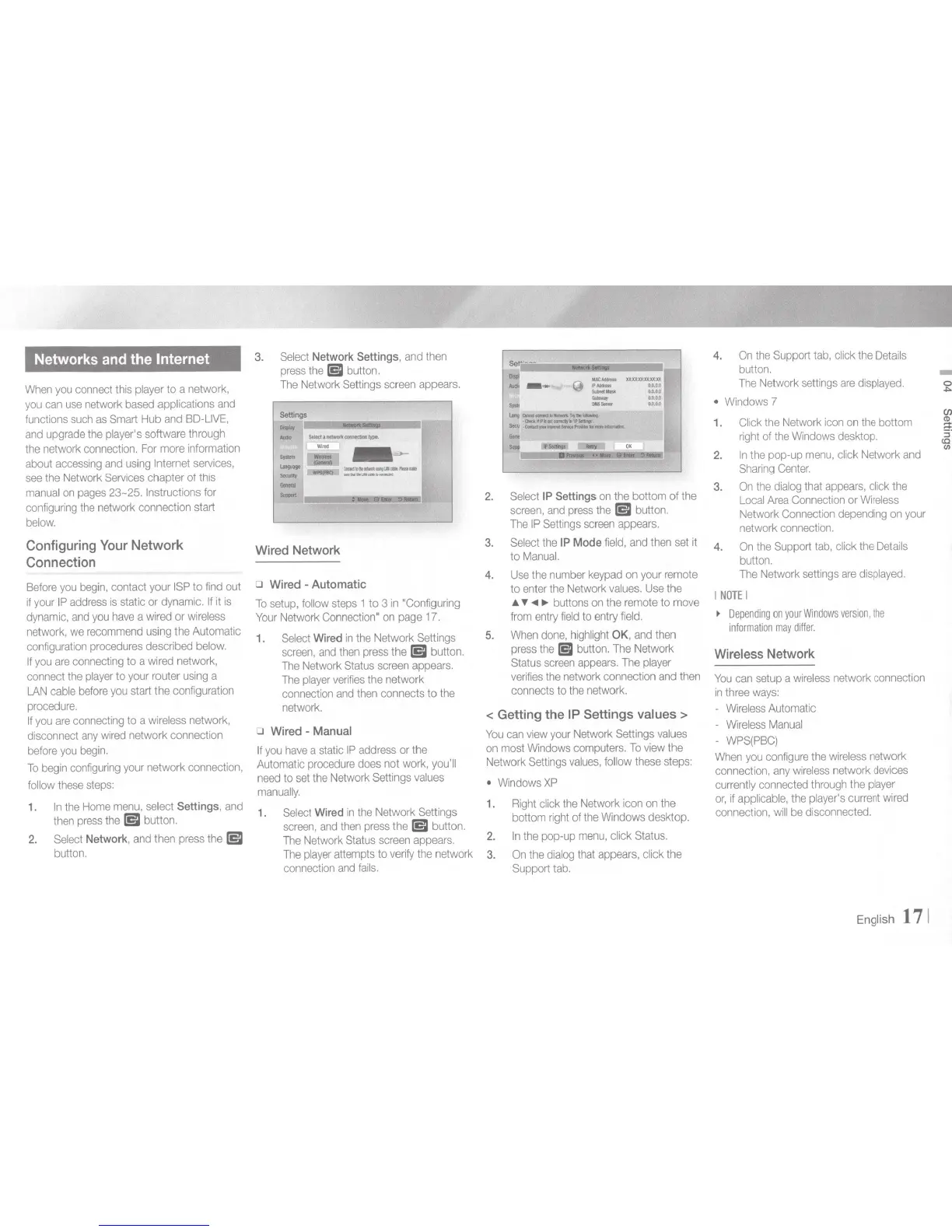
Networks and the Internet
When
you
connect
this player to a network,
you
can
use
ne
twork
based
applications
and
functions
such
as
Smart
Hub
and
BD-LIVE,
and
upgrade
the
player's software through
the network
connection.
For
more
information
about
accessing
and
using
Internet
services,
see
the
Network
Services
chapter of this
manual
on
pages
23-25. Instructions for
configuring
the
network connection start
below.
Configuring
Your
Network
Connection
Before
you
begin,
con
tact your
IS
P to
find
out
if
your
IP
address
is
static or
dynamic.
If
it
is
dynamic,
and
you
have
a
wired
or
wireless
network,
we
recommend
using
the Automatic
configuration
procedures
described
below.
If
you
are
connecting
to a
wired
networ
k,
connect the pl
ayer
to your router
using
a
LAN
cable
before
you
start the configuration
procedure.
If
you
are
connecting
to a
wireless
network,
disconnect
any
wired
network connection
before
you
begin.
To
begin
configuring
your
network
connection,
follow
these
steps:
1.
In
the
Home
menu,
select Settings,
and
then
press
the
lEI
button.
2.
Select
Network
,
and
then
press
the
lEI
button.
3.
Select
Network Settings,
and
then
press
the
lEI
button.
The
Network
Settings
screen
appears
.
-
-
--
r.-ct•ti--
..
UI~"-
IIftMtiiMCIMia_.
.....
~-----·~111.:
Wired
Network
o
Wired
-
Automatic
To
setup,
follow
steps
1 to 3
in
"Configuring
Your
Network
Connection"
on
page
17.
1.
Select
Wired
in
the Network Settings
screen,
and
then
press
the
lEI
button.
The
Network
Status
screen
appears.
The
player
verifies
the
ne
twork
connection
and
then
connects to the
network
.
o
Wired
-
Manual
If
you
have
a static
IP
address
or the
Automatic
procedure
does
not
work,
you'll
need
to
set
the
Network Settings
values
manually.
1.
Select
Wired
in
the
Network Settings
sc
r
een,
and
then
press
the
lEI
button.
The
Network
Status
screen
appears.
T
he
pl
ayer
attempts to
verify
the network
connection
and
fails.
Se
~---
1--
@
...:-
·-
.....
_
-
DOS-
~c:...a-':lt
........
TI'J
..
........
~~··lltllcndlrlll
........
.
&eel
·CIIId
...................
~
..........
-
...
liJiiiil
2.
Select
IP
Settings
on
the bottom of the
screen,
and
press
the
lEI
button.
The
IP
Settings
screen
appears.
3.
Select
the
IP Mode
field,
and
then
set
it
to
Manual.
4.
Use
the
number
keypad
on
your
remote
to enter
the
Network
values
.
Use
the
A.
T
~
buttons
on
the
remote
to
move
from
entry
field
to
entry
field.
5.
When
done,
h
ighlight
OK
,
and
then
press
the
151
button.
The
Network
Status
screen
appears.
The
pl
ayer
verifies
the network connection
and
then
connects to
the
network.
< Getting the IP Settings values >
You
can
view
your
N
etwork
Settings
va
l
ues
on
most
Windows
computers.
To
view
the
Network
Settings
values,
follow
these
steps:
WindowsXP
1.
Right
click
the
Network
icon
on
the
bottom
right
of
the
Windows
desktop.
2.
In
the
pop-up
menu,
click
Status.
3.
On
the
dialog
that
appears,
click the
Support
tab.
4.
On
the
Support
tab,
click the
Details
button.
The
Network
settings
are
displayed.
Windows
7
1.
Click
the
Network
icon
on
the
bottom
right
of
the
Windows
desktop.
2.
In
the
pop-up
menu,
click
Network
and
Sharing
Center.
3.
On
the
dialog
that
appears,
click
the
Local
Area
Connection
or
Wireless
Network
Connection
depending
on
your
network
connection.
4.
On
the
Support
tab,
click
the
Details
button.
The
Network
settings
are
displayed.
I
NOTE
I
~
Depending
on
your
Windows
version,
the
information
may
differ.
Wireless
Network
You
can
setup
a
wireless
network
connection
in
three
ways:
-
Wireless
Automatic
-
Wireless
Manual
-
WPS(PBC)
When
you
configure
the
wireless
network
connection,
any
wireless
network
devices
currently
connected
through
the
player
or,
if
applicable,
the
player's
current
wired
connection,
will
be
disconnected.
En
gli
sh
17
1
-
0
~
en
~
3'
<0
(/)

Other manuals for Samsung BD-E5700

Related product manuals