EasyManua.ls Logo

Samsung BD-E5700 - Settings: Language, Security, and Support Features; Language and Security Settings Management; General Settings and Support Information

Samsung BD-E5700
89 pages
Print Icon
To Next Page IconTo Next Page
To Previous Page IconTo Previous Page
Loading...
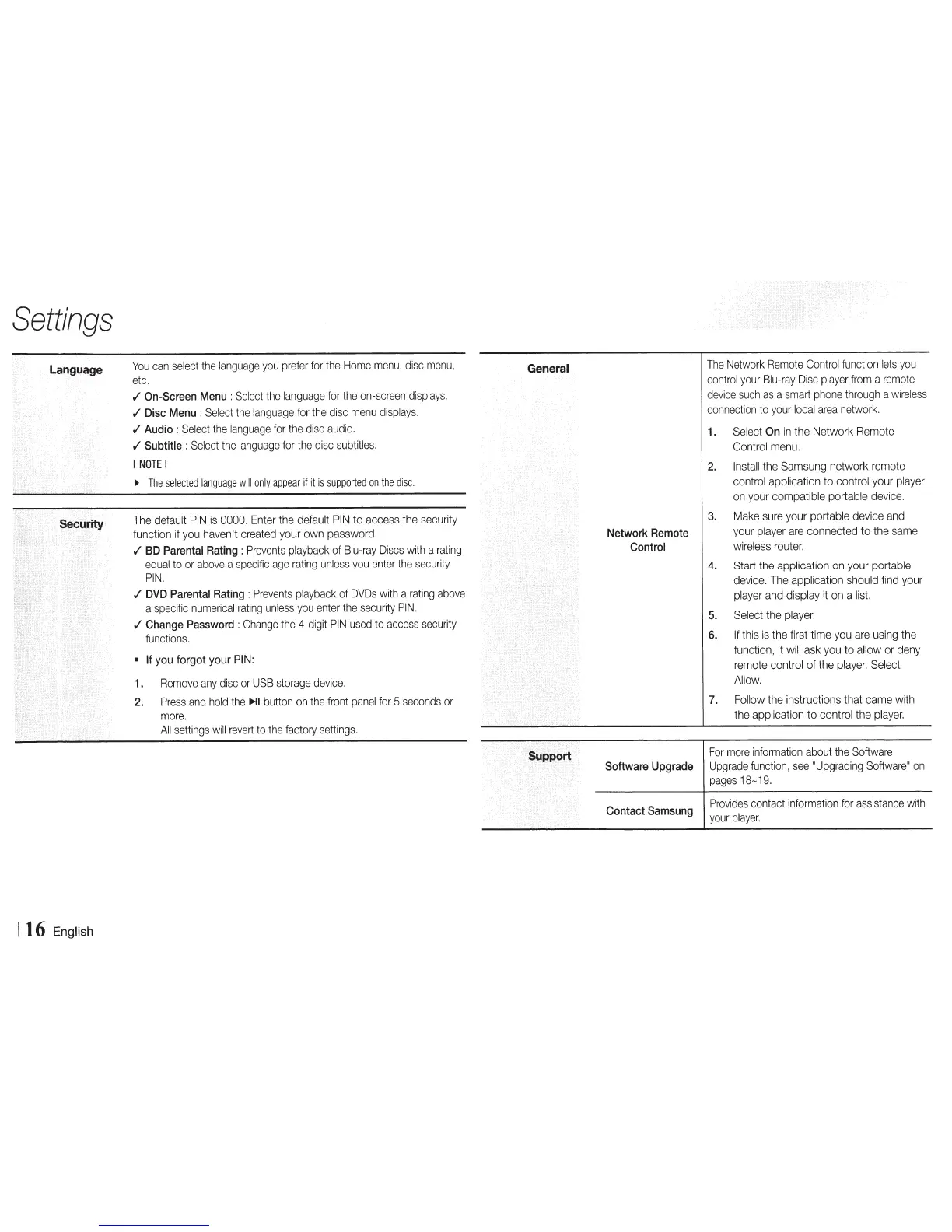
Settings
Language
116
English
You
can
select
the
language
you
prefer
for
the
Home
menu,
disc
menu,
etc.
./
On-Screen
Menu
:
Select
the
language
for
the
on-screen
displays.
./
Disc
Menu
:Select
the
language
for
the
disc
menu
displays
.
./
Audio :
Select
the
language
for
the
disc
audio.
./
Subtitle
:
Select
the
language
for
the
disc
subtitles.
I
NOTE
I
~
The
selected
language
will
only
appear
if
it
is
supported
on
the
disc.
The
default
PIN
is
0000.
Enter
the
default
PIN
to
access
the
security
function
if
you
haven't
created
your
own
password.
./
BD
Parental
Rating
:
Prevents
playback
of
Blu-ray
Discs
with
a
rating
equal
to
or
above
a
specific
age
rating
unless
you
enter
the
security
PIN.
./
DVD
Parental
Rating
:
Prevents
playback
of
DVDs
with
a
rating
above
a
specific
numerical
rating
unless
you
enter
the
security
PIN.
./
Change
Password
:
Change
the
4-digit
PIN
used
to
access
security
functions.
If
you
forgot your
PIN:
1.
Remove
any
disc
or
USB
storage
device.
2.
Press
and
hold
the
~~
button
on
the
front
panel
for
5
seconds
or
more.
All
settings
will
revert
to
the
factory
settings.
General
Network
Remote
Control
Software Upgrade
Contact
Samsung
The
Network
Remote
Control
function
lets
you
control
your
Blu-ray
Disc
player
from
a
remote
device
such
as
a
smart
phone
through
a
wireless
connection
to
your
local
area
network
.
1.
Select
On
in
the Network
Remote
Control
menu.
2.
Install
the
Samsung
network
remote
control
application to
control
your
player
on
your
compatible
portable
device.
3.
Make
sure
your
portable
device
and
your
player
are
connected to
the
same
wireless
router.
4.
Start
the
application
on
your
portable
device.
The
application
should
find
your
player
and
display
it
on
a
list.
5.
Select
the
player
.
6.
If
this
is
the
first
time
you
are
using
the
function,
it
will
ask
you
to
allow
or
deny
remote
control
of
the
player.
Select
Allow.
7.
Follow
the
instructions that
came
with
the
application to
control
the
player.
For
more
information
about
the
Software
Upgrade
function,
see
"Upgrading
Software"
on
pages
18~
19.
Provides
contact
information
for
assistance
with
your
player.

Other manuals for Samsung BD-E5700

Related product manuals