EasyManua.ls Logo

Samsung BD-E5700 - Media Play: Discs and USB Device Operations; Inserting Discs and USB Devices for Playback; Accessing Media Content via My Contents;My Devices; Controlling Video Playback Functions

Samsung BD-E5700
89 pages
Print Icon
To Next Page IconTo Next Page
To Previous Page IconTo Previous Page
Loading...
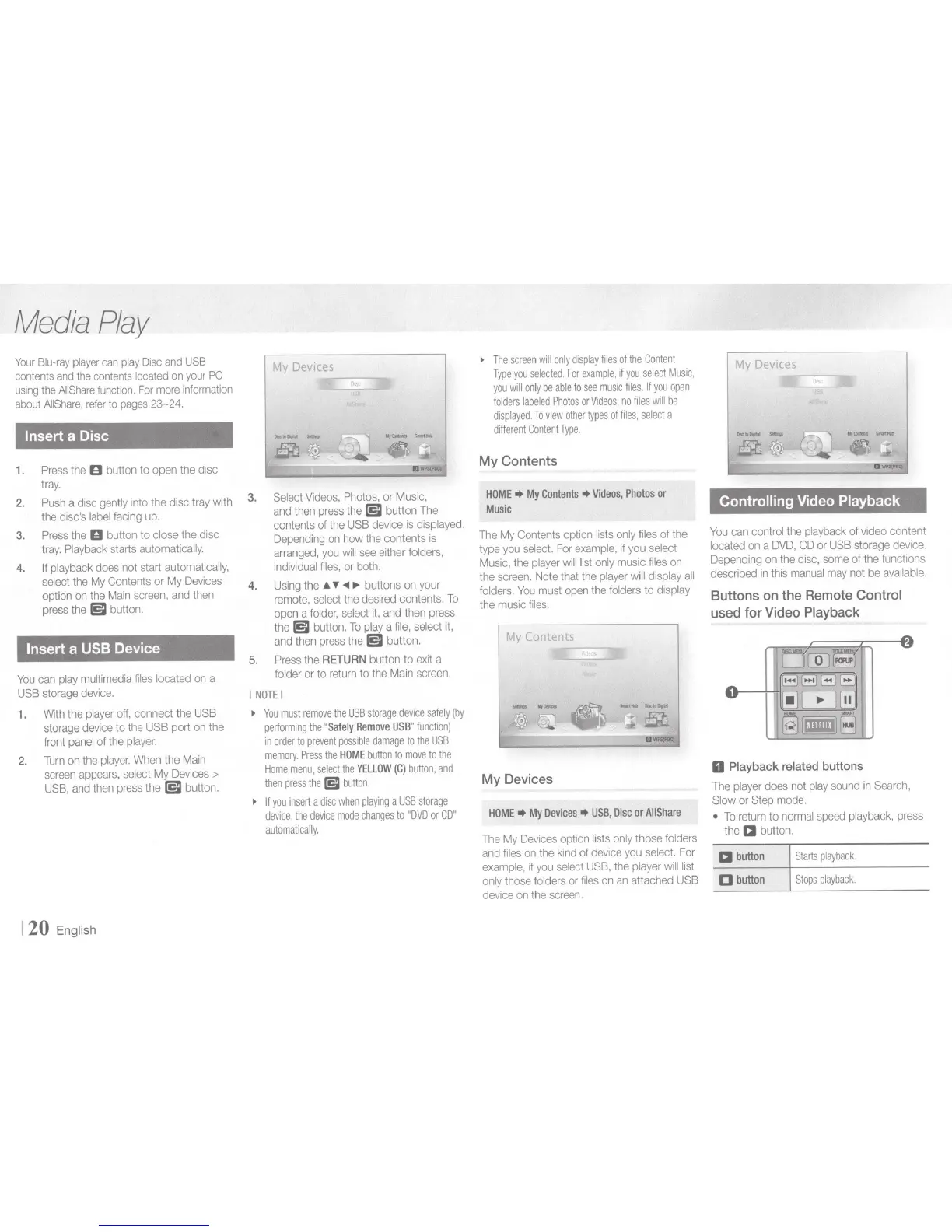
Medta
Play
Your
Blu-ray
player
can
play
Disc
and
USB
contents
and
the
contents
located
on
your
PC
using
the
AIIShare
function.
For
more
information
about
AIIShare,
refer
to
pages
23-24.
Insert
a Disc
1.
Press
the
0
button to
open
the disc
tray.
2.
3.
4.
Push
a disc
gently
into the disc tray with
the
disc's
label
facing
up.
Press
the
0 button to
close
the disc
tray.
Playback
starts
automatically.
If
playback
does
not start
automatically,
select
the
My
Contents or
My
Devices
option
on
the
Main
screen,
and
then
press
the
[5I
button.
Insert
a
USB
Device
You
can
play
multimedia
files
located
on
a
USB
storage
device.
1.
With
the
player
off,
connect the
USB
storage
device
to the
USB
port
on
the
front
panel
of
the
player.
2.
Turn
on
the
player.
When
the
Main
screen
appears,
select
My
Devices
>
USB,
and
then
press
the
[5I
button.
120
English
3.
4.
My
Dev1ces
..,
__
...
Select
Videos,
Photos,
or
Music,
and
then
press
the
[5I
button
The
contents of
the
USB
device
is
displayed.
Depending
on
how
the contents
is
arranged,
you
will
see
either
folders,
individual
files,
or
both.
Using
the
~
'f'
-<11
.,.
buttons
on
your
remote,
select
the
desired
contents.
To
open
a
folder,
select
it,
and
then
press
the
[5I
button.
To
play
a
file,
select
it,
and
then
press
the
[5I
button.
5.
Press
the
RETURN
button to
exit
a
folder
or to
return
to the
Main
screen.
I
NOTE
I
You
must
remove
the
USB
storage
device
safely
(by
performing
the
"
Safely
Remove
USB
"
function)
in
order
to
prevent
possible
damage
to
the
USB
memory.
Press
the
HOME
button
to
move
to
the
Home
menu,
select
the
YELLOW
(C)
button,
and
then
press
the
l5l
button.
If
you
insert
a
disc
when
playing
a
USB
storage
device,
the
device
mode
changes
to
"DVD
or
CD"
automatically.
The
screen
will
only
display
files
of
the
Content
Type
you
selected.
For
example,
if
you
select
Music,
you
will
only
be
able
to
see
music
files.
If
you
open
folders
labeled
Photos
or
Videos,
no
files
will
be
displayed.
To
view
other
types
of
files,
select
a
different
Content
Type.
My
Contents
HOME
My
Contents
Vi
deos
,
Photos
or
Mus
ic
The
My Contents
option
lists
only
files
of the
type
you
select.
For
example,
if
you
select
Music,
the
player
will
list
only
music
files
on
the
screen.
Note
that
the
player
will
display
all
folders.
You
must
open
the
folders
to
display
the music
files.
My
Contents
My
Devices
HOME
..
My
Devices
USB
,
Disc
or
AIIShare
The
My
Devices
option
lists
only
those
folders
and
files
on
the
kind
of
device
you
select.
For
example,
if
you
select
USB,
the
player
will
list
only
those
folders
or
files
on
an
attached
USB
device
on
the
screen.
My
Devices
Controlling
Video
Playback
You
can
control
the
playback
of
video
content
located
on
a
DVD,
CD
or
USB
storage
device.
Depending
on
the
disc,
some
of the functions
described
in
this
manual
may
not be
available.
Buttons on the Remote Control
used
for
Video
Playback
0
Playback
related buttons
The
player
does
not
play
sound
in
Search,
Slow
or
Step
mode.
To
return
to
normal
speed
playback,
press
the
a
button.
a
button
Starts
playback.
D
button
Stops
playback.

Other manuals for Samsung BD-E5700

Related product manuals