EasyManua.ls Logo

Samsung BD-E5700 - Media Play: Playback Controls and Tools Menu; Playback Control Buttons on Remote; Using the Tools Menu for Advanced Options

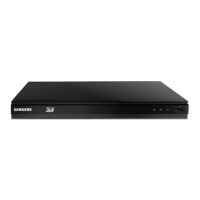
Samsung BD-E5700
89 pages
Print Icon
To Next Page IconTo Next Page
To Previous Page IconTo Previous Page
Loading...
III
button
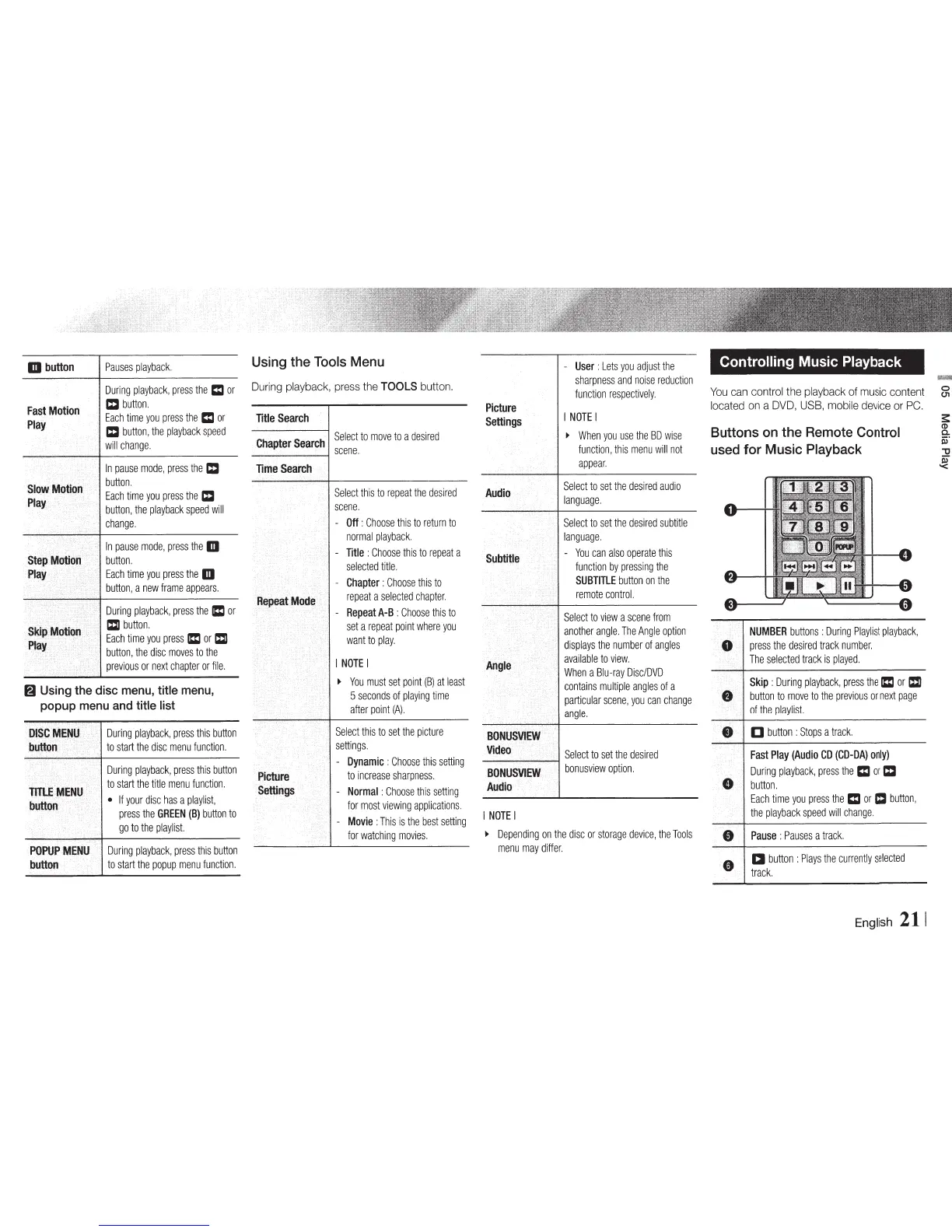
Pauses
playback.
Using
the
Tools
Menu
During
playback,
press
the
Cl
or
During
playback,
press
the
TOOLS
button.
Fast
Motion
=button.
Each
time
you
press
the
Cl
or
Title
Search
Play
=
button,
the
playback
speed
Select
to
move
to
a
desired
will
change.
Chapter
Search
scene.
In
pause
mode,
press
the
=
Time
Search
Slow
Motion
button.
Select
this
to
repeat
the
desired
Each
time
you
press
the
=
Play
button,
the
playback
speed
will
scene.
change.
-
Off
:
Choose
this
to
return
to
normal
playback.
In
pause
mode,
press
the
m
Title
:
Choose
this
to
repeat
a
Step
Motion
button.
selected
title.
Play
Each
time
you
press
the
m
-
Chapter
:
Choose
this
to
button,
a
new
frame
appears.
repeat
a
selected
chapter.
Repeat
Mode
During
playback,
press
the
Cl
or
-
Repeat
A-B
:
Choose
this
to
Skip
Motion
c:l
button.
set
a
repeat
point
where
you
Each
time
you
press
Cl
or
1D
want
to
play.
Play
button,
the
disc
moves
to
the
previous
or
next
chapter
or
file.
I
NOTE
I
..
You
must
set
point
(B)
at
least
(g
Using
the
disc
menu,
title
menu,
5
seconds
of
playing
time
popup
menu
and
title
list
after
point
(A).
DISC.MENI.J
During
playback,
press
this
button
Select
this
to
set
the
picture
button
to
start
the
disc
menu
function.
settings.
-
Dynamic
:
Choose
this
setting
During
playback,
press
this
button
Picture
to
increase
sharpness.
Tl"''l..E
MENU
to
start
the
title
menu
function.
Selings
Normal
:
Choose
this
setting
-
button
If
your
disc
has
a
playlist,
for
most
viewing
applications.
press
the
GREEN
(B)
button
to
Movie
:
This
is
the
best
setting
go
to
the
playlist.
-
for
watching
movies.
POPUP
MENU
During
playback,
press
this
button
button
to
start
the
popup
menu
function.
-
User
:
Lets
you
adjust
the
sharpness
and
noise
reduction
function
respectively.
Picture
Settings
I
NOTE
I
..
When
you
use
the
BD
wise
function,
this
menu
will
not
appear.
Audio
Select
to
set
the
desired
audio
language.
Select
to
set
the
desired
subtitle
language.
Subtitle
-
You
can
also
operate
this
function
by
pressing
the
SUBTITLE
button
on
the
remote
control.
....
Select
to
view
a
scene
from
another
angle.
The
Angle
option
displays
the
number
of
angles
available
to
view.
Angle
When
a
Blu-ray
Disc/DVD
contains
multiple
angles
of
a
particular
scene,
you
can
change
angle.
BONl.JSVIEW
Video
Select
to
set
the
desired
BON.USVIEW
bonusview
option.
Audio
I
NOTE
I
..
Depending
on
the
disc
or
storage
device,
the
Tools
menu
may
differ.
Controlling Music Playback
You
can
control
the
playback
of
music
content
located
on
a
DVD,
USB,
mobile
device
or
PC.
Buttons
on
the
Remote
Control
used
for Music
Playback
NUMBER
buttons
:
During
Playlist
playback,
press
the
desired
track
number
.
The
selected
track
is
played.
Skip
:
During
playback,
press
the
Cl
or
1D
button
to
move
to
the
previous
or
next
page
of
the
playlist.
[]
button
:
Stops
a
track.
Fast
Play
(Audio
CD
(CD-DA)
only)
During
playback,
press
the
Cl
or
=
button.
Each
time
you
press
the
Cl
or
C
button,
the
playback
speed
will
change.
Pause
:
Pauses
a
track
.
Cl
button
:
Plays
the
currently
selected
track.
English
211

Other manuals for Samsung BD-E5700

Related product manuals