EasyManua.ls Logo

Samsung BD-E5700 - Network Services: Smart Hub and AllShare Introduction; Smart Hub Features and Initial Setup; BD-LIVE Service Overview; AllShare Network Functionality Guide

Samsung BD-E5700
89 pages
Print Icon
To Next Page IconTo Next Page
To Previous Page IconTo Previous Page
Loading...
Network
Services
You
can
enjoy
various
network
services
such
as
Smart
Hub
or
BD-LIVE
by
connecting
the
player
to
your
network.
To
use
network
services,
you
must
first:
1.
Connect
the
player
to
the
network.
(See
page
12)
2.
Configure
the
network
sett1ngs.
(See
pages
17
-18)
Using Smart
Hub
Using
Smart
Hub,
you
can
download
movies,
vioeos,
and
music
from
the
Internet,
and
ac::;ess
various
for
pay
or
free-of
-charge
applications
and
view
them
on
your
TV.
Ar:;plicatlon
content
includes
news,
sports,
weather
forecasts,
stock
market
quotes,
maps,
photos,
and
games.
For
instructions
that
explain
how
to
use
Smart
Hub,
follow
these
steps:
1.
2.
3.
4.
5.
Go
to
www.samsung.com.
Click
Support at
the
top of
the
page.
On
the
Support
page,
enter
the
model
number
of
your
player
into
the
Model
Number
field,
and
then
press
the
Enter
button.
On
the
page
that
appears,
click
Get
downloads
on
the
left
side
under
Downloads.
The
Download
Center
appears.
On
the
Download
Center
page,
click
the
Manuals
tab.
6.
On
the
Manuals
tab,
click
the
file
icon
to
the
right
of
Smart
Hub
Users
Manual.
The
manual
downloads.
I
NOTE
I
~
The
web
location
of
the
Smart
Hub
manual
is
subject
to
change
without
notice.
~
If
the
home
page
is
updated
or
revised,
the
content
mentioned
in
the
user
manual
may
differ
from
the
actual
menus.
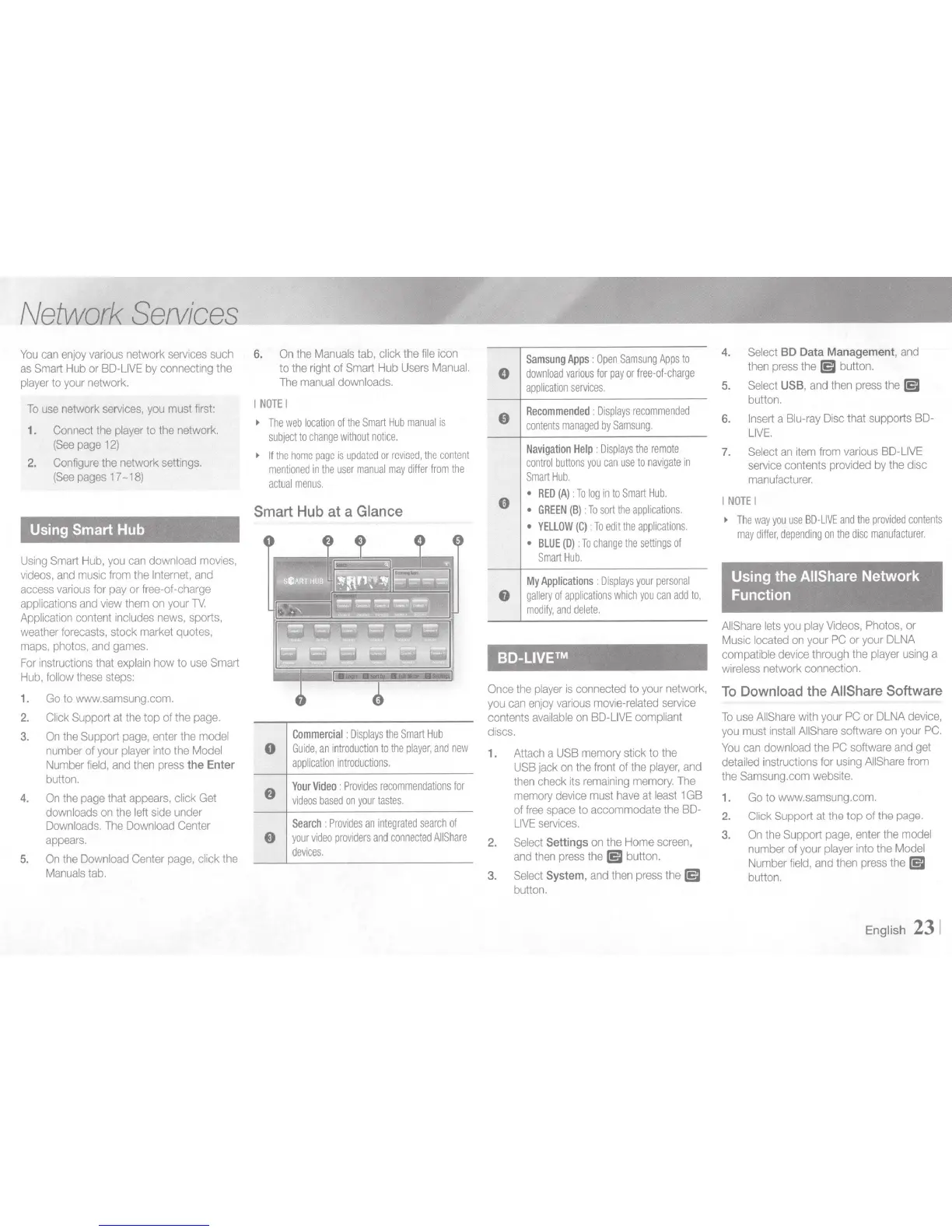
Smart Hub at a Glance
0
Commercial
:
Displays
the
Smart
Hub
Guide,
an
introduction
to
the
player,
and
new
application
introductions.
Your
Video
:
Provides
recommendations
for
videos
based
on
your
tastes.
Search
:
Provides
an
integrated
search
of
your
video
prov1ders
and
connected
AI!Share
devices.
0
Sam
sung
Apps
:
Open
Samsung
Apps
to
download
various
for
pay
or
free-of-charge
application
services.
Recommended
:
Displays
recommended
contents
managed
by
Samsung.
Navigation
Help
:
Displays
the
remote
control
buttons
you
can
use
to
navigate
in
Smart
Hub.
RED
(A)
:To
log
in
to
Smart
Hub.
GREEN
(B)
:
To
sort
the
applications.
YELLOW
(C)
:To
edit
the
applications.
BLUE
(D)
:To
change
the
settings
of
Smart
Hub.
My
Applications
.
Displays
your
personal
gallery
of
applications
which
you
can
add
to,
modify,
and
delete.
BD-LIVE™
Once
the
player
is
connected
to
your
network,
you
can
enjoy
various
movie-related
service
contents
available
on
BD-LIVE
compliant
discs
.
1.
Attach
a
USB
memory
stick to
the
USB
jack
on
the
front
of
the
player,
and
then
check
its
remaining
memory.
The
memory
device
must
have
at
least
1GB
of
free
space
to
accommodate
the
BD-
LIVE
services.
2.
Select
Settings
on
the
Home
screen,
and
then
press
the
lE,D
button.
3.
Select
System
,
and
then
press
the
lED
button.
4.
5.
6.
7.
Select
BD
Data
Management,
and
then
press
the
lE,D
button.
Select
USB
,
and
then
press
the
lED
button.
Insert
a
Blu-ray
Disc
that
supports
BD-
LIVE.
Select
an
item
from
various
BD-LIVE
serv1ce
contents
provided
by
the
disc
manufacturer.
I
NOTE
I
~
The
way
you
use
SO-LIVE
and
the
provided
contents
may
differ,
depending
on
the
disc
manufacturer.
Using the AIIShare
Network
Function
AIIShare
lets
you
play
Videos,
Photos,
or
Music
located
on
your
PC
or
your
DLNA
compatible
device
through
the
player
using
a
wireless
network
connection.
To
Download
the
AIIShare
Software
To
use
AIIShare
with
your
PC
or
DLNA
device,
you
must
install
AIIShare
software
on
your
PC.
You
can
download
the
PC
software
and
get
detailed
instructions
for
using
AIIShare
from
the
Samsung.com
website.
1.
Go
to
www.samsung
.
com.
2.
Click
Support at
the
top
of
the
page.
3.
On
the
Support
page,
enter
the
model
number
of
your
player
into
the
Model
Number
field,
and
then
press
the
[5I
button.
English
23
1

Other manuals for Samsung BD-E5700

Related product manuals