EasyManua.ls Logo

Samsung BD-E5700 - Network Services: PC Content Access and Disc to Digital; Playing PC;DLNA Media Files via AllShare; Disc to Digital Service Overview; Registering DVD Movies for Digital Copying

Samsung BD-E5700
89 pages
Print Icon
To Next Page IconTo Next Page
To Previous Page IconTo Previous Page
Loading...
Network
Services
4.
On
the
page
that
appears,
click
Get
downloads
on
the
left
side
under
Downloads
.
The
Download
Center
appears.
5.
On
the
Download
Center
page,
click
the
Software
tab.
6.
On
the
software
tab, click the
File
icon
on
the
right
side
of
the
AIIShare
line.
7.
In
the pop-up that
appears,
click
Save
File.
8.
Find
the
AIIShare
install
file
on
your
disk,
and
then
double
click
the
file.
9.
In
the pop-up that
appears,
click
Run,
and
then
follow the directions
that
appear
on
your
screen.
Download
the
AIIShare
Installat
ion/Instruction
manual
from
the
same
Software
Tab
by
clicking
the corresponding
PDF
file
symbol
in
the
File
column
on
the
right.
The
file,
in
PDF
format,
will
download
and
open.
You
can
view
and/or
save
the
file.
Playing
Content
Located
on
Your
PC
or
DLNA
Device
through
the
Blu-
ray
Disc
Player
PC
Blu-ray
Disc
Player
Play
back
PC's
file
s
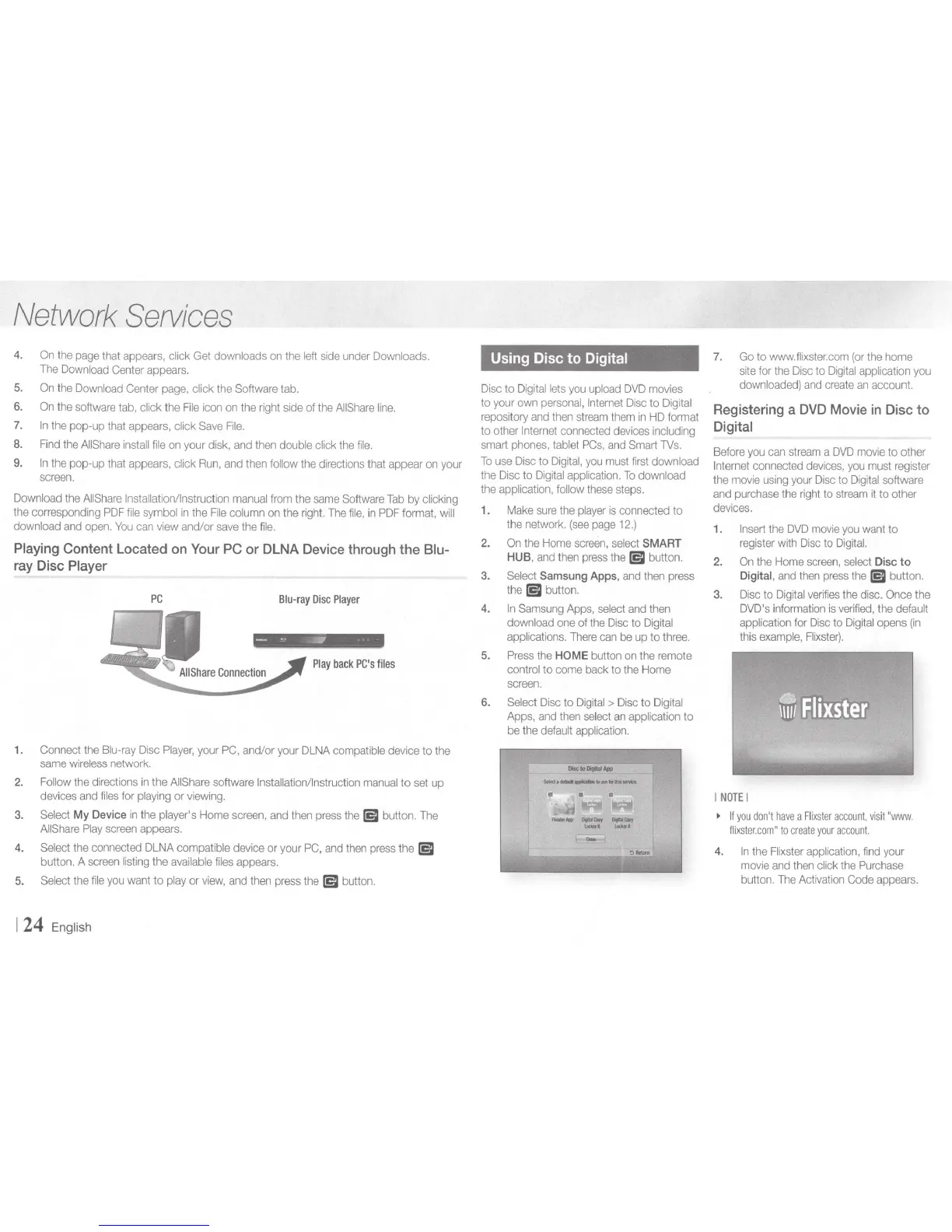
1. Connect the
Blu-ray
Disc
Player,
your
PC,
and/or your
DLNA
compatible device to the
same
wireless
network.
2.
Follow
the directions
in
the
AIIShare
software Installation/Instruction
manual
to
set
up
devices
and
files
for
playing
or
viewing.
3.
Select
My
Device
in
the
player
's
Home
screen,
and
then
press
the
[5I
button.
The
AIIShare
Play
screen
appears.
4.
Select
the
connected
DLNA
compatible device or your
PC,
and
then
press
the
[5I
button. A
screen
listing
the
available
files
appears.
5. Select the
file
you
want
to play or
view,
and
then
press
the
[5I
button.
1
24
English
Using Disc to Digital
Disc
to
Digita
l
lets
you
upload
DVD
movies
to your
own
personal,
Internet
Disc
to
Digital
repository
and
then
stream
them
in
HD
format
to other Internet
connected
devices
including
smart
phones,
tablet
PCs,
and
Smart
TVs.
To
use
Disc
to
Digital,
you
must
first
download
the
Disc
to
Digital
application.
To
download
the application,
follow
these
steps.
1.
Make
sure
the
player
is
connected to
the
network.
(see
page
12.)
2.
On
the
Home
screen,
select
SMART
HUB,
and
then
press
the
[5I
button.
3.
Select
Samsung
Apps
,
and
then
press
the
[5I
button.
4.
In
Samsung
Apps,
select
and
then
download
one
of
the
Disc
to
Digital
applications.
There
can
be
up
to
three.
5.
Press
the
HOME button
on
the remote
control to come back to the
Home
screen.
6. Select
Disc
to
Digital
>
Disc
to
Digital
Apps,
and
then
select
an
application to
be the
default
application.
7.
Go
to
www.fl
i
xster.com
(or the home
site
for
the
Disc
to Di
gital
application
you
downloaded)
and
create
an
account.
Registering
a
DVD
Movie
in
Disc
to
Digital
Before
you
can
stream
a
DVD
mov
ie to other
Internet connected
dev
i
ces,
you
must
reg
i
ste
r
the
mov
ie
using
your
Di
sc
to
Dig
i
tal
software
and
purchase
the
right
to
stream
it to other
devices.
1.
Insert
the
DVD
movie
you
want
to
register
wi
th
Disc
to
Digital.
2.
On
the
Home
screen,
select
Disc
to
Digital
,
and
then
press
the
[5I
button.
3.
Disc
to
Dig
i
tal
verifies
the
disc. Once
the
DVD's
information
is
verified,
the
default
application for Disc to
Dig
i
tal
opens
(in
this
examp
l
e,
Flixster).
I
NOTE
I
~
If
you
don't
have
a
Fl
i
xster
account
,
visit
"www.
flixster.com"
to
create
your
account.
4.
In
the
Flixster
application,
find
your
mov
ie
and
then
click
the
Purchase
button.
The
Activation
Code
appears.

Other manuals for Samsung BD-E5700

Related product manuals