EasyManua.ls Logo

Samsung BD-E5700 - Quick Setup Guide: Initial Settings Procedure; Running the Initial Settings Wizard

Samsung BD-E5700
89 pages
Print Icon
To Next Page IconTo Next Page
To Previous Page IconTo Previous Page
Loading...
Step
4.
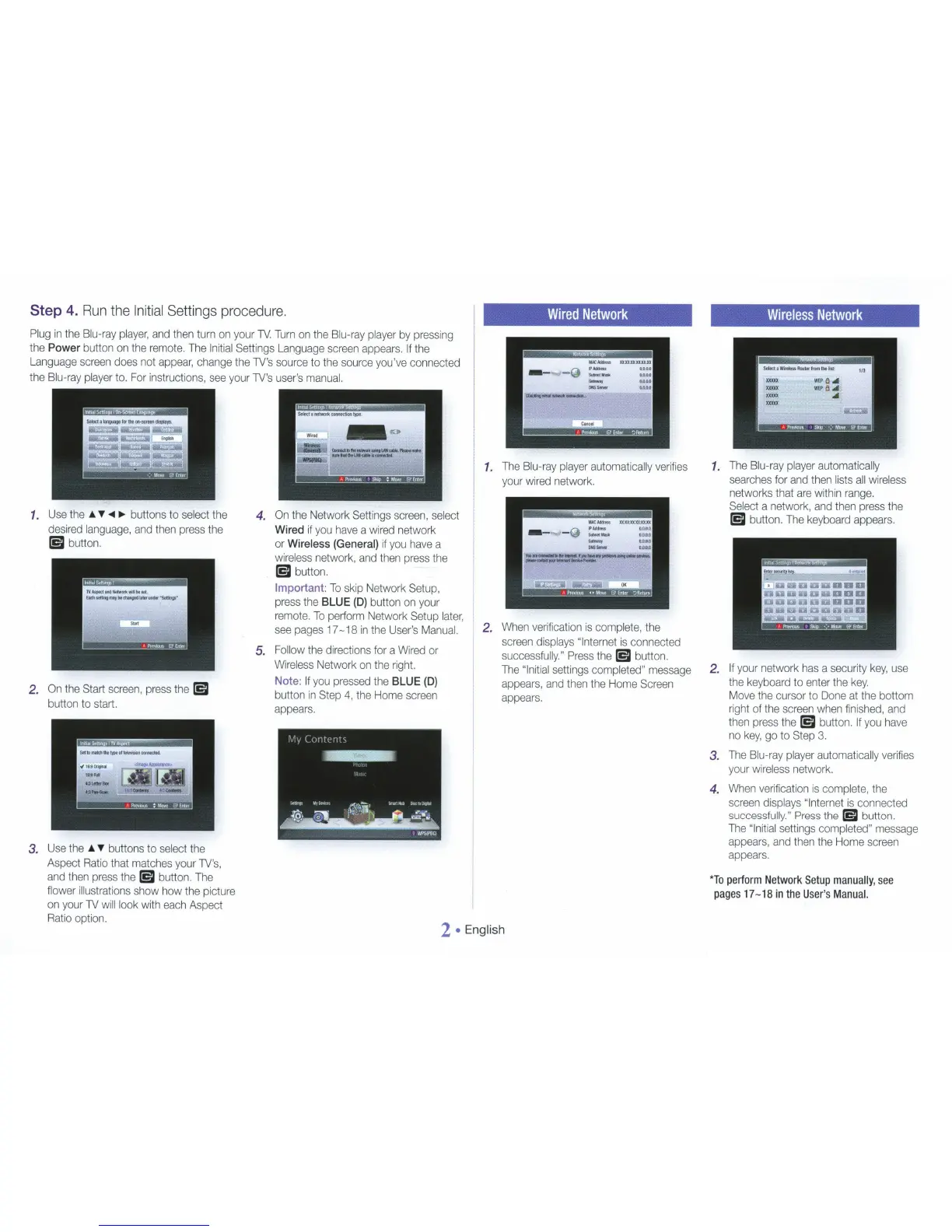
Run the
In
iti
al
Settings procedure.
Plug
in
the
Blu-ray
player,
and
then turn
on
your
TV.
Turn
on
the
Blu-ray
player
by
pressing
the Power button
on
the
remote.
The
Initial
Settings
Language
screen
appears.
If
the
Language
screen
does
not
appear,
change
the
TV
's
source to
the
source
you've connected
the
Blu-ray
player
t
o.
For instructions,
see
your
TV's
user's
manual.
1.
Use
t
he
T
<111
.,..
buttons to
se
lect
the
4.
On
the Network
Settings
screen,
se
lect
desired
language,
and
then
press
the
Wired
if
you
have
a
wired
network
(im
button.
or
Wireless
(General)
if
you
have
a
wireless
network,
and
then
press
the
(im
button.
Important:
To
skip
Network
Setup,
press
the
BLUE
(D)
button
on
your
remote.
To
perform
Network Setup
later,
see
pages
17-18
in
the
User's
Manual.
5.
Follow
the directions
for
a
Wired
or
Wireless
Network
on
the
right.
2.
On
the Start
screen,
press
the
(im
Note:
If
you
pressed
the
BLUE
(D)
button
in
Step
4,
the H
ome
screen
button to
start.
appears.
Wired
Network
1.
The
Blu-ray
player
automatically
verifies
your
wired
network.
2.
When
verification
is
complete, the
screen
displays
"Internet
is
connected
successfully."
Press
the
(im
button.
The
"Initial
settings
completed"
message
appears,
and
then
the
Home
Screen
appears.
3.
Use
the
T
buttons to
se
lect
the
Aspect
Ratio
that
matches
your
TV's,
and
then
press
the
(im
button.
The
flower
illustrations
show how the picture
on
your
TV
will
look
with
each
Aspect
Ratio
option.
2
English
Wireless
Network
1.
The
Blu-ray
player
automatically
searches
for
and
then
lists
all
wireless
networks that
are
within
range.
Se
l
ect
a network,
and
then
press
the
(im
button.
The
keyboard
appears.
2.
If
your
network
has
a
security
key,
use
the
keyboard
to enter the
key
.
Move
the cursor to
Done
at
the bottom
right
of the
screen
when
finished,
and
then
press
the
(im
button.
If
you
have
no
key,
go to
Step
3.
3.
The
Blu-ray
player
automatically
verifies
your
wireless
network.
4.
When
verification
is
complete,
the
screen
displays
"Internet
is
connected
successfully."
Press
the
(im
button.
The
"Initial
settings
completed"
message
appears,
and
then
the
Home
screen
appears.
*
To
perform
Network
Setup
manually
,
see
pages
17
-
18
in
the
User
's
Manual.

Other manuals for Samsung BD-E5700

Related product manuals