EasyManua.ls Logo

Samsung BD-E5700 - Smart Hub: App Management and Account Creation; Downloading and Installing Free Applications; Creating Your Smart Hub User Account

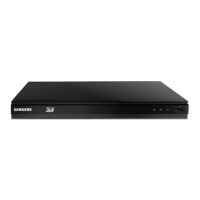
Samsung BD-E5700
89 pages
Print Icon
To Next Page IconTo Next Page
To Previous Page IconTo Previous Page
Loading...
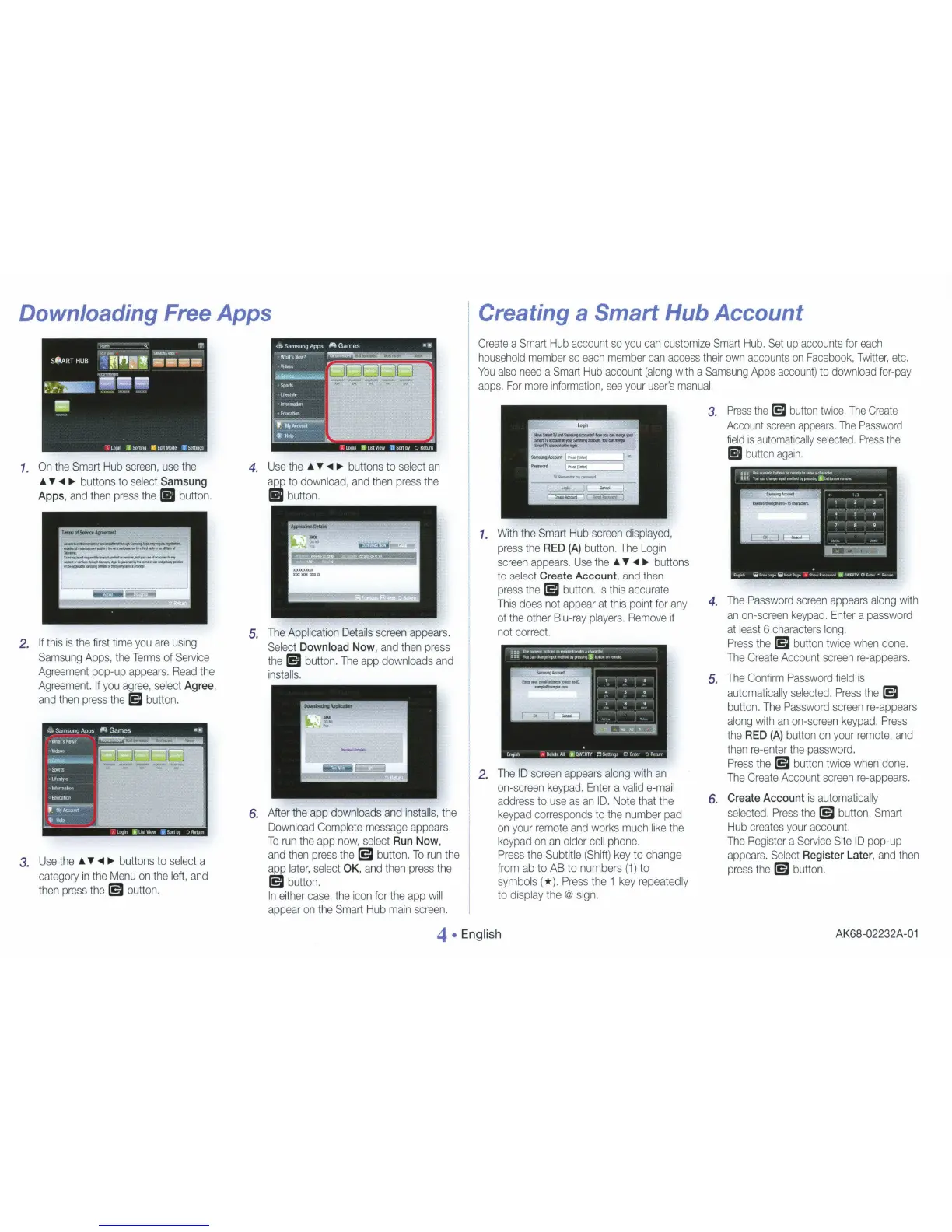
Downloading Free Apps
1.
On
the
Smart
Hub
screen,
use
the
-'.
~
buttons
to
select
Samsung
Apps
,
and
then
press
the
[5I
button.
2.
If
this
is
the
first
time
you
are
using
Samsung
Apps,
the
Terms
of
Service
Agreement
pop-up
appears.
Read
the
Agreement.
If
you
agree,
select
Agree
,
and
then
press
the
~
button.
3.
Use
the
.._
~
buttons
to
select
a
category
in
the
Menu
on
the
left,
and
then
press
the
[5I
button.
4.
Use
the
.._
~
bu
t
tons
to
select
an
app
to
download
,
and
then
press
the
[5I
button
.
5.
The
App
li
cation
D
etails
screen
appears.
Select
Download
Now
,
and
then
press
the
[5I
button.
The
app
downloads
and
installs.
6.
After
th
e
app
downloads
and
installs,
the
Download
Comp
l
ete
message
appears.
To
run
the
app
now,
select
Run
Now
,
and
then
press
the
[5I button.
To
run
the
app
later,
select
OK
,
and
then
press
the
[5I
button.
In
either
case,
the
icon
for
the
app
will
appear
on
the
Smart
Hub
main
screen.
I Creating a Smart Hub Account
Create
a
Smart
Hub
account
so
you
can
customize
Smart
Hub.
Set
up
accounts
for
each
household
member
so
each
member
can
access
their
own
accounts
on
Facebook,
Tw
i
tter
,
etc.
You
also
need
a S
ma
rt
Hub
account
(along
with
a
Samsung
Apps
account)
to
download
for-pa
y
apps.
For
more
information,
see
your
user
's
manual.
1.
With
the
Smart
Hub
screen
displayed,
press
the
RED
(A)
button
.
The
Login
screen
appears.
Use
the
.._
~
buttons
to
select
Create
Account
,
and
then
press
the
[5I
button.
Is
this
accurate
This
does
not
appear
at
this
point
for
any
of
the
other
Blu-ray
players.
Remove
if
not
correct.
2.
The
ID
screen
appears
along
with
an
on-screen
keypad.
Enter
a
valid
e-mail
address
to
use
as
an
I D.
Note
that
the
keypad
corresponds
to
the
number
pad
on
your
remote
and
works
much
like
the
keypad
on
an
older
cell
phone
.
Press
the
Subtitle
(Shift)
key
to
change
from
ab
to
AB
to
numbers
(1)
to
symbols(*
).
Press
the
1
key
repeatedly
to
display
the @
sign.
3.
Press
the
~
button
twice.
The
Create
Account
screen
appears
.
The
Pass
word
field
is
automatically
selected.
Press
the
~
button
agai
n.
4.
The
Password
screen
appears
along
with
an
on-screen
keypad.
Enter
a
password
at
least
6
characters
long.
Press
the
[5I
button
twice
when
done.
The
Create
Account
screen
re-appears.
5. T
he
Confirm
Password
field
is
automatically
selected.
Press
the
[5I
button.
The
Password
screen
re-appears
along
with
an
on-screen
keypad.
Press
the
RED
(A)
button
on
your
remote,
and
then
re-enter
the
password.
Press
the
[5I
button
twice
when
done.
The
Create
Account
screen
re-appears.
6.
Create
Account
is
automatically
selected.
Press
the
[5I button.
Smart
Hub
creates
your
account.
The
Register
a
Service
Site
ID
pop-up
appears.
Select
Register
Later
,
and
then
press
the
[5I
button.
4
Engl
i
sh
AK
68-0
2232
A-01

Other manuals for Samsung BD-E5700

Related product manuals