Settings 148
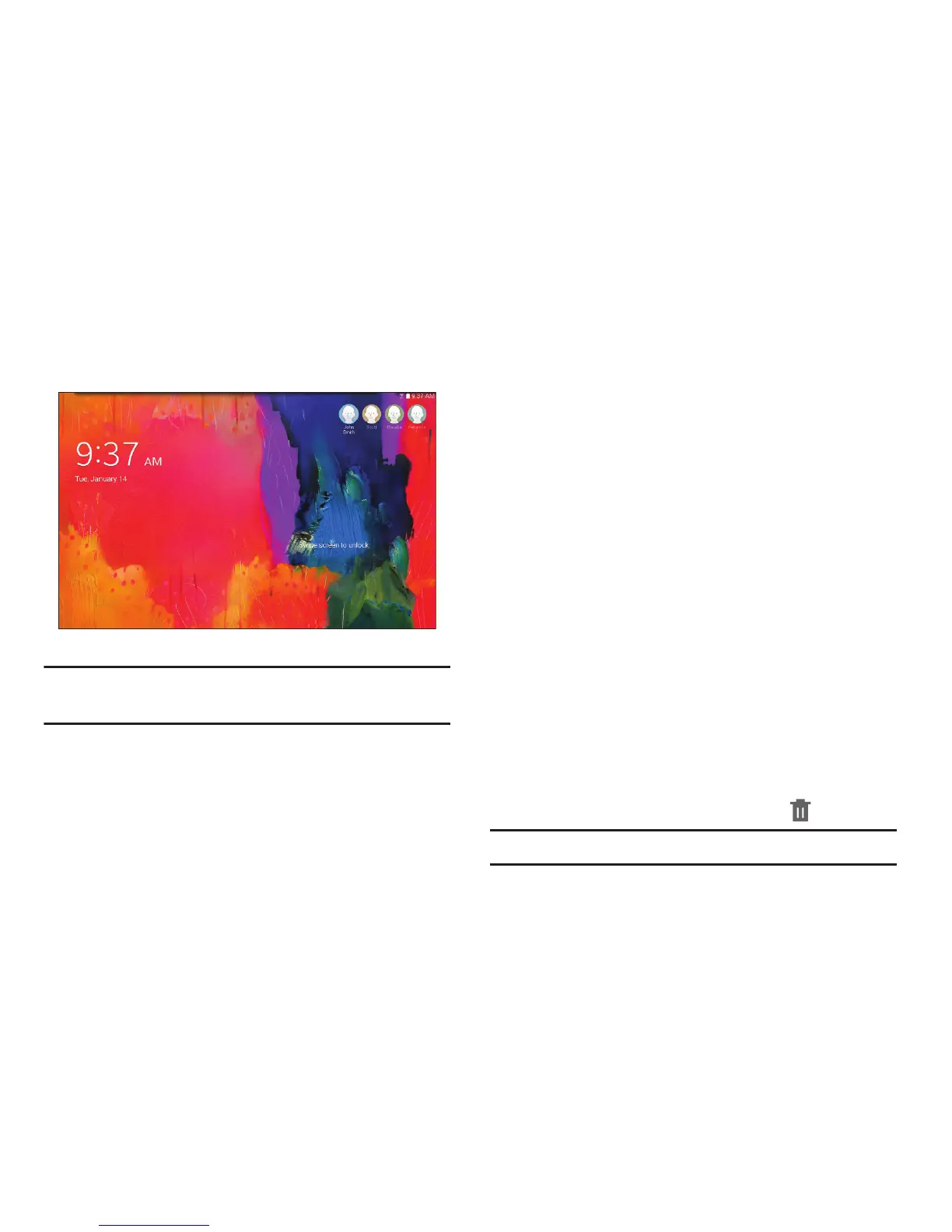
To access the device with a user profile, select a profile at
the top right of the locked screen.
Tip: You can also switch between users by sliding down the
Notification Panel and touching the current User.
Change User Account Nicknames and Photo IDs
Each user can set up their account nickname, which is
displayed on the Lock screen as their User ID.
The photo each user uses in their personal Contact entry
(listed under ME at the top of their Contacts list) is used as
their User ID photo.
1. From the Settings screen, touch General tab ➔
Users.
2. Touch the current User’s profile.
3. Touch Add another field and then touch Nickname to
check the box and add a Nickname field.
4. Touch Nickname and enter a new name.
5. Touch Save.
To change their ID photo, each user much edit their personal
Contact entry’s picture. For more information, refer to
“Updating Contacts” on page 43.
Deleting a User or Profile
1. From the Settings screen, touch General tab ➔
Users.
2. Touch the User profile, and then touch Delete user.
Note: Only the Device Owner can delete other User accounts.







 To Next Page