39
Entering Text
Use the Samsung keyboard or the voice input feature to
enter text.
Note: Text entry is not supported in some languages. To enter
text, you must change the input language to one of the
supported languages.
Using the Keyboard
Touch any text field, open the Notification Panel, touch
Select input method, and then select the type of keyboard
to use.
Entering Uppercase
Touch before entering a character. For all caps, touch
it twice.
Changing the Keyboard Type
Touch and hold , and then touch to change the
keyboard type.
Changing Language Keyboards
Add languages to the keyboard, and then slide the space key
left or right to change language keyboards.
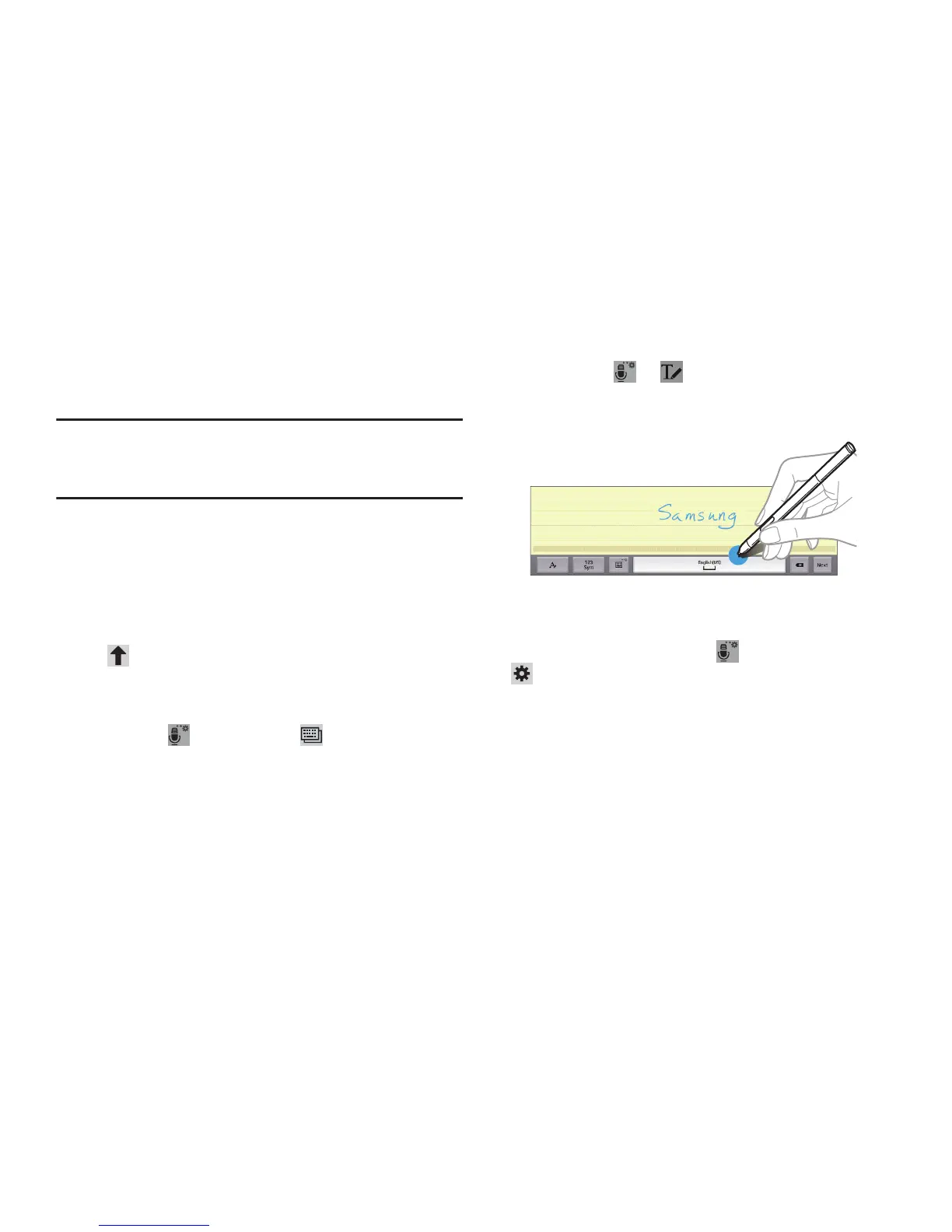
Handwriting
Touch and hold ➔ , and then write a word with a
finger or the S Pen. Suggested words appear as characters
are entered. Select a suggested word.
Use handwriting gestures to perform actions, such as editing
or deleting characters and inserting spaces. To view the
gesture guides, touch and hold , and then touch
Settings ➔ Help ➔ Keyboard ➔ Use handwriting
gestures.







 To Next Page