27
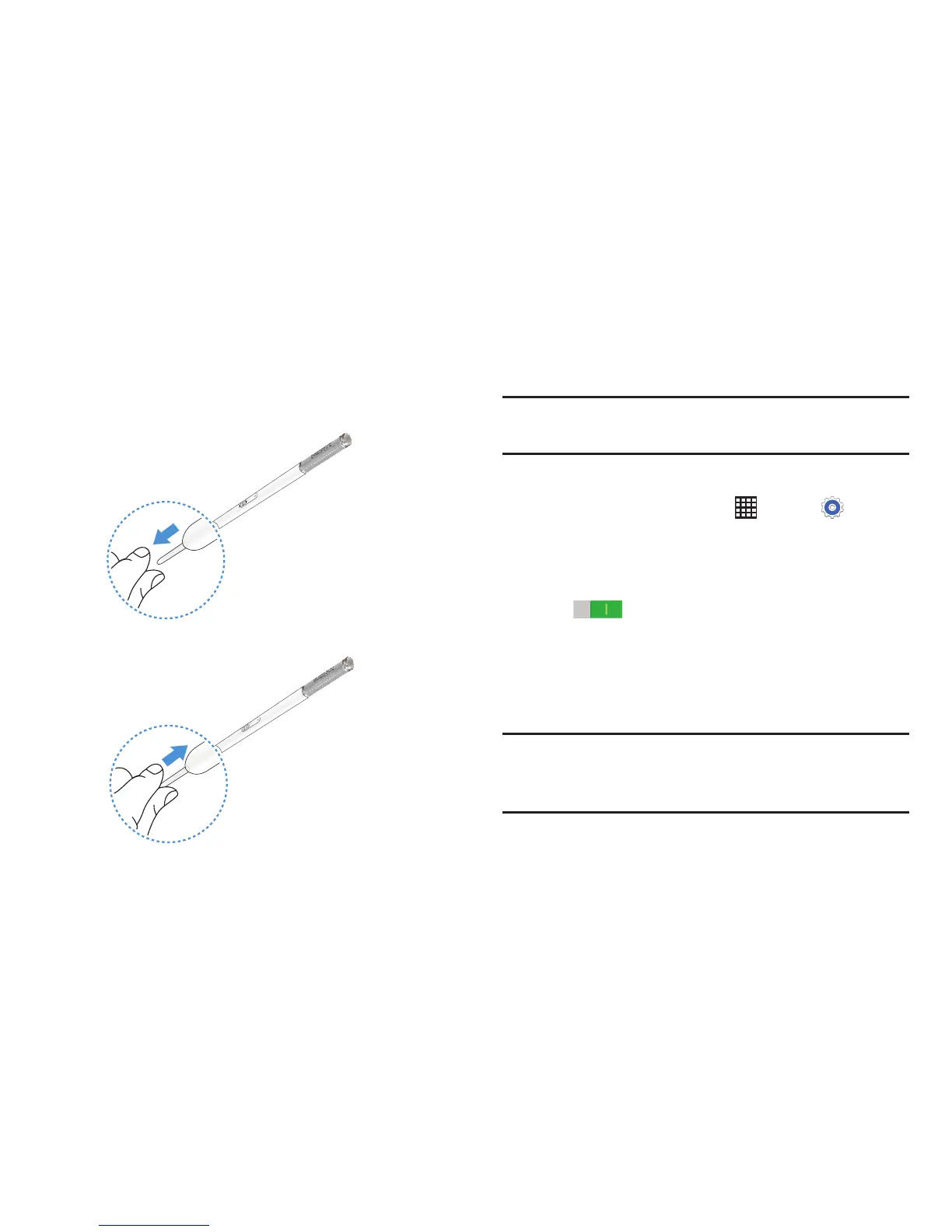
Replacing the S Pen Tip
While using the S Pen, the S Pen tip may get dull. If the tip is
dull, replace it with a new one.
1. Hold the tip with the tweezer firmly, and then pull it out.
2. Insert a new tip into the S Pen until you hear a click.
Multi Window
Multi task by using up to four applications at the same time.
Note: Only applications displayed on the Multi window panel
can be used with the Multi window feature.
Activate Multi Window
1. From a Home screen, touch Apps ➔ Settings
➔ Device tab.
2. Touch Multi window.
3. Touch the OFF/ON button to turn Multi window
ON .
4. If desired, touch Open in multi window view to
automatically view content in Multi window when you
open files from My Files or Video player, or attachments
from email.
Note: You can also activate Multi window from the Notification
Panel. For more information, refer to “Notification Panel”
on page 30.







 To Next Page