38
Effect : Color Effect
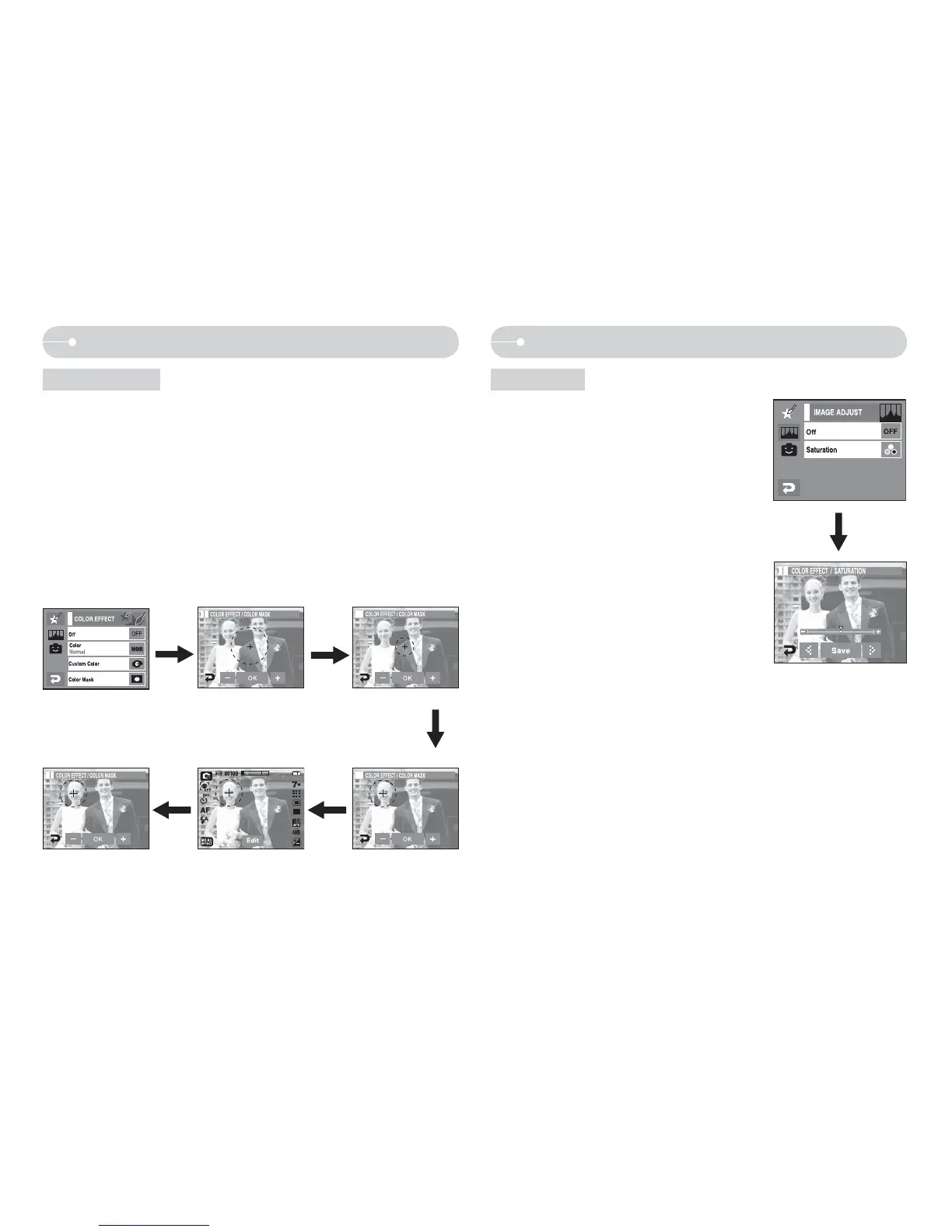
Color Mask
Effect: Image Adjust
Q With this menu, You can select a part you want to highlight. The rest of the
image will be black and white.
1. Press [Menu Effect] menu icon.
2. Select [Color Effect] menu.
3. Select [Color Mask].
- The effect area appears.
- You can move the effect area by touching.
- You can adjust the size of effect area by pressing +/- icon.
4. The masked area of the picture is captured when you press the shutter
button.
Saturation
Q You can adjust the saturation of picture.
1. Press [Menu Effect] menu icon.
2. Select [Image Adjust].
3. Select [Saturation].
- Control bar appears after selecting
Saturation.
4. You can adjust the saturation by pressing
WX icon.
+ direction : High saturation
(The colour will be deep)
- direction : Low saturation
(The colour will be subtle)
5. Press [SAVE] for saving current setting.
Press the OK button and the
Mask mark will display on
the LCD monitor
+, - icon: Changing the
Mask size
Touch LCD monitor : Move
the mask
You can change the size and
position with the Edit icon
Pressing the OK icon
- Press the Shutter button and the mask added image is taken.


 To Next Page