52
Starting the slide show
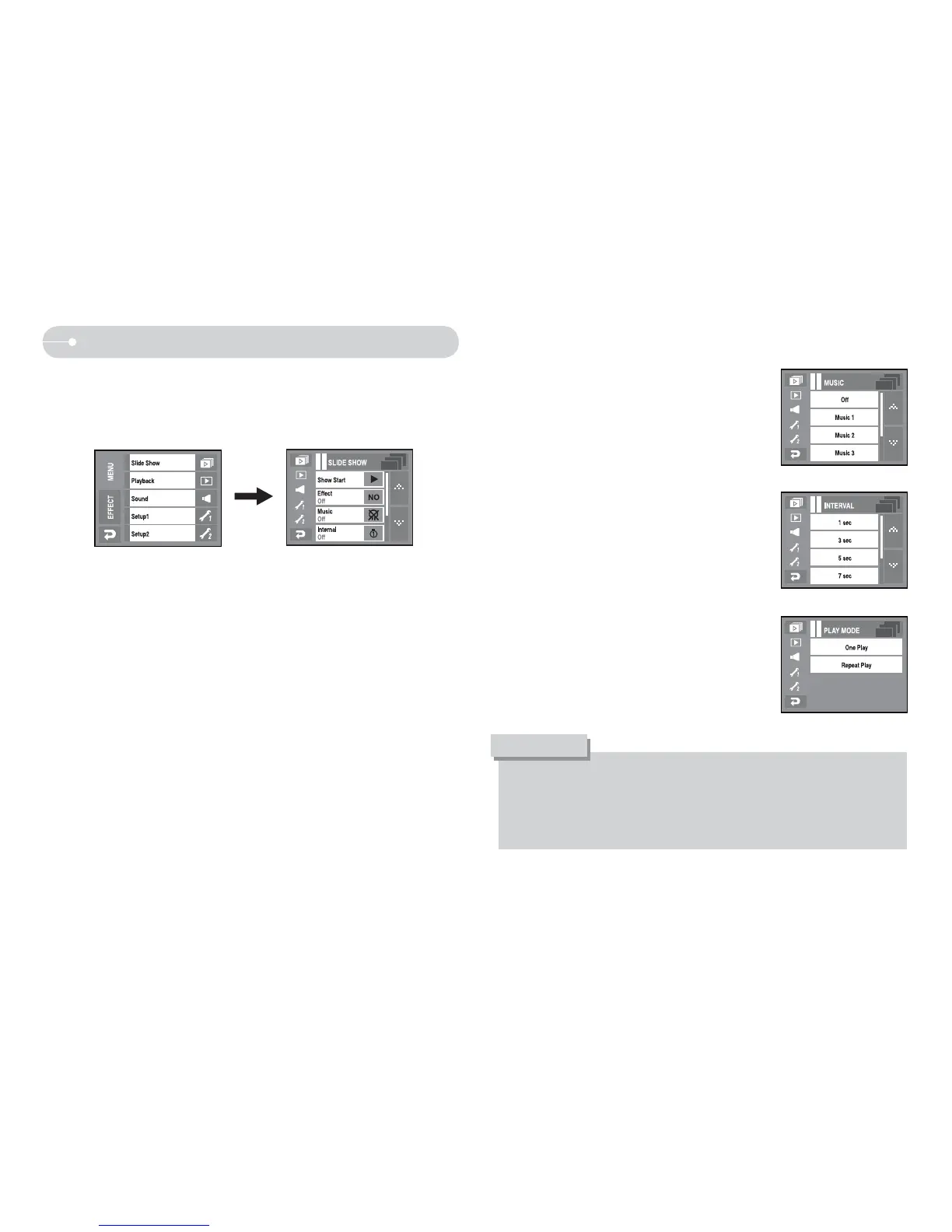
Q Images can be displayed continuously at pre-set intervals. You can view the
slide show by connecting the camera to an external monitor.
1. Press playing mode button and select [MENU EFFECT]
2. Select [SLIDE SHOW]
O Start : The slide shown can be started with the [Start]menu.
1. Pressing the X icon again will cause the slide show to restart.
- To stop the slide shown while playing it back, press the LCD monitor.
O Effect : Unique screen effects can be used for the slide show.
1. Select the [EFFECT] menu by pressing ST icon.
2. Select the effect by pressing ST icon.
- [Off] : Normal display.
- [Effect1] : Image moves from the top left.
- [Effect2] : Image is displayed slowly from the centre outwards.
- [Effect3] : Image is displayed slowly.
- [Mix] : The image slides irregularly within 3 effects.
O MUSIC : Set the slide show music.
1. Select [MUSIC] menu by pressing ST icon
2. Select the music pressing ST icon.
O The loading time depends on the image size and quality.
O While the slide show is playing, only the first frame of a MOVIE file is
displayed.
O While the slide show is playing, the voice recording file will not display.
INFORMATION
O Setting play interval : Set the slide show play
interval.
1. Select [Interval] menu by pressing ST icon.
2. Select the interval pressing ST icon.
O Slide show type: Selects a slide show type.
- [One Play] : Slide show is finished after all
pictures are shown.
- [Repeat Play] : Slide show continuously plays
until it turns off.


 To Next Page