D-Net File List
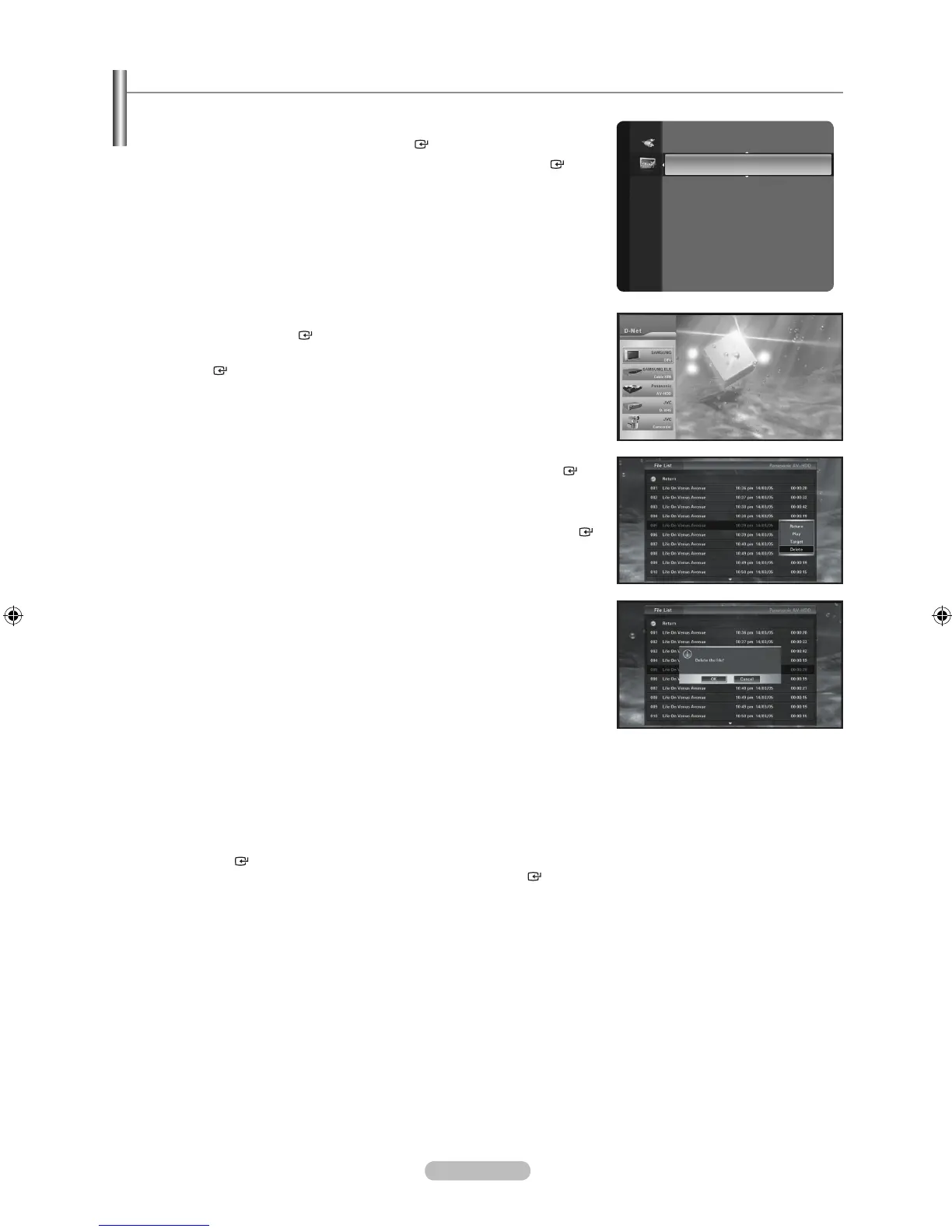
You can select, play and delete les stored on an AV-HDD device that is connected via D-Net.
1. Press the MENU button to display the menu. Press the ▲ or ▼ button to
select “Application”, then press the ENTER button.
2. Press the ▲ or ▼ button to select “D-NET”, then press the ENTER
button.
3. From the device list, move to AV-HDD by pressing the ▲ or ▼ button and
then press the ENTER button.
4. Press the ◄ or ► button to move to the File List button and then press the
ENTER button.
5. Press the ▲ or ▼ button to move to a le and then press the ENTER
button.
The sub-menu appears allowing you to play, copy or delete as shown in the
gure.
Press the ▲ or ▼ button to move to a menu and then press the ENTER
button.
6. When selecting Play, and the le is played, the le list disappears and the
Control Panel appears.
When selecting Copy, the le list disappears and the recording device list
appears allowing you to record.
When selecting Delete, a deletion conrmation message appears. When
selecting OK, the selected le is deleted. However, you cannot delete a le
currently being played or recorded.
7. To move to the list on the next page, move the cursor to the le at the bottom
and press the ▼ button; to move to the previous page, move the cursor to
the Previous Menu and press the ▲ button. When pressing the ▲ button
while the rst le on the rst page is selected, the cursor moves to the last le
on the last page. When pressing the ▼ button while the last le on the last
page is selected, the cursor moves to the rst le on the rst page.
To move to the previous page, press the CH ▲ button. To move to the next
page, press the CH ▼ button.
8. To return to the le list from the sub-menu, press the ◄ button or press
the ENTER or ► button in “Previous Menu”. To return to the Control
Panel from the le list, press the ◄ button or press the ENTER button in
“Previous Menu”.
9. If no sub-menu appears when selecting a le that is currently being played
from the list, delete the le list and move to the Control Panel. (At this time,
a le that is currently being played cannot be deleted.) When selecting a
le that is currently being recorded from the list, only the Play sub-menu is
activated. (You cannot copy or delete a le being recorded.)
Application
WISELINK
Anynet+ (HDMI-CEC)
D-NET ►




 To Next Page