DeletingthePhotole
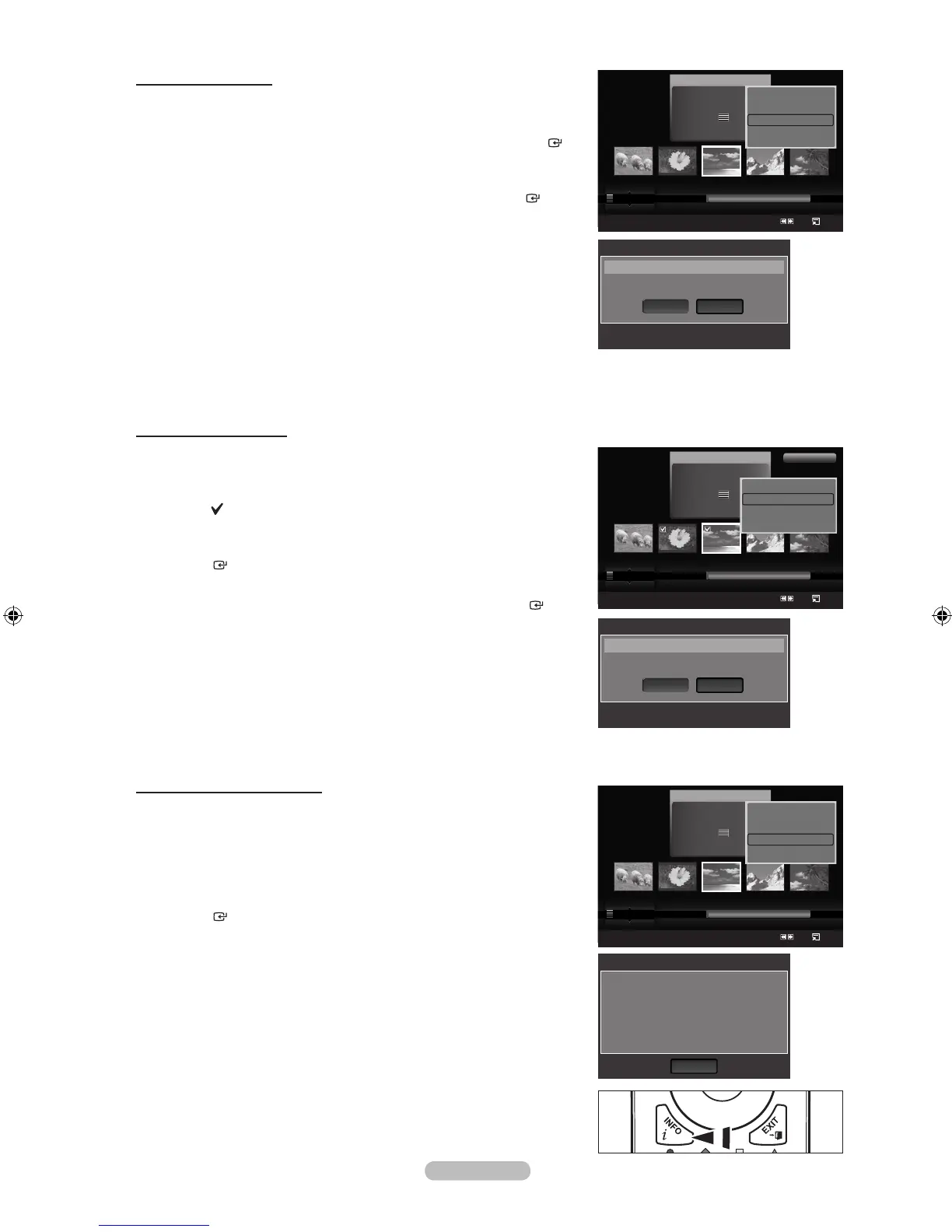
1. Press the ◄ or ► button to select the desired photo in the Photo list.
2. Press the TOOLS button.
3. Press the ▲ or ▼ button to select “Delete”, then press the ENTER
button.
The “Delete this le?” message appear.
4. Press the ◄ or ►button to select “OK”, then press the ENTER
button.
The photo is deleted.
When a read-only le is deleted, the “Read-only le(s). Delete the
le(s)?” message appear.
If you select “Cancel”, the deletion is cancelled.
5. To exit “WISELINK” mode, press the W.LINK button on the remote
control.
You cannot remove the PTP-connected digital camera picture les.
While removing les, don’t remove the USB memory device.
You cannot recover a deleted photo le.
Deleting Multiple Photos
1. Press the ◄ or ► button to select the desired photo in the Photo list.
Then press the yellow button.
Repeat the above operation to select multiple photos.
The mark appears to the left of the selected photo.
2. Press the TOOLS button.
3. Press the ▲ or ▼ button to select “Delete selected File”, then press the
ENTER button.
The “Delete the selected les?” message appear.
4. Press the ◄ or ► button to select “OK”, then press the ENTER
button.
The selected photos are deleted.
If you select “Cancel”, the deletion is cancelled.
5. To exit “WISELINK” mode, press the W.LINK button on the remote
control.
You cannot remove the read-only les from the selected ones.
You cannot recover a deleted photo le.
Viewing the Photo Information
The photo le information including the order of the le in the current
directory, the name, the size, the resolution, the date modied and the path is
displayed.
1. Press the ◄ or ► button to select the desired photo in the Photo list.
2. Press the TOOLS button.
3. Press the ▲ or ▼ button to select “Information”, then press the
ENTER button.
The information on the selected photo appears.
Press the INFO button to viewing the information.
➣
➣
➣
➣
➣
➣
➣
➣
➣
➣
➣
➣
➣
➣
➣
O




 To Next Page