English _45
● SETUP SCREEN
EVENT SETUP
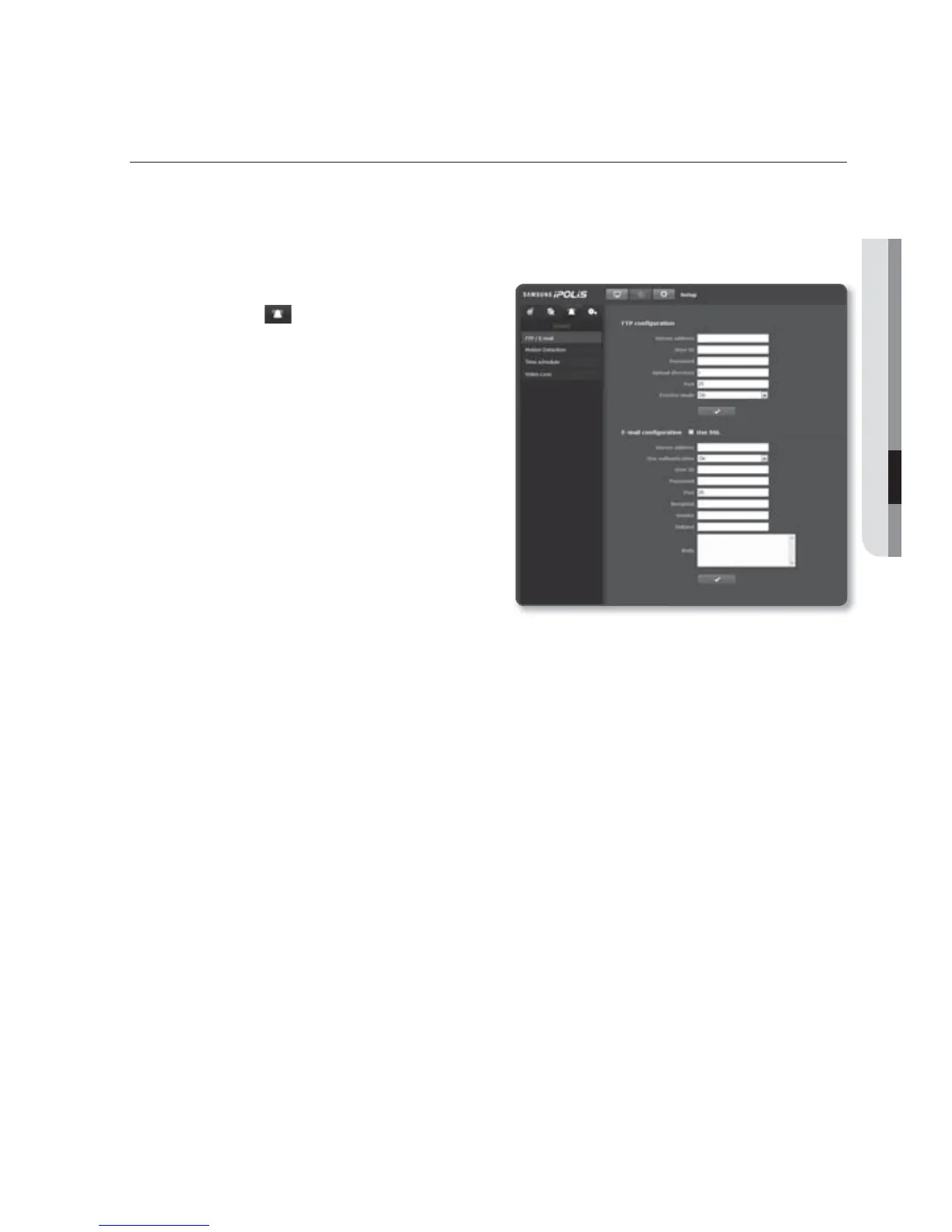
FTP / E-mail
You can configure the FTP / E-mail server settings so that you can transfer the images
stored in the
network video encoder to your PC if an event occurs.
1. From the Setup menu, select the
<Event (
)> tab.
2. Click <FTP / E-mail>.
3. Select <FTP configuration> or
<E-mail configuration> and enter /
select a desired value.
FTP configuration
- Server address : Enter the IP
address of the FTP server that you
transfer the alarm images to.
- User ID : Enter the user ID with
which you will log in to the FTP
server.
- Password : Enter the user account
password for logging into the FTP server.
- Upload directory : Specify the FTP path where you will transfer the alarm
images.
- Port : The default port of the FTP server is 21; however, you can use a different
port number according to the FTP server settings.
- Passive mode : Select <On> if you need to connect in passive mode due to the
firewall or the FTP server settings.
E-mail configuration
- Use SSL : Check this option if you use an email server using SSL.
ex) Google
- Server address : Enter the IP address of the email server that you use for the
email transfer.
- Use authentication : Select whether to use authorization.
- User ID : Enter the user ID for logging into the email server.
- Password : Enter the user account password for logging into the email server.
- Port : The default port of the email server is 25; however, you can use a different
port number according to the email server settings.
- Recipient : Enter the address of the email recipient.



 To Next Page