SettingUpAnynet+
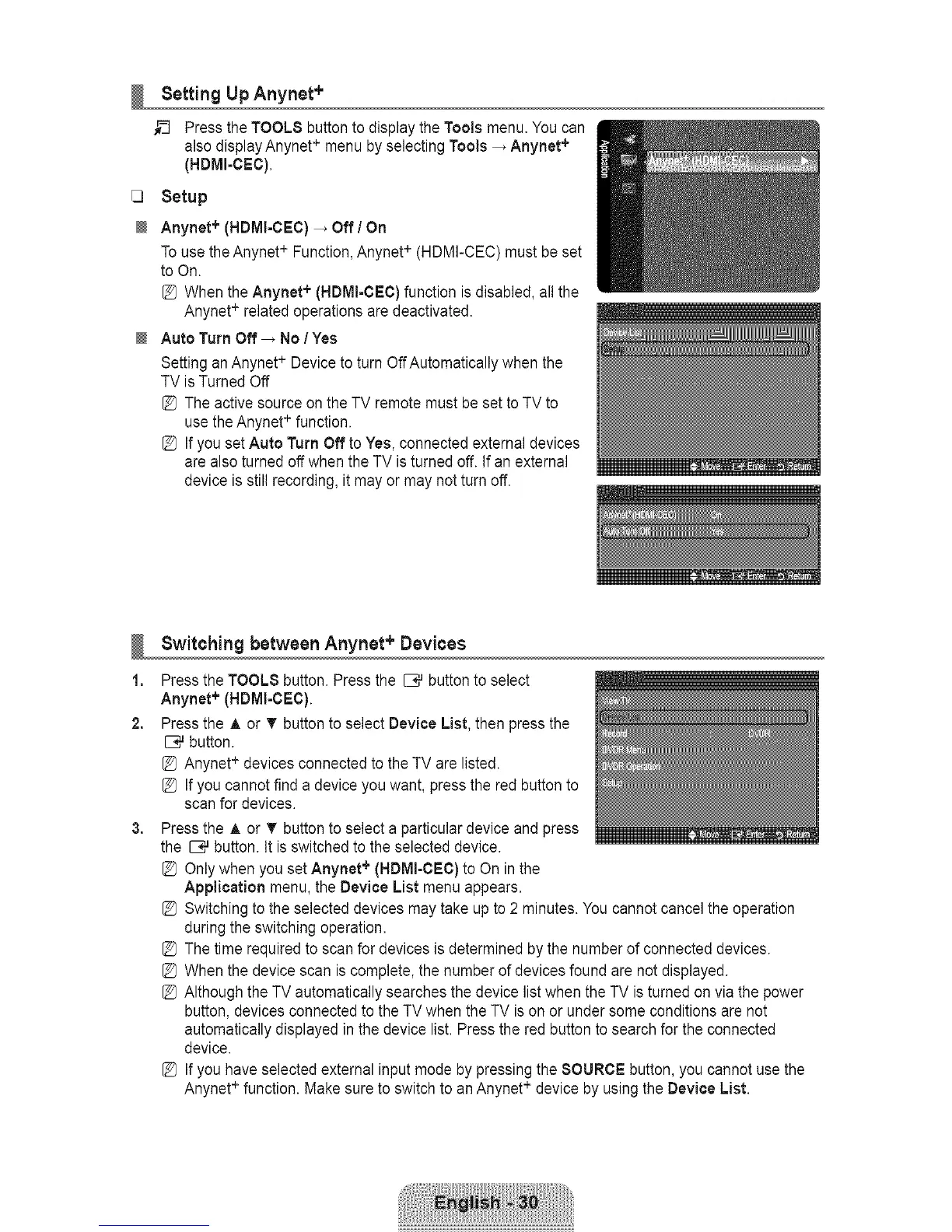
__ Press the TOOLS button to display the Tools menu. You can
also display Anynet+ menu by selecting Tools _ Anynet +
(HDMI-CEC).
[3 Setup
0 Anynet + (HDOI-CEC) -, Off/On
To use the Anynet + Function, Anynet + (HDMI-CEC) must be set
to On.
[_ When the Anynet + (HDMI-DED) function is disabled, all the
Anynet+ related operations are deactivated.
O Auto Turn Off _ No / Yes
Setting an Anynet + Device to turn OffAutomatically when the
TV is Turned Off
[_ The active source on the TV remote must be set to TV to
use the Anynet +function.
[_ If you set Auto Turn Off to Yes, connected external devices
are also turned off when the TV is turned off. If an external
device is still recording, it may or may not turn off.
1,
2,
3,
Switching between Anynet + Devices
Press the TOOL8 button. Press the _ button to select
Anynet + (HDMI-CEC).
Press the A or T button to select Device List, then press the
_ button.
[_ Anynet+ devices connected to the TV are listed.
[_ If you cannot find a device you want, press the red button to
scan for devices.
Press the A or _ button to select a particular device and press
the _# button. It isswitched to the selected device.
[_ Only when you set Anynet + (HDOI-CEC) to On in the
Application menu, the Device List menu appears.
[_ Switching to the selected devices may take up to 2 minutes. You cannot cancel the operation
during the switching operation.
[_ The time required to scan for devices is determined by the number of connected devices.
[_ When the device scan is complete, the number of devices found are not displayed.
[_ Although the TV automatically searches the device list when the TV is turned on via the power
button, devices connected to the TV when the TV is on or under some conditions are not
automatically displayed in the device list. Press the red button to search for the connected
device.
[_ If you have selected external input mode by pressing the SOURCE button, you cannot use the
Anynet+ function. Make sure to switch to an Anynet + device by using the Device List.









 To Next Page