12
HOME SCREEN
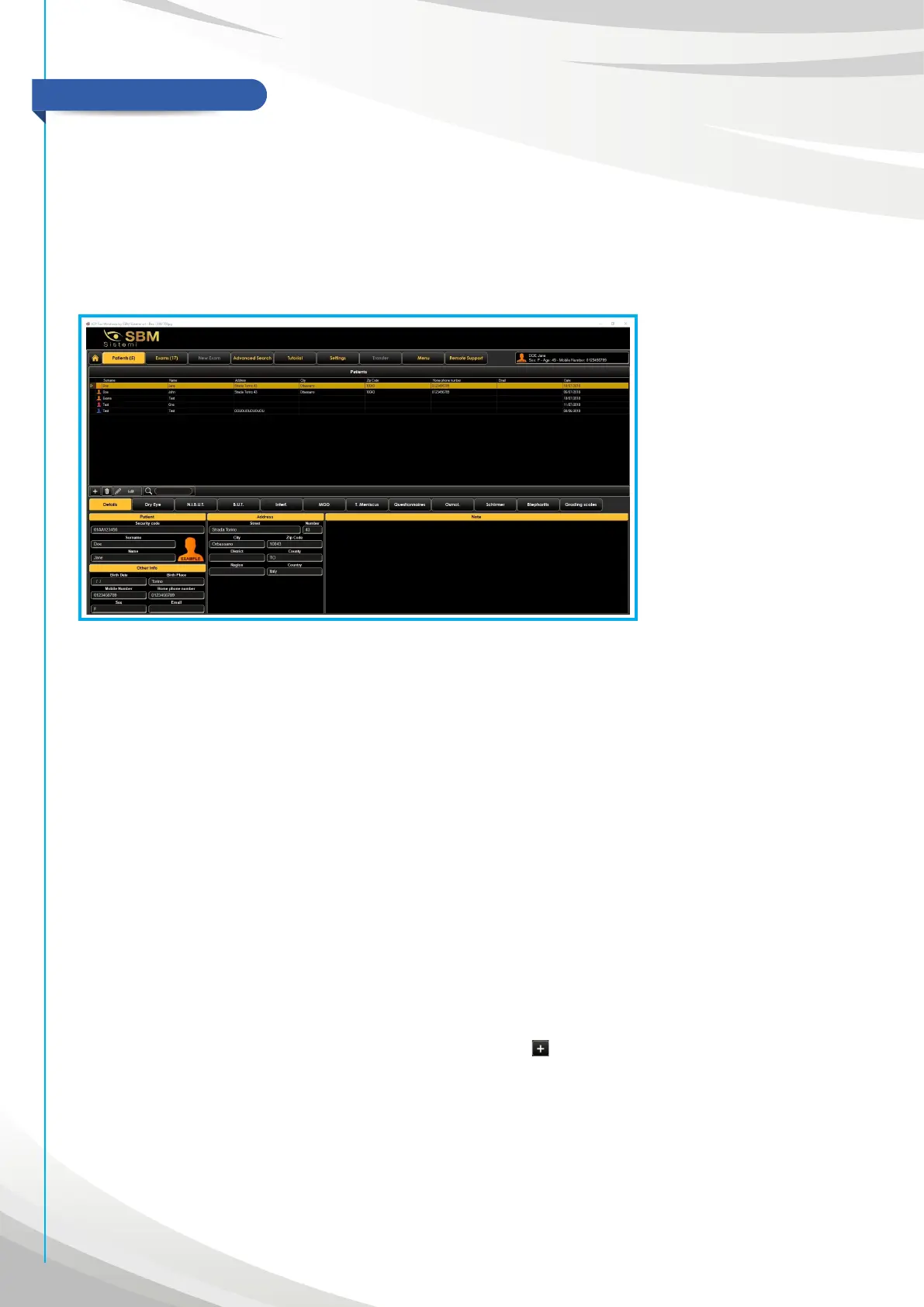
The “Home” screen give you access to the main features of the application, allowing full management
of patient and his/her condition (Fig. 5).
Tapping this button will appear the main initial screen divided as follows:
• On the top you have the patients list with their information,
• On the bottom you have the details of the selected patient and the summary of all the exams done.
Fig. 5
On the bottom it is possible to look at general and specific information of the selected patient.
A) It provides to consult the patient’s condition based on the exams done.
B) It allows you to watch the summary of the values saved after having done the exams with the IDRA
(“Dry Eye”).
C) It allows you to watch single values related to each type of examination (N.I.B.U.T., B.U.T., Interferometry,
MGD, Tear Meniscus)
D) You can also access to the voices O.S.D.I, Osmolarity and LipCof, in which it is possible to add values
related to these examinations done with the appropriate external devices.
E) Moreover, the section “Pupillometry” let you know which the values of pupillometry are in scotopic,
mesopic and photopic vision done with the IDRA
Warning: by pressing any “delete” button will lost your data in a permanent and no more recoverable way.
Warning: whenever appear a warning message on the screen of the device, read everything carefully
before losing it.
Create a new patient
The first operation that the ICP software allows to perform, immediately after installation, is to create a new
patient using the “Add patient” button located at the down left .
Pressing this button, you will see a section for entering patient information. Will also appear the space for
any notes.
“Exams” tab connects to the screen with all examinations carried out and related to the selected patient.
If the patient has just been added, the two screens (left and right) will be empty.
If the patient already has exams done, on the left there is a list of the various types of exams with a number
in brackets, which indicates the number of acquisitions in the sub-category. Pressing on one of these items,
on the right the binocular examination screen opens and at the bottom the preview of all the acquisitions of
the selected category is presented.


 To Next Page