Safely Remove Seagate FireCuda Gaming
Dock From Your Computer
Always eject a storage drive from your computer before physically disconnecting it. Your computer must
perform filing and housekeeping operations on the drive before it is removed. Therefore, if you unplug the
drive without using the operating system’s software, your files can become corrupt or damaged.
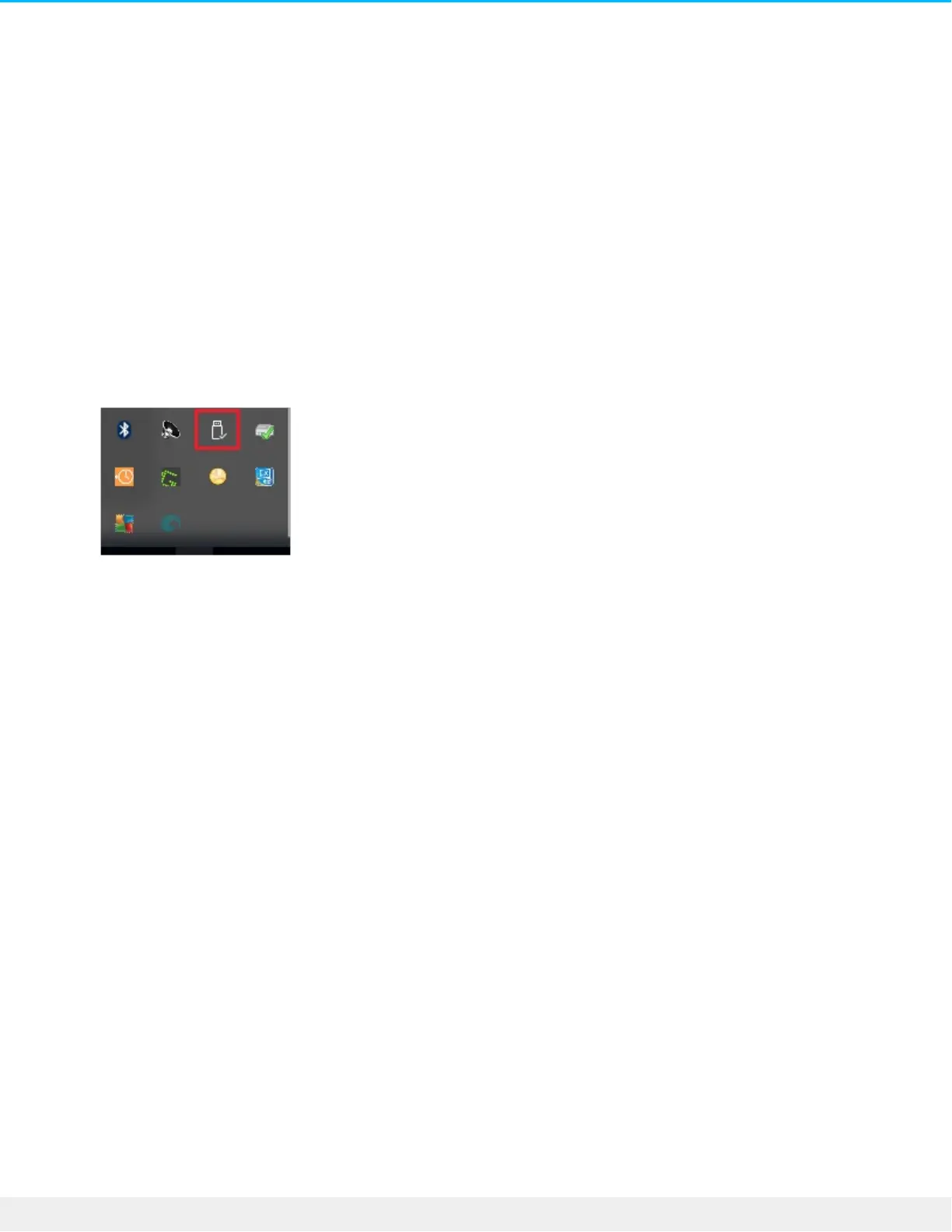
1. Click the Safely Remove icon in your Windows System Tray to view the devices you can eject.
2. If you don’t see the Safely Remove Hardware icon, click the Show hidden icons arrow in the system tray
to display all icons in the notification area.
3. In the list of devices, choose the device you want to eject. Windows displays a notification when it is
safe to remove the device.
4. Disconnect the device from the computer.









 To Next Page