Oponal Formang and Paroning
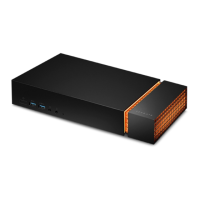
Seagate FireCuda Gaming Dock is preformatted NTFS for optimal performance on Windows.
Manual formang
Use the steps below to manually format and partition a storage device.
1. Make sure the storage device is connected to and mounted on the computer.
2. Go to the Start menu and type diskmgmt.msc in the search bar. In the search results, double-click Create
and format hard disk partitions.
3. From the list of storage devices in the middle of the Disk Management window, locate your LaCie
device.
4. The partition must be available to format. If it is currently formatted, right click on the partition and then
choose Delete.
5. To create a new partition, right click on the volume and select New Simple Volume. Follow the on-screen
instructions when the New Simple Volume Wizard appears.
Formatting erases everything on the storage device. Seagate highly recommends that you back
up all data on your storage device before performing the steps below. Seagate is not
responsible for any data lost due to formatting, partitioning, or using a Seagate storage device.









 To Next Page