Red (steady) Possible causes:
FireCuda Gaming Dock's Peripheral Thunderbolt 3 port is
connected to host computer's USB port
Temperature critical
Fan absent
Off LED has been disabled in Toolkit or the device is powered off.
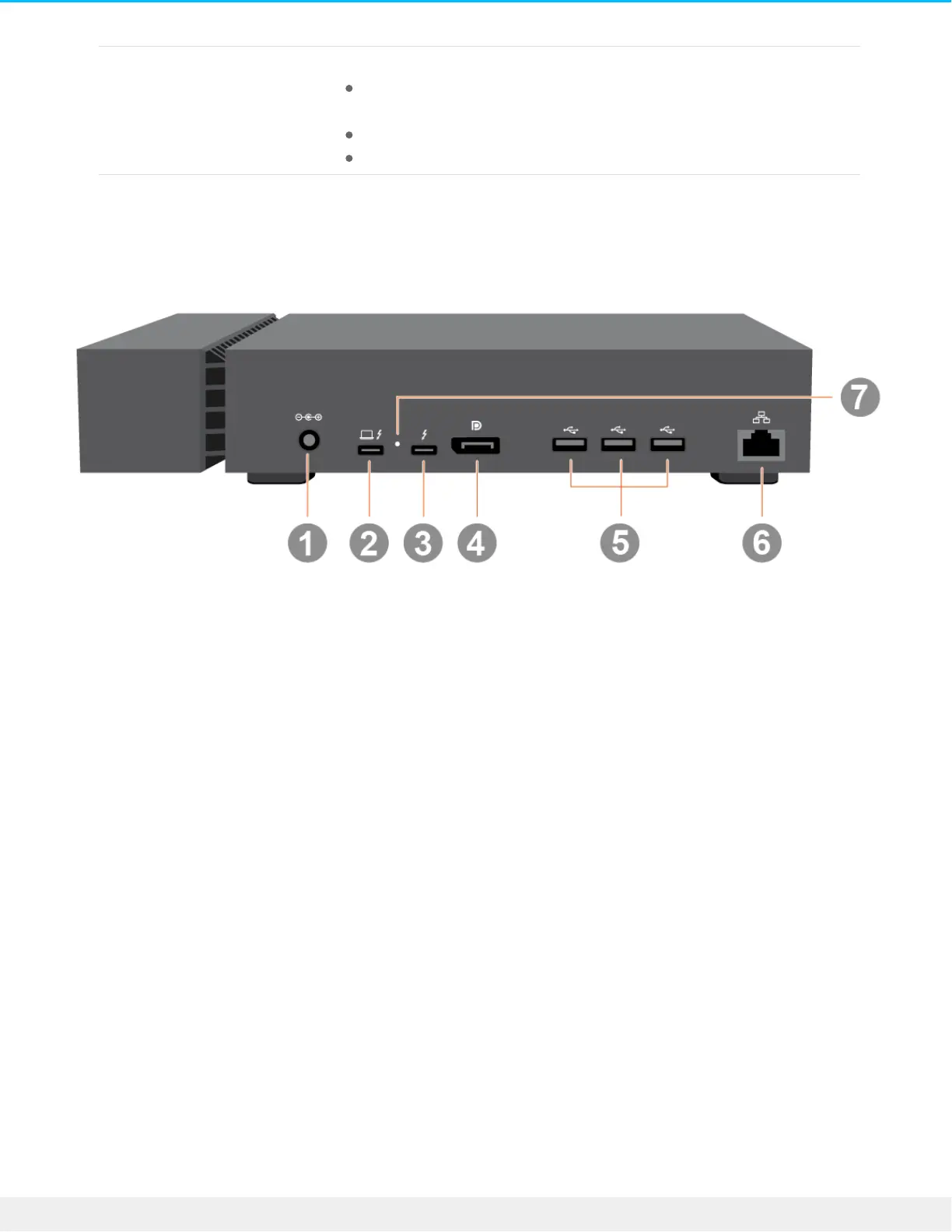
Back view
1. Power input—Use this port to connect the power cable. Only use the power cable included with Seagate
FireCuda Gaming Dock. Attaching third-party or other Seagate power cables with incorrect voltage can
damage the device.
2. Host Thunderbolt 3 port—Thunderbolt 3 port that connects to a Thunderbolt 3 port on the host
computer. Use the provided Thunderbolt 3 cable.
3. Peripheral Thunderbolt 3 port—Thunderbolt 3 port for peripheral devices. Use this port to daisy-chain
multiple Thunderbolt devices or a single non-Thunderbolt USB-C device.
4. DisplayPort 1.4 port—Sends the video signal from your computer to a monitor.
5. USB 3.1 (Gen 2) ports—USB Type A connectors for peripheral devices.
6. Ethernet port—RJ45 ethernet network port. Use this port to connect your computer to your local
network.
7. Firmware update button—From time to time, Seagate may release firmware updates that enhance
FireCuda Gaming Dock. Toolkit may alert you to new available firmware updates. You can also find
firmware updates posted on the product support page. When following the firmware update
instructions, you will be prompted to use a thin, rigid wire (such as the end of a paperclip) to push the
button within the recessed space. Only press this button when following instructions to update the
firmware.









 To Next Page