Seagate Manager User Guide for Use With Your FreeAgent Drive 29
Synchronizing Folders Completing the Sync
password since all encrypted folders are stored in the same folder, called
“Encryption Folder.”
Before you can enable Sync Encryption, you must set up Encryption in the Security window.
If you have not yet set up Encryption, the Sync Encryption option is grayed out in the Sync
Options window.
To set up Encryption and then enable Sync Encryption:
Step 1: Click Cancel in the Sync Options window.
Step 2: Click Security in the Command panel.
Step 3: Click Encryption and follow the steps to set up an encrypted folder.
Step 4: Click Sync in the Command panel.
Step 5: Click Custom Sync and select your Sync folder and file-type settings.
When you reach the Sync Options window, Sync Encryption is no longer grayed
out.
Step 6: Set your Sync Rules and Copy & Replace Rules and select Sync Encryption.
Step 7: Click Finish.
Your synchronized folders will now automatically be encrypted using the same
password you used to set up Encryption.
Note: If you select Sync Encryption, all users must have your encryption password in order to
access synchronized folders on their computers.
Completing the Sync
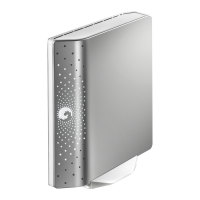
To complete the Sync, you must remove your FreeAgent drive from the computer on which the
original Sync occurred and connect it to another computer on which you want to sync the
selected folders. You can connect the FreeAgent drive to as many computers as you wish to
include in the Sync.
The first time you connect your FreeAgent to a second computer to complete a Sync, you’re
asked where to put the synchronized folders on this computer.
To complete the Sync:
Step 1: Safely remove the FreeAgent drive from your computer.
Step 2: Connect the FreeAgent drive to another computer.
(a) If you’ve synchronized folders other than XP My Documents (or Vista Personal
Folder), the Sync Folders window opens.
(b) If you’ve synchronized your XP My Documents (or Vista Personal Folder), the
Sync “My Documents” (or Sync “Personal Folder”) window opens.
(c) If you’ve synchronized both XP My Documents (or Vista Personal Folder) and
other folders, both windows open.








 To Next Page