Seagate Manager User Guide for Use With Your FreeAgent Drive 7
Managing Your Drives Settings
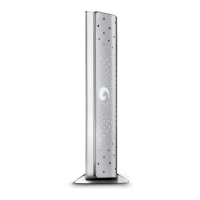
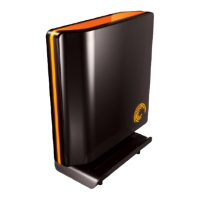
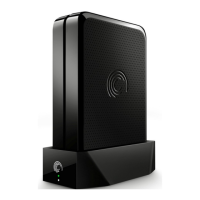
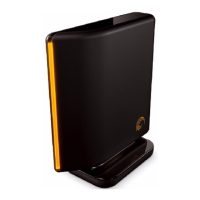
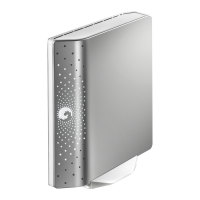
When you use external storage, the middle of the My Drives window displays the connected
FreeAgent drive. If there is more than one drive connected, there will be a list of drives to
choose from. The drive that is currently selected is highlighted in light blue (as shown in Figure
1).
To select a different drive, click the drive icon or partition name.
To access advanced settings for the selected drive, click the Settings button.
For more information, see Settings
To get more information about the selected drive, click the Drive Info button.
For more information, see Drive Info
Any time you need help, you can click the Seagate Manager help icon. If you are not able find
the answer to your question, you can click the Customer Support button to go to Seagate’s
Support website.
Note: External drives are automatically detected and listed in the My Drives window. It can take a
few seconds for the Seagate Manager software to detect your device. If your device
doesn’t appear, make sure it’s properly connected and turned on. All Seagate and Maxtor
external drives are detected.
Settings
The Settings button, located at the bottom of the My Drives window, allows you to access the
following features:
• Adjust Power Settting
• Test My Drive
• Adjust LED Control
• Check for Software Update
Adjusting the Power Setting
You can choose how long your drive should remain inactive before it goes into power-saving
mode.
Power-saving mode conserves energy by telling your FreeAgent drive’s internal storage disk
to stop spinning when it is not in use. Though power-saving mode uses less electricity, it takes
a little more time for your drive to become active again when you want to use it.
If you use your drive a lot, you may want to choose a longer time interval, so that your work is
not interrupted when opening files from or saving files to your FreeAgent.
If you use your drive less frequently, you may want to choose a shorter time interval, so that
your FreeAgent is not consuming more energy than it needs.








 To Next Page