Seagate Manager User Guide for Use With Your FreeAgent Drive 9
Managing Your Drives Drive Info
The Settings window opens.
Step 2: Click Check for Software Update.
The Software Update window opens.
Check for updates automatically is selected by default.
Step 3: To turn off Software Update, deselect Check for updates automatically.
Step 4: To check for updates now, click Check Now.
A Software Update window appears to inform you whether your software is up to
date or not.
If new software is available, you can download it from this window. To find out
more information about the new software, click More Info.
Adjust LED Control
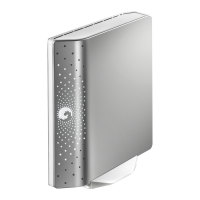
The LED Control feature allows you to control the lights on your FreeAgent drive. Your drive
lights flicker to indicate drive activity and status.
Note: This feature is only available for FreeAgent drives.
Step 1: In the My Drives window, click External Storage.
Step 2: Select the FreeAgent drive you want to adjust and click Settings.
The Settings window opens.
Step 3: Click Adjust LED Control.
The Drive Lights window opens.
Step 4: To turn the drive lights off, click Turn lights off and click Apply.
To turn the drive lights back on, click Display status and activity lights and
click Apply.
The drive lights may automatically turn back on in the following situations:
• If power is turned off and back on for the FreeAgent
• If the FreeAgent is disconnected and reconnected
Drive Info
The Drive Info feature provides the following information about your FreeAgent drive:
• Volume
The name of your FreeAgent drive.
• Capacity
The total capacity of your FreeAgent drive.








 To Next Page