
EasyManua.ls Logo

Setra Systems SRCM - User Manual

Setra Systems SRCM
42 pages
Print Icon
To Next Page IconTo Next Page
Loading...
1
Model SRCM
Operation

Other manuals for Setra Systems SRCM

Questions and Answers

Setra Systems SRCM Specifications

General IconGeneral
Display TypeTFT LCD
Screen Size7 inch
Resolution800 x 480 pixels
Input Voltage24 VDC
Humidity Range10% to 90% non-condensing
Enclosure RatingIP65
Communication InterfaceEthernet
CertificationsCE

Summary

Operation

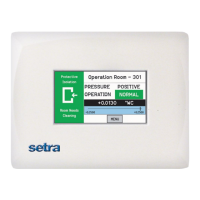
Home Screen

Displays end-user pressure values, messages, and other data for facility verification.

Menu Screen

Administrative screen for setup, configuration, and changes to SRCM operation.

Home Screen Display Modes

Alternate Home Screen

Displays up to 4 parameters per room, including Pressure, Temperature, and Humidity.

Condition Banner Colors

Green Condition Banner

Indicates the room is safe to enter with user-defined text and Entry Permitted graphic.

Red Condition Banner

Indicates critical use and restricted entry with user-defined text and Stop graphic.

Yellow Condition Banner

Indicates transient use and restricted entry with user-defined text and Warning graphic.

Blue Condition Banner

Indicates room is safe to enter with user-defined text and Entry Permitted graphic.

Condition Banner Operation and Functions

Touch Screen Operation

Cycle through banner conditions by touching the screen; password prompt if enabled.

Alarms Cause Condition Banner to Turn Red

Banner turns red and blinks during an alarm state, displaying "ALARM" text.

Condition Banner Functions

Configure banner colors to blink and set actions like Active, Standby, or No Action.

Operating Condition Screen Elements

Room Label

User-defined text at the top of the screen to identify the monitored room.

Pressure Mode

Indicates airflow direction: Positive, Negative, Neutral, or Standby.

Operation Status

Shows Normal, Warning, Door, or Alarm status based on pressure conditions.

Pressure Display Details

Pressure Value

Displays actual pressure reading in inches of Water Column or Pascals.

Slider Bar and Set Point Values

Visualizes current pressure relative to low and high alarm setpoints.

Slider Bar On;Off

Option to disable the slider bar display on the home screen.

Active and Standby Modes

Administrative Menu Structure

Setup Unit

Initial setup and configuration of the SRCM for specific installation parameters.

Setup Display

Customizes screen displays, including Condition Banner messages and language.

Setup Alarm

Configures alarm behavior, including duration, acknowledgment, and room modes.

Calibration and Self-Test

Used for calibrating internal sensors and testing hardware circuitry.

Network Setup

Configures network parameters for reading data from the network.

Event Log

Records changes made to configurations and modes by Supervisor or Operator.

Setup Unit - Room Configuration

Primary Room Sensor

Configures settings for the primary room sensor, including onboard or external options.

Secondary Room Sensor

Configures settings for the secondary room sensor, including external options.

Room Parameters and Inputs

Label

Sets the room name displayed at the top of the home screen for identification.

Primary Analog Output

Configures the analog output signal (e.g., 4-20 mA) for the primary room pressure.

Engineering Unit

Selects the unit of measurement for pressure (e.g., "WC or Pa) on the home screen.

Sensor Range

Sets the full-scale range and parameters for external transducers.

Analog Input Configuration

Sensor Range

Configures full-scale range and input/output parameters for analog transducers.

Changing Room Name

Setup Display - General Tab

Customizing the Condition Banner

Defines messages for each Condition Banner color and enables user-defined text.

Setup Display - Advanced Tab

Customizing the Operation Condition Screen

Adjusts contrast level, display averaging, and pressure display settings.

Display Averaging

Improves display stability by averaging measured data points over a set time.

What Pressure To Display

Selects which room's pressure (Primary, Secondary, or Toggle) is shown on the home screen.

Pressure Resolution and Passwords

Pressure Resolution

Sets the number of digits displayed after the decimal point for pressure readings.

Supervisor and Operator Passwords

Enables password protection for configuration changes and mode selections.

Setup Display - Condition Banner Tab

Customizing Blinking Screens

Configures blinking behavior for Condition Banner elements and OPERATION indicators.

Full Screen Display Options

Full Screen Condition Banner and Active Standby Mode Application

Configures full-screen banners and mode applications for a minimal user interface.

Set Time & Date Screen

Setup Alarm

Latch Alarm

Keeps the red ALARM display active even if pressure returns to normal until acknowledged.

Alarm Delay

Sets a delay before an alarm is triggered to prevent false alarms.

Setup Alarm Parameters

Audible Alarm

Enables or disables the audible buzzer for alarms.

Mute Time Out

Sets the duration the audible alarm remains silent after pressing the SILENCE button.

Digital Input (DI)

Used for monitoring door status, triggering a DOOR warning if the door opens.

Deadband

Defines the pressure range for WARNING indicators before an ALARM is triggered.

Buzzer Volume

Adjusts the volume of the alarm buzzer from one to four.

Door Open Alarm Configuration

Alarms Disabled when Door Open

Disables alarms when the door is open, re-enabling them when closed.

Alarm Set Point and Matrix

Alarm Set Point

Defines alarm and warning setpoints for Positive, Neutral, or Negative room conditions.

Alarm Matrix

Outlines display behavior and priority under normal and alarm conditions for rooms.

Calibration and Self-Test

Zero Adjust

Resets the zero measurement of the pressure sensor if within 10% of factory zero.

Span Adjust

Adjusts sensor calibration using a pressure calibrator to match full-range pressure.

Restore Factory User Zero and User Span

Restores factory zero and span settings if the unit has been miscalibrated.

Test

Tests buzzer, relay, and internal memory checksum for hardware verification.

System Information

Technical Support

Field to enter contact information for technical support or service.

Restore Factory Default

Resets all configuration and setup screens to factory defaults.

USB Configuration Cloning

Updating Firmware

Network Setup

Event Log

French Language Support

French Data Entry Screen

Troubleshooting Guide

Returning Products for Repair

Warranty and Limitation of Liability