74
SmartMedia Card
Features
Card Recording
It is possible to take a still picture in the same
way as you do with a standard camera and
record that image on the SmartMedia card
(commercially available).
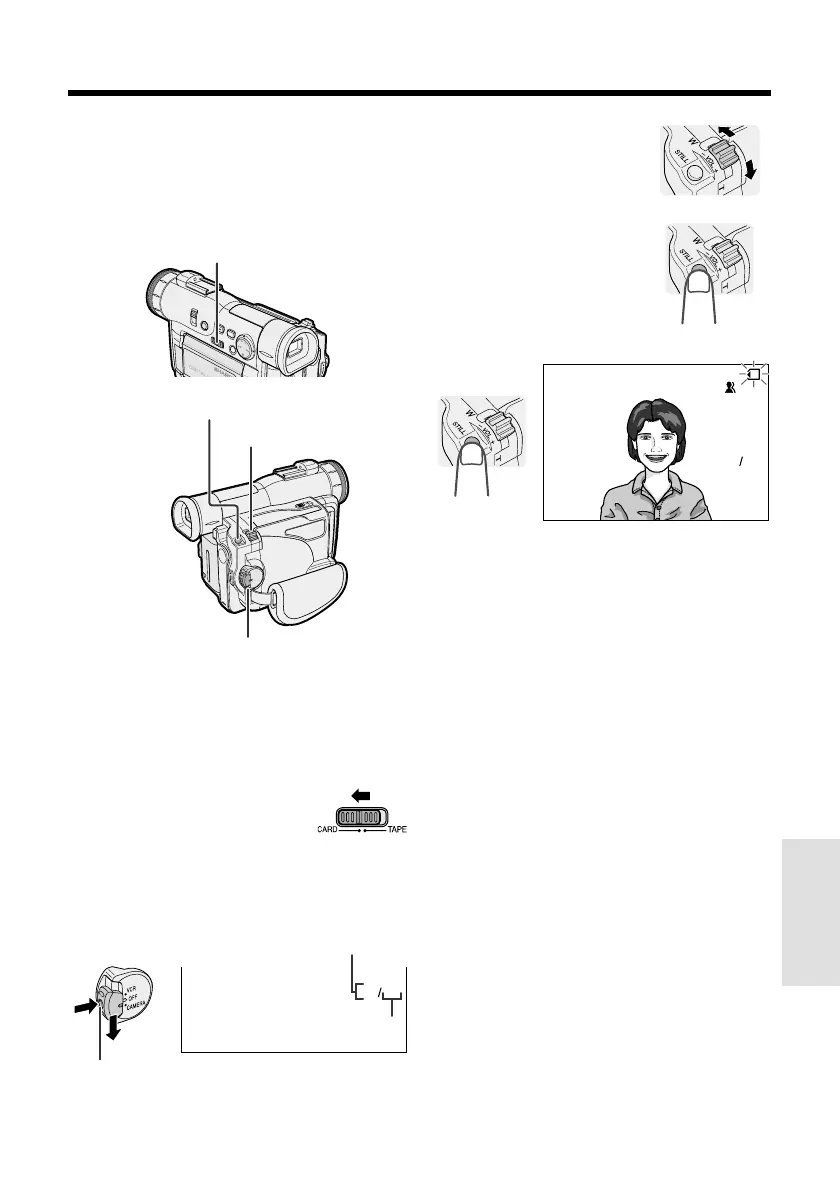
1 Insert a SmartMedia card into the
camcorder.
2 Remove the lens cap, and lift up the
viewfinder.
3 Set the Media Selection
switch to CARD.
4 Hold down the Lock button and set the
Power switch to CAMERA.
• The picture from the lens is now
displayed in the viewfinder.
6 Adjust the Power Zoom
control to frame the
subject as you desire.
0901
Media Selection switch
7 Press the STILL button to
begin recording.
• The S indicator flashes
red while data is being
recorded on the
SmartMedia card, and
returns to white when recording completes.
Notes:
• Recording under insufficient lighting may result
in blurred images. It is recommended that you
use a tripod to record insufficiently illuminated
subjects.
• Recording under the light of a fluorescent,
mercury, or sodium lamp may cause flickering in
the image and, depending on the timing of the
shot, may result in changes to color hue in the
image.
Caution:
• Do not turn the power off while the S indicator
is flashing in step 6.
AUTO
CARD
9001
Power Zoom control
STILL button
Power switch
Lock button
Number of shots taken
Number of shots remaining
5 Perform steps in “Selecting a still
recording effect” to select the desired
still recording effect (see page 40).



 To Next Page