80
SmartMedia Card
Features
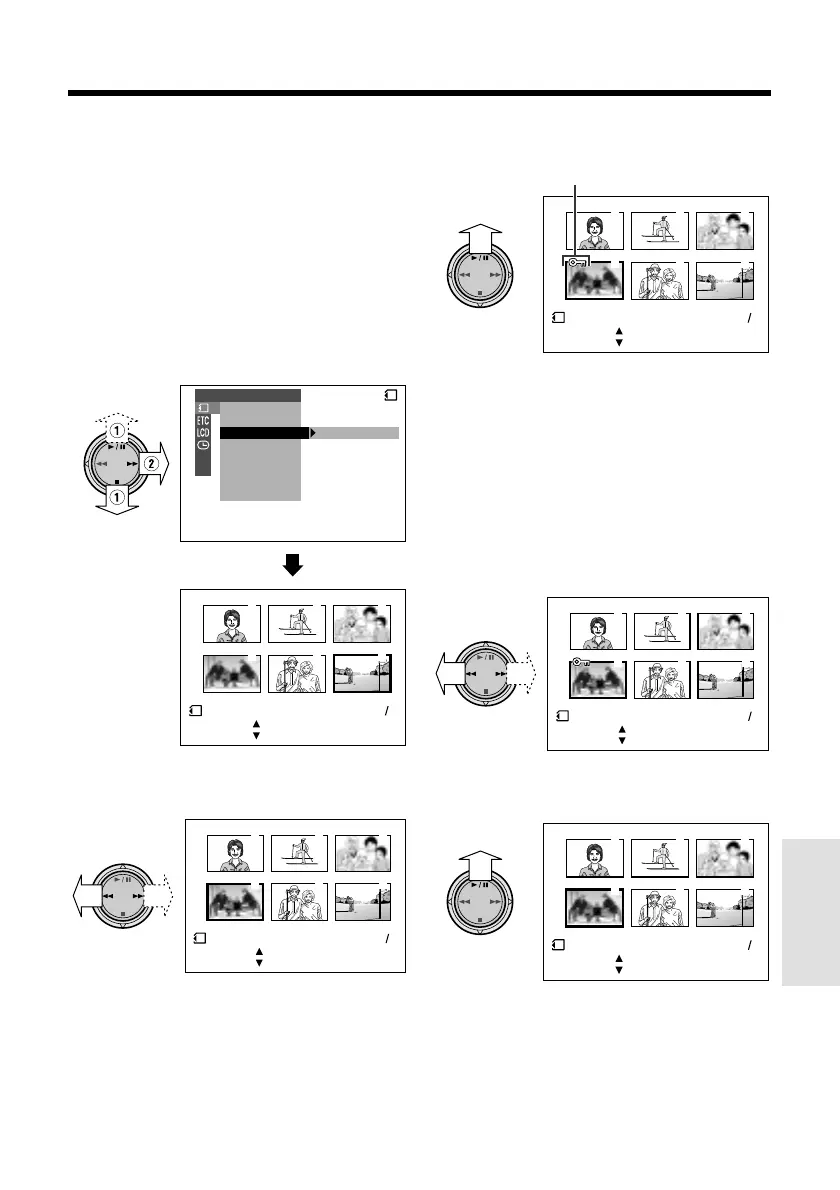
Delete-protection indicator
Delete-protection
It is possible to prevent your important images
recorded on the SmartMedia card from being
accidentally erased.
1 In CARD-VCR mode, press the MENU/
DISPLAY button until the menu screen
appears.
2 Select S, then press r on the
Operation button. Select “PROTECT”
(1), then press r (2).
3 Press the e or r to select the image
to be protected.
3
6
2
5
1
4
PROTECT
SL IDE SHO
W
EFFECTPIC.
DELETE
PROTECT
PRI. ORDER
DELETE ALL
PLAYBACK SET
100 0006-
CANCEL
SET
[ BUT TON]
[ BUT TON]
END
SET
[ BUTTON]
[ BUTTON]
NORMAL
21
CARD
3
6
2
5
1
4
PROTECT
100 0004-
SET
[ BUTTON]
[ BUTTON]
END
SET
[ BUTTON]
[ BUTTON]
NORMAL
21
4 Press y to set the protection.
• The R indicator appears.
• If you want to protect another image,
repeat steps 3 and 4.
3
6
2
5
1
4
PROTECT
100 0004-
CAN
CEL
SET
[ BU
TTON]
[ BU
TTON]
END
SET
[ BUTTON]
[ BUTTON]
NORMAL
21
5 Press d, then press the MENU/
DISPLAY button to turn off the menu
screen.
To cancel the protection setting
1 Select the image for which the protec-
tion setting is to be canceled in step 3
above.
3
6
2
5
1
4
PROTECT
100 0004-
CANCEL
SET
[ BUTTON]
[ BUTTON]
END
SET
[ BUTTON]
[ BUTTON]
NORMAL
21
2 Press y to cancel the protection.
• The R indicator disappears.
3
6
2
5
1
4
PROTECT
100 0004-
CANCEL
SET
[ BUT TON]
[ BUT TON]
END
SET
[ BUTTON]
[ BUTTON]
NORMAL
21
3 Press d, then press the MENU/
DISPLAY button to turn off the menu
screen.
Note:
• Formatting a SmartMedia card deletes all
images on it, including the ones with the delete-
protection setting.






 To Next Page