White paper
i
FULL
AUTO
:
w
-_
3
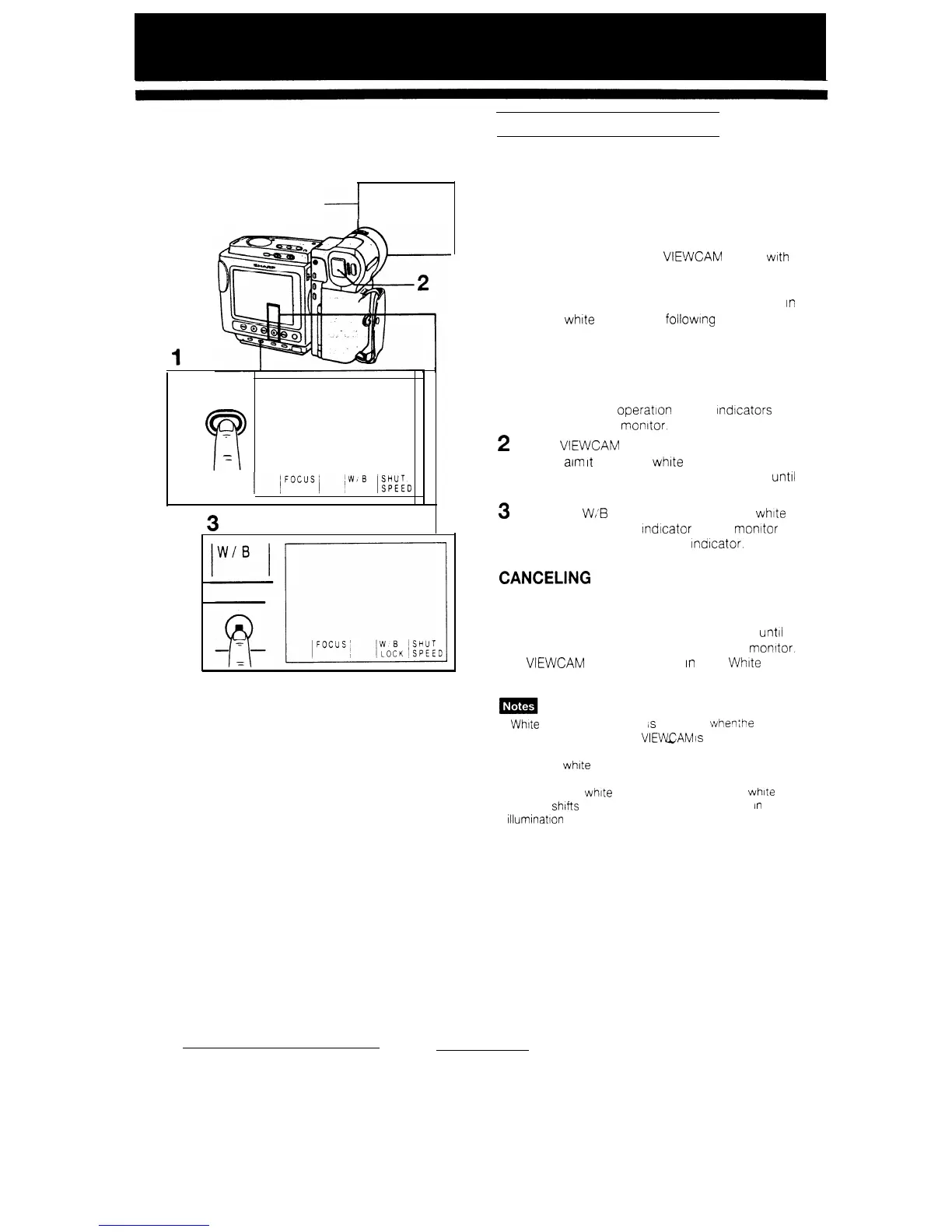
WHITE BALANCE LOCK
White balance ensures that colours are correctly
reproduced. In the Full Auto mode, white balance is
constantly adjusted automatically.
USING THE WHITE BALANCE
LOCK MODE
Colours may shift when the VIEWCAM IS filled with a
scene that has just one colour, e.g., if you take a
close-up of a solid orange sheet of paper. To
prevent colour shifts with that kind of scene, lock
in
the correct white balance by followlng the pro-
cedure below.
1
Press and hold the FULL AUTO button for
more than 2 seconds to cancel Full Auto
mode. The “FULL AUTO” Indicator disappears.
and the manual operatton control
lndcators
are
displayed on the monitor.
2
Set the VIEWCAM to Recording Standby
mode,
aim
It
at a solid
white
subject such as a
piece of white paper or cloth, and zoom in
until
it fills the field of view.
3
Press the
W,‘B
LOCK button to lock the white
balance. The “W/B”
indcator
on the monitor
changes to the “W/B LOCK” Indicator.
CANCELING
THE WHITE BALANCE
LOCK MODE
Press the W/B LOCK button, or hold down the
FULL AUTO button for more than 2 seconds
until
the “FULL AUTO” Indicator appears on the monitor.
The VIEWCAM is now engaged
In
Auto White
Balance mode.
l
White
Balance Lock mode
ls
cancelled
wher?
3e
power
IS turned off, or when the
VIEWAM
1s
set to Playback
mode.
l Reset the white balance lock when the light source has
changed.
l Even after the whtte balance has been locked, white
balance shifts may occur due to slight changes
in
illumination or depending on the subject.
37


 To Next Page