FADE IN
I
FADE OUT
FADE IN
MACRO SHOTS
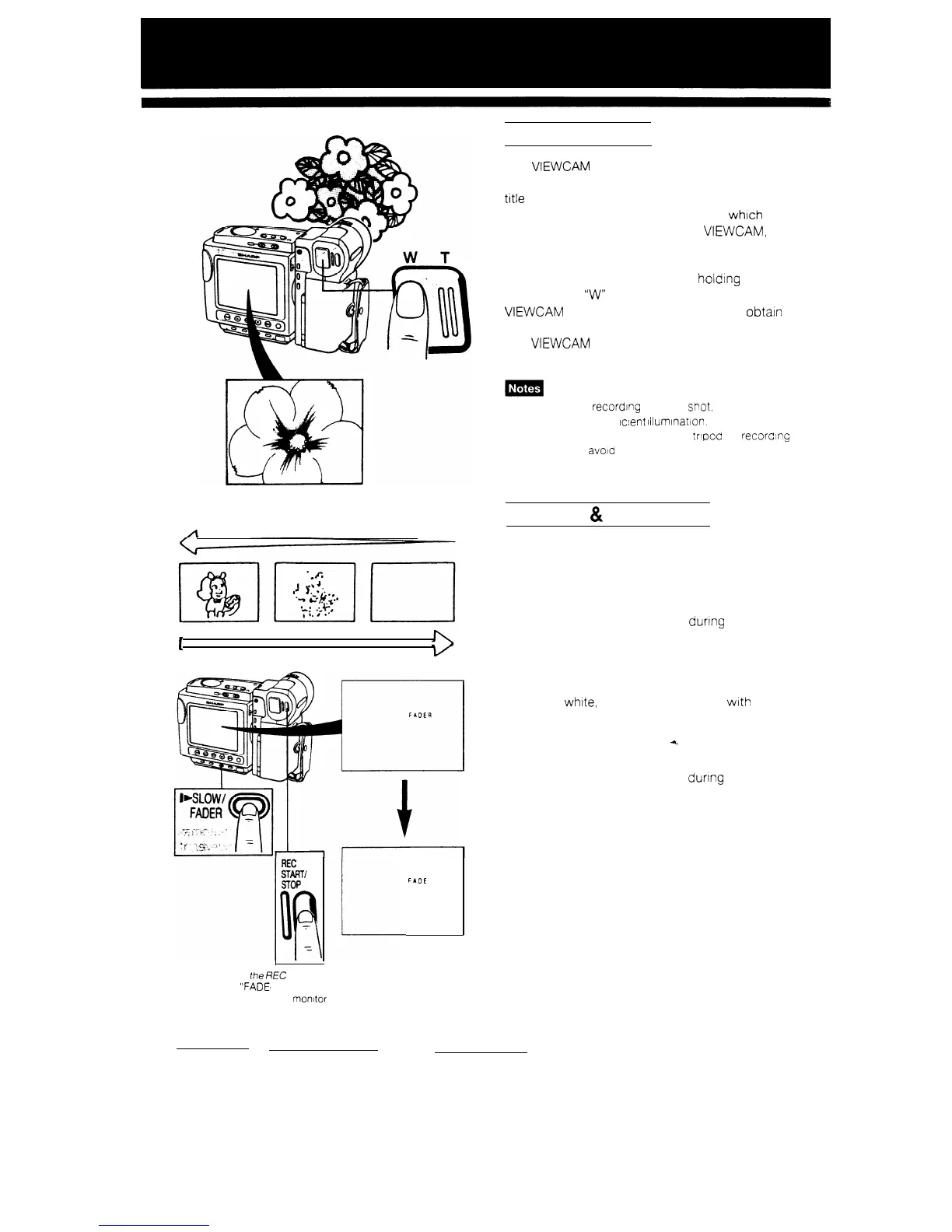
This VIEWCAM lets you shoot closeup images Of
small objects such as flowers and insects, or make
title frames for your videos. When you want to
record a magnified image of a subject whrch is
within approximately 1.5 m of the VIEWCAM, do not
zoom in on the subject.
Instead, zoom out all the way by holdtng down the
Power Zoom
“W”
button, and then move the
VIEWCAM closer to the subject until you obtain the
desired image on the monitor.
The VIEWCAM will automatically focus on the
subject when the lens is set for the widest angle.
l When you are recordlcg a macro spot. see that the
subject receives suff lclent lllumlnation.
l It IS recommended that you use a tripod for recorcing a
macro shot to avold camera shakes
FADE IN
&
FADE OUT
Press the FADER button to smoothly fade in or
fade out a scene.
FADE IN
If the FADER button IS pressed dunng the Record-
ing Pause mode, “FADER” IS displayed on the
monitor and Fade In Standby mode IS engaged.
When the REC START/STOP button IS pressed,
“FADE IN” IS displayed, the monitor screen
becomes whtte, and recording begins
with
a fade
in of the audio and the visual Image.
i
FADE OUT
If the FADER button IS pressed dunng recording,
“FADER” is displayed on the monitor and Fade Out
Standby mode is engaged. When the REC START
STOP button is pressed,
“FADE OUT” is displayed,
and recording finishes with a fade out of both the
audio and the visual image.
Press
the
REC
START/STOP button,
and
“FADE,
IN” or “FADE OUT”
appears on the monitor
3s


 To Next Page