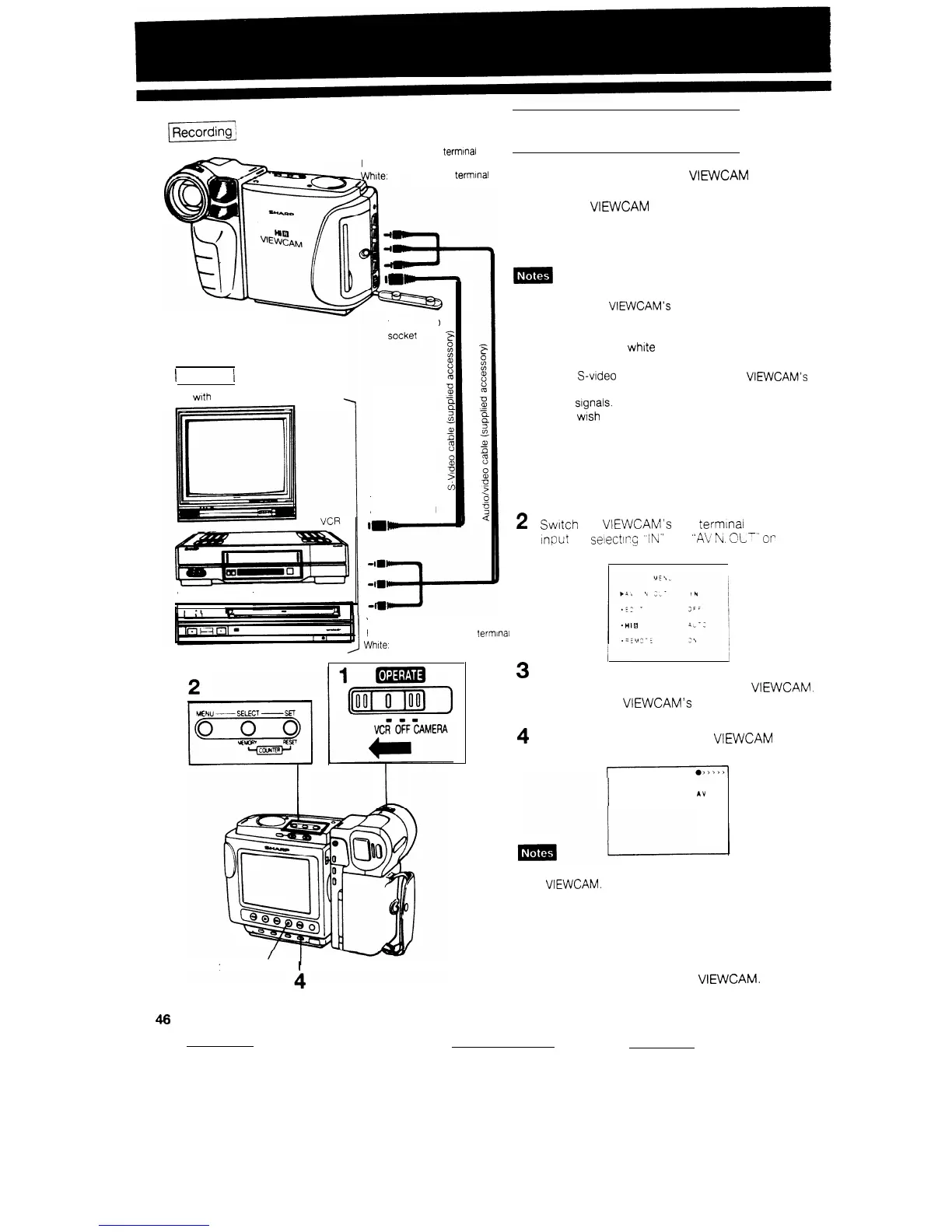
Yellow: To VIDEO
termtnal
Red: To AUDIO (R)
terminal
White:
To AUDIO (L)
terminal
1
Playback
1
TV with monitor output
To S-VIDEO
To S-VIDEO
output terminal
Video disc player
*I
R3
Yellow: To VIDEO OUT terminal
Red: To AUDIO OUT (R)
terminal
White:
To AUDIO OUT (L) terminal
RECORDING FROM
AN EXTERNAL SOURCE
YOU can record or edit on this VIEWCAM from other
sources such as a VCR, TV, or video disc player.
Connect the
VIEWCAM
to the source equipment
with the supplied audio/video cable as shown to the
left.
l If the source equipment has an S-video output terminal,
connect it to the VIEWCAM’s S-VIDEO socket with the
supplied S-video cable.
l If the source equipment has only one audio output
terminal, connect the white plug to that terminal, and
leave the red one unplugged.
l While the
S-video
cable is plugged
into the
VIEWCAM’s
S-VIDEO socket, the VIDEO terminal does not accept
recording signals. (Audio signals can be recorded.)
When you wish to record through the VIDEO terminal,
be sure to leave the S-VIDEO socket unplugged.
TO RECORD FROM AN EXTERNAL
SOURCE
1
2
Set the OPERATE switch to VCR.
Switch
the VIEWCAM’s A/V terminal mode to
input
by
seiectlrs
“IN*’
for
“AV
h,
CL-”
or
the menu display.
3
4
Start sending audio/video signals from the
source equipment connected to the VIEWCAM.
Check on the
VIEWCAM’s
monitor to see if the
picture
is
properly received.
Press the REC button-on the
VIEWCAM
to start
recording.
AV IN
l To pause recording, press the PAUSE/STILL button on
the
VIEWCAM.
Press the PAUSE/STILL button again to
resume recording.
l The AV terminal mode (“AV IN/OUT” on the menu
display) should normally be set to output (“OUT”).
TO STOP RECORDING
STOP button
1
Press the STOP button on the
VIEWCAM.
46


 To Next Page