[Playback
1
EDITING
Set the OPERATE switch to VCR.
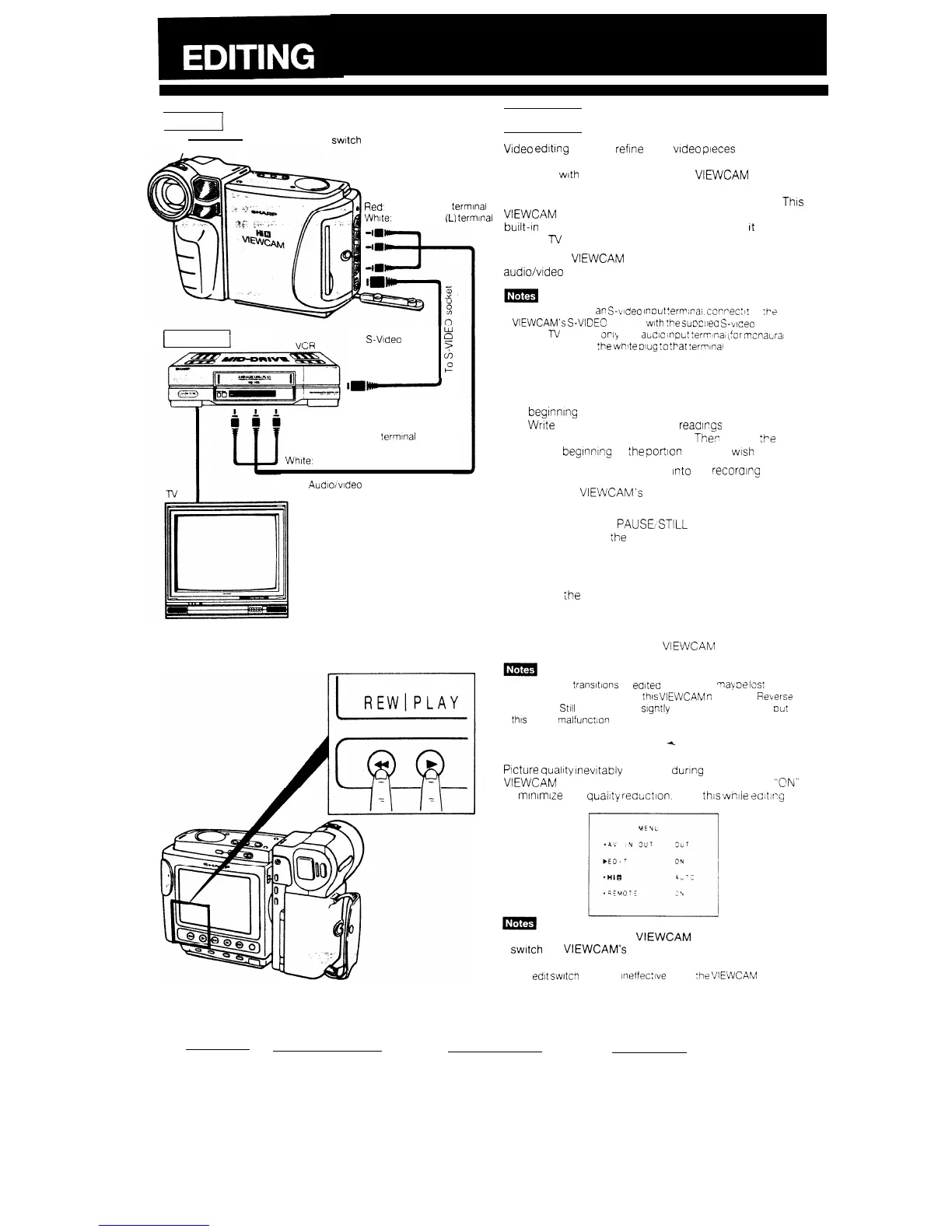
Yellow. To VIDEO terminal
Red.
To AUDIO (R) terminal
White:
To AUDIO
(L)
terminal
w
S-Vtdeo cable
(supplied
e
iY
accessory)
z
m”’
To S-VIDEO
1
Recording
1
input terminal
Yellow, To VIDEO IN termtnal
Red: To AUDIO IN (R) terminal
White:
To AUDIO IN (L) terminal
Audloivldeo
cable
(supplied accessory)
Video edttlng lets you refine your video pieces by removing
unwanted sequences from your tape, or transposing one
sequence with another. Connect the
VIEWCAM
to your
home VCR, and use the former as the source (playback)
equipment and the latter as the recording equipment.
This
VIEWCAM
lets you monitor the source program on the
built-in LCD monitor without having to connect
It
to an
external
TV
or video monitor.
Connect the
VIEWCAM
to a VCR with the supplied
audio/video cable as shown to the left.
l If your VCR has
ap
S-Lldeo Inout !errr;na:.
ccrrec:
I:
to :he
VIEWCAM’s
S-VIDEC
socket with
the
supcileo S-video cable
l If your
IV
set nas
3r1y
one
aiidlo
,npLt
terrrlnai ,ior
mcnaLra1
source), connect :he white olug :o
?t7ar
!errrinai
CUTTING UNWANTED SEQUENCES
1
2
3
4
5
Play back the ?ape to be edited, and locate the
beginning and end of the sequence you wish to cut.
Write down the tape counter reaclngs at the begin-
ning and end of that sequence.
The?
rewind :he tape
to the beginnIng of the portIon that you
wash
to keep
Load a blank cassette tape
Into
the recoralng VCR.
Press the VIEWCAM’s PLAY button and the VCR’s
REC (record) button at the same time.
Press the VCR’s PAUSE:STlLL button to pause
recording wher :he source tape reaches the begin-
ning of the sequence to be cut.
Press the VCR’s PAUSE/STILL (or PLAY) button to
resume recording when the source ?ape reaches the
end of the sequence to be cut.
TO STOP EDITING
Press the STOP button on the
VIEWCAM
and the VCR
l Some of the
transtions
of
eaitea
sequences
Tay
De
10s:
l The images played back on
this
VIEWCAM
n
Forward,
Revers?
Search or
Still
mode may be sightly disturbed or dimmed.
Dut
this
IS not malfunc!lon
EDIT SWITCH
+
Picture qualtty Inevitably declines during dubbing from the
VIEWCAM
to a VCR. Use ?he menu to set “EDIT” to “CN”
to mlnlmize the quality
reaxtlon.
Use this
whtie
261tlrg
videos.
l When you dub from the VIEWCAM to a VCR, be sure to
switch the VIEWCAM’s A/V terminal mode to output by
selecting “OUT” for “AV IN/OUT” on the menu display.
l The edlt switch remains Ineffec:ive wnen
:he
VIEWCAM
IS
recording
45


 To Next Page